
ContractSafe's Salesforce integration gives you an easy way to get your contracts (and related data!) from Salesforce into your ContractSafe account. It's included in the Maximize plan, and you decide which contracts and data are pushed to ContractSafe and when. This article covers how to set up the integration in Salesforce Classic and how to use it.
Using Salesforce Lightning instead? See the Lightning Salesforce integration article. For all the systems ContractSafe connects with, see ContractSafe integrations.
See the Salesforce integration in action
Below is a video showing our Salesforce integration in action with the Lightning View. You'll see how you can click a button in Salesforce and send certain contracts and related documents to your ContractSafe account.
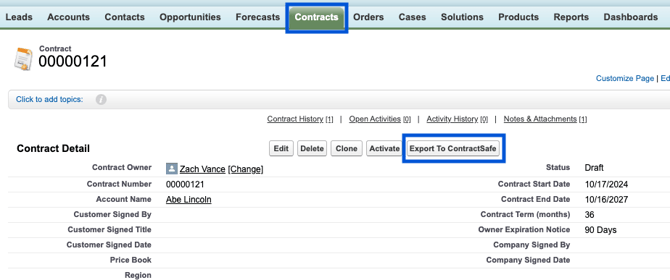
Below is a screenshot of how the Salesforce Integration appears in Salesforce Classic Mode:
How the setup works
Here's a high-level summary before the step-by-step instructions:
- Enter your Salesforce account credentials in ContractSafe and turn on the integration feature.
- Enter your ContractSafe credentials in your Salesforce account to complete the link between the accounts.
- You're now ready to send contracts and data through the integration. Your Salesforce administrator will need to configure your Salesforce account to identify (1) what contracts and data to send to ContractSafe and (2) what will trigger this (manually pressing a button or a rules-based trigger).
- That's it! Once implemented, your team will have an easy way to get all your contracts and data into your ContractSafe account with all your other contracts.
Set up the Salesforce Classic integration step by step
Here are the detailed steps to set up the integration.
Step 1: Get your Salesforce Security Token and login credentials
You'll need your Salesforce account Security Token and login credentials.
Step 2: Turn on the Salesforce integration in ContractSafe
In your ContractSafe account, select Settings and then Security & Integrations.
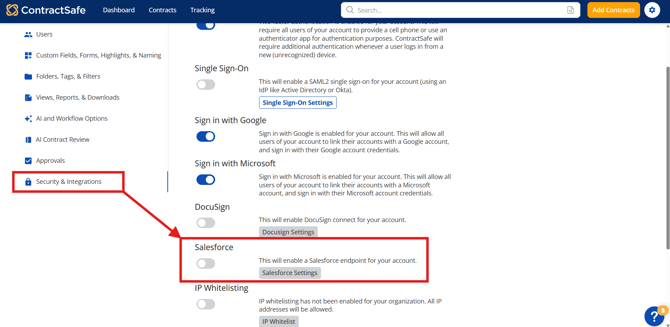
Toggle the Salesforce integration ON, and enter your Salesforce information in the relevant fields.
Note: the Salesforce toggle won't appear on or green until you've filled in the correct information in the small window and pressed the Save button: 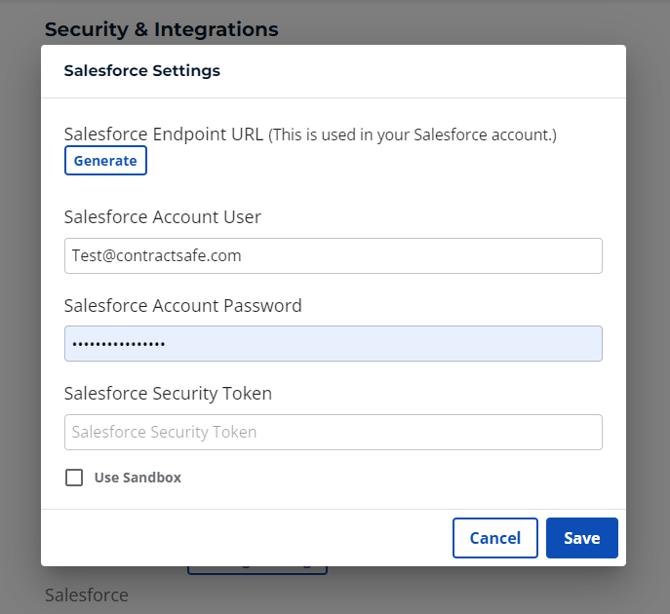
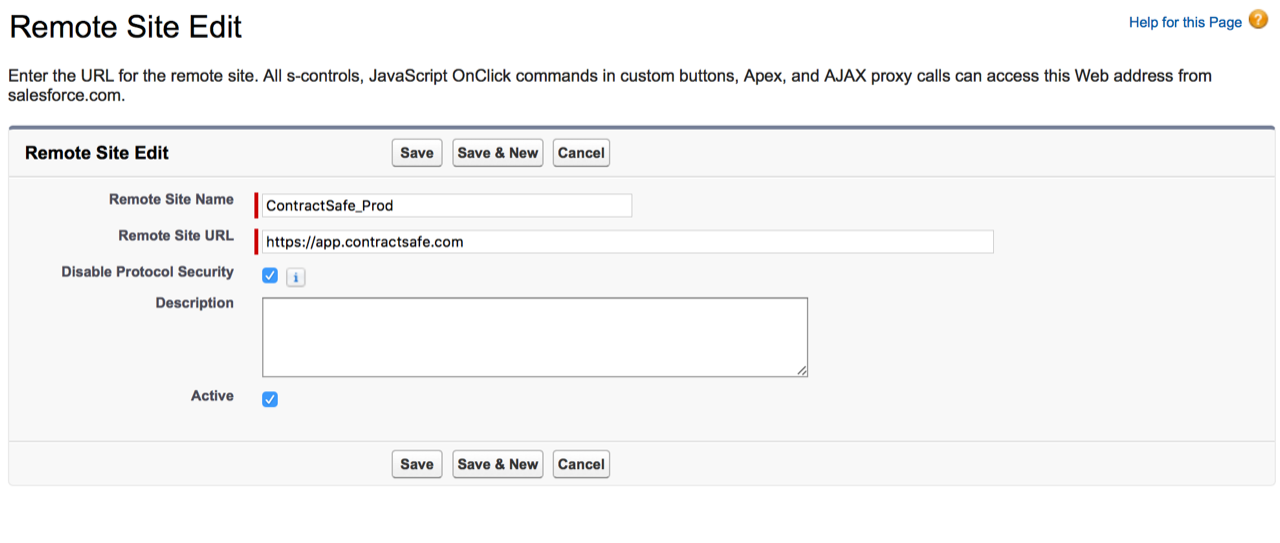
Step 3: Add app.contractsafe.com as a Remote Site in Salesforce
In your Salesforce account, add app.contractsafe.com as a new Remote Site.
Step 4: Add the ContractSafe code to Apex Classes
Add the following code to Apex Classes (set the correct URL first).
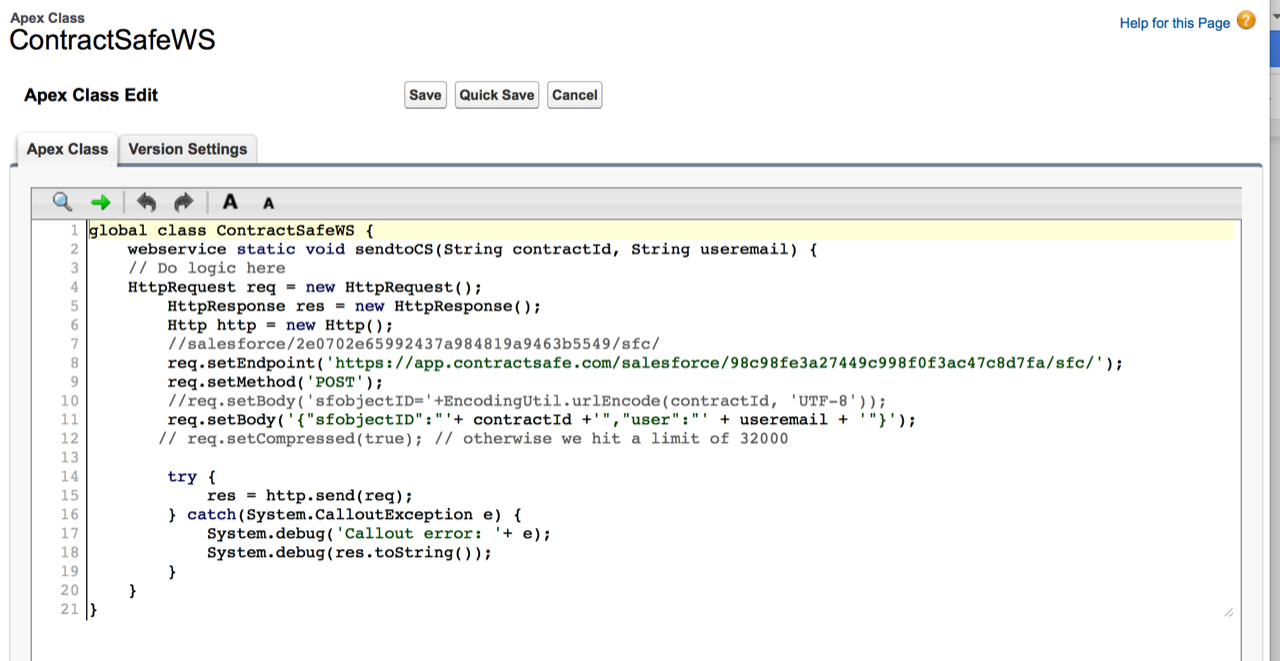
Here's the code for copying:
global class ContractSafeWS {

   webservice static void sendtoCS(String contractId, String useremail) {


   HttpRequest req = new HttpRequest();

       HttpResponse res = new HttpResponse();

       Http http = new Http();

       //salesforce/2e0702e65992437a984819a9463b5549/sfc/

       req.setEndpoint(‘https://app.contractsafe.com/salesforce/YOUR CONTRACTSAFE.com TOKEN/sfc/');

       req.setMethod('POST');

       //req.setBody('sfobjectID='+EncodingUtil.urlEncode(contractId, 'UTF-8'));

       req.setBody('{"sfobjectID":"'+ contractId +'","user":"' + useremail + '"}');

      // req.setCompressed(true); // otherwise we hit a limit of 32000

       try {

           res = http.send(req);

       } catch(System.CalloutException e) {

           System.debug('Callout error: '+ e);

           System.debug(res.toString());

       }

   }

}
Step 5: Add the export button to the contracts page layout
Add the code for the export button to the contracts page layout.
Note: This is one potential implementation with a button that pushes contracts and certain data to ContractSafe. You have the flexibility to tailor this for your needs, including creating a rules-based trigger for sending contracts and data.
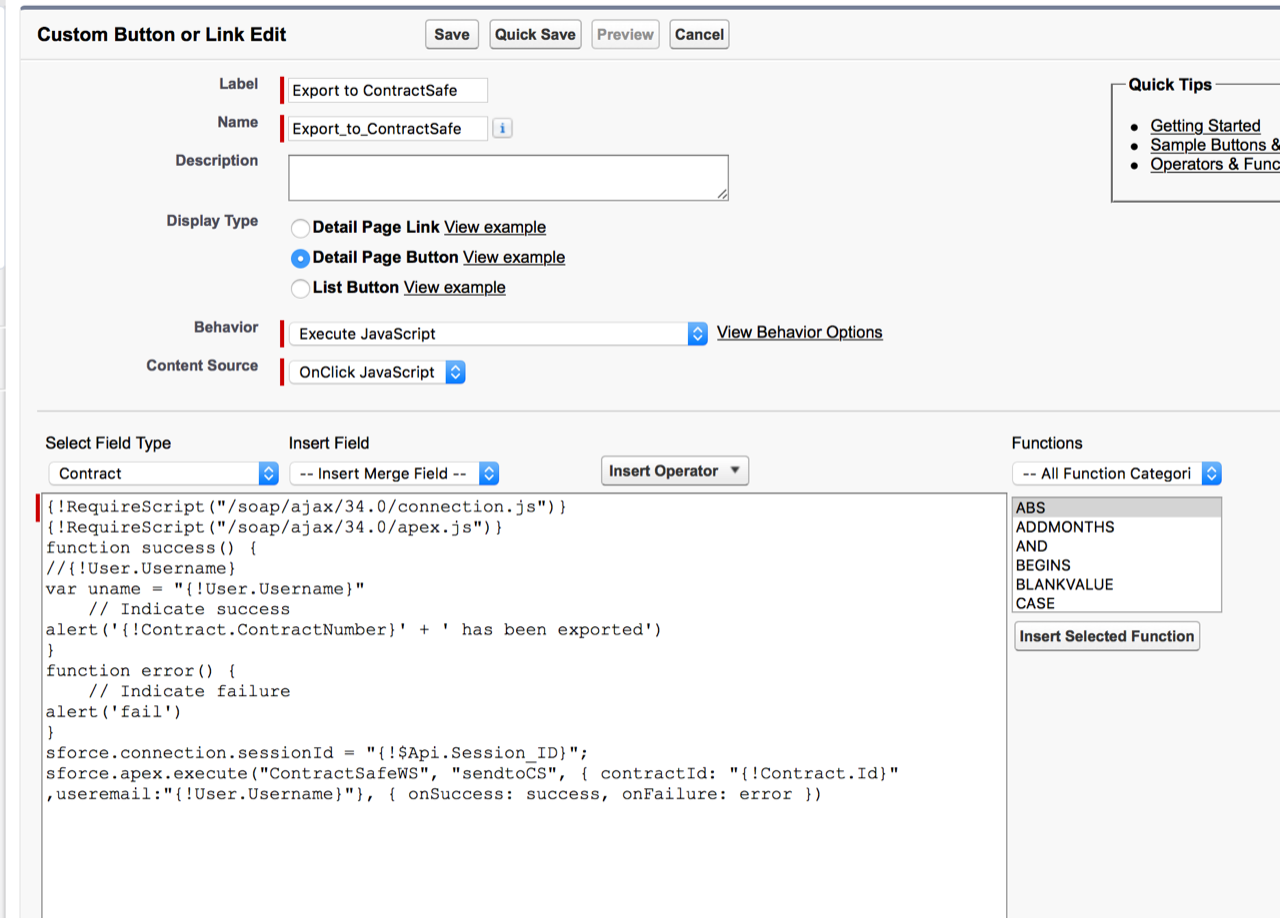
Here's the JavaScript code for copying:
{!RequireScript("/soap/ajax/34.0/connection.js")}

{!RequireScript("/soap/ajax/34.0/apex.js")}

function success() {

//{!User.Username}

var uname = "{!User.Username}"

   // Indicate success

alert('{!Contract.ContractNumber}' + ' has been exported')

}

function error() {

   // Indicate failure

alert('f')

}

sforce.connection.sessionId = "{!$Api.Session_ID}";

sforce.apex.execute("ContractSafeWS", "sendtoCS", { contractId: "{!Contract.Id}" ,useremail:"{!User.Username}"}, { onSuccess: success, onFailure: error })
Which Salesforce fields map to ContractSafe
The following fields can currently be mapped:
| Salesforce field | ContractSafe field |
|---|---|
| Contract Start Date | Start Date |
| Contract Term (months) | End Date |
| Owner Expiration Notice | Reminder |
| Special Terms | Notes |
| Description | Notes |
| SalesForce User | Posted by |
The document is pulled from the Contract Object.
This will be upgraded soon to allow for further mappings.
If Salesforce SSO is enabled on ContractSafe, you won't be able to send documents to ContractSafe from Salesforce. Learn more about configuring Single Sign-On for ContractSafe.
Need a different kind of connection? See whether ContractSafe has an open API. To learn more about integration options for your plan, contact your CSM or support@contractsafe.com.