
Set up comments and notes
An administrator can configure the Comments and Notes Workspace from Settings > Company Settings > General Settings.
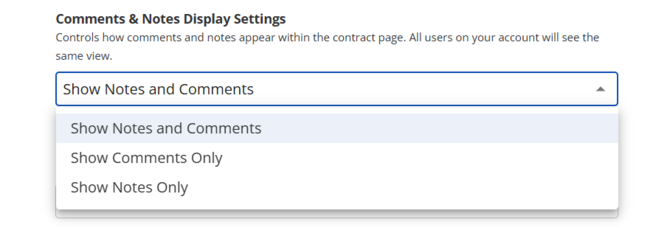
The workspace offers three display options:
- Only show comments
- Only show notes
- Show comments and notes
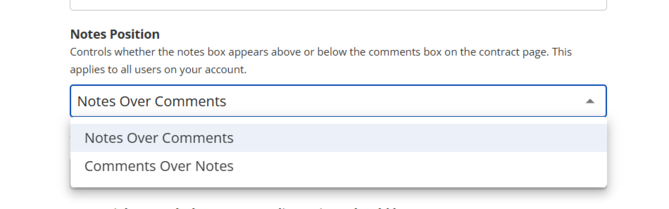
When comments and notes are both displayed, the administrator can choose whether comments appear above or below the notes box.
Choose how comments and notes appear
Select the display option that best matches how your team works:
- Choose Only show comments when the workspace is primarily used for team discussions and @mentions.
- Choose Only show notes when the workspace is primarily used for internal reminders or context.
- Choose Show comments and notes when your team needs both discussion and private working notes available from the contract page.
Use comments and notes on a contract
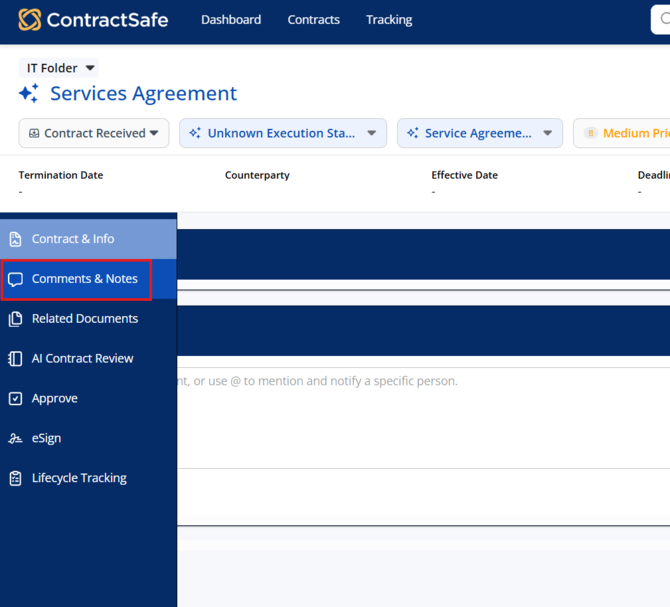
Open a contract and navigate to the Comments and Notes section. Depending on the account settings, you can add a comment, add a note, or use both.
Comments and notes keep context next to the contract instead of scattering decisions across email or chat. Use them to document questions, capture review feedback, and record follow-up items.
Depending on settings chosen above is what will display on the Comments and Notes section. If just one is selected (comments or notes), then it will fill the space. 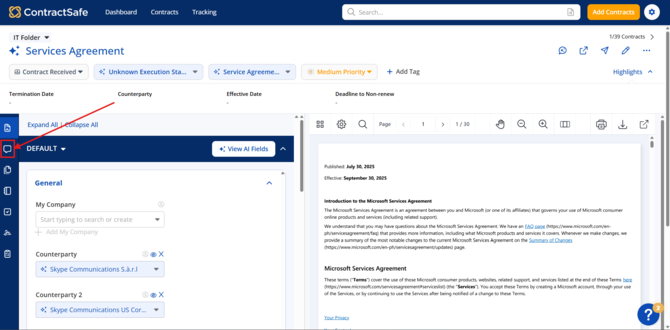
Note: There's a maximum length of 2000 characters for comments.
Format comments with rich text
The comment box supports rich-text formatting. You can:
- Bold, italicize, and underline text
- Create ordered and unordered lists
- Include hyperlinks
Navigation badges
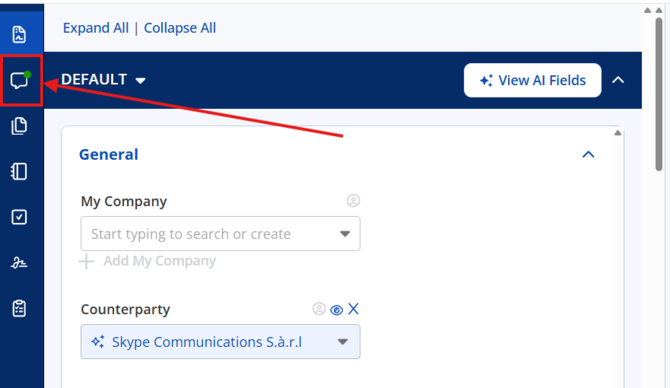
When a note or comment is added to a contract, a green indicator appears in the contract navigation. The indicator remains until the comment or note is deleted.
@Mentions
To mention a team member in a comment, type @ followed by their name. They will receive a notification that they've been mentioned. You can also @mention yourself as a reminder.
For more information, you may reach out to support@contractsafe.com