
Highlights are a customizable summary at the top of every contract page that puts your most important fields front and center. Admins can add, reorder, and remove highlight fields under Settings > Custom Fields, Forms, & Highlights > Highlights, and the changes apply to all users across all contract types.
Note: Because this is a global configuration setting, any changes you make will be visible to all users across all contract types.
Default contract page highlights
Highlights take the most important fields and place them at the top of the contract page. Your page comes with default highlights including:
- Termination Date
- Effective Date
- Counter Party
- Auto-Renewal Status
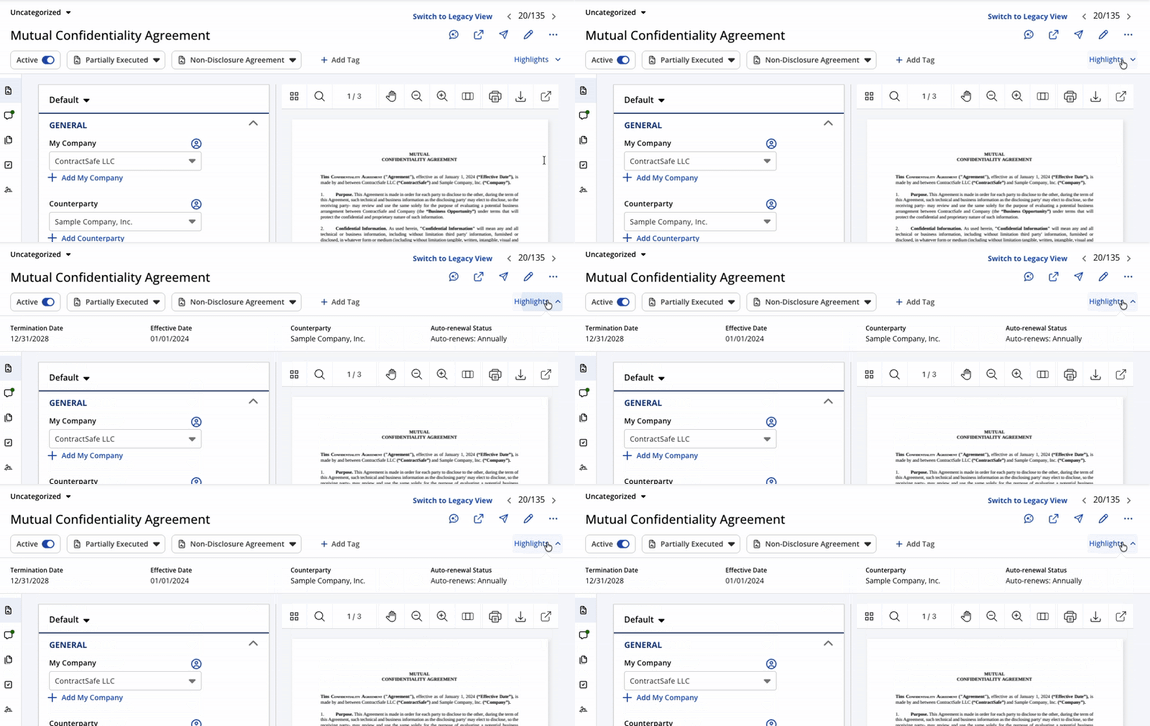
You can restore this default configuration at any time by selecting the Restore to default option.
Customize your highlights
Only users with admin access can make changes to the Highlights section.
To get started, navigate to Settings > Custom Fields, Forms, & Highlights > Highlights.
Add a field to your highlights
- Select Add Field in the Highlights preview area.
- In the modal that appears, browse the list of available fields in alphabetical order.
- Choose the fields you want to add.
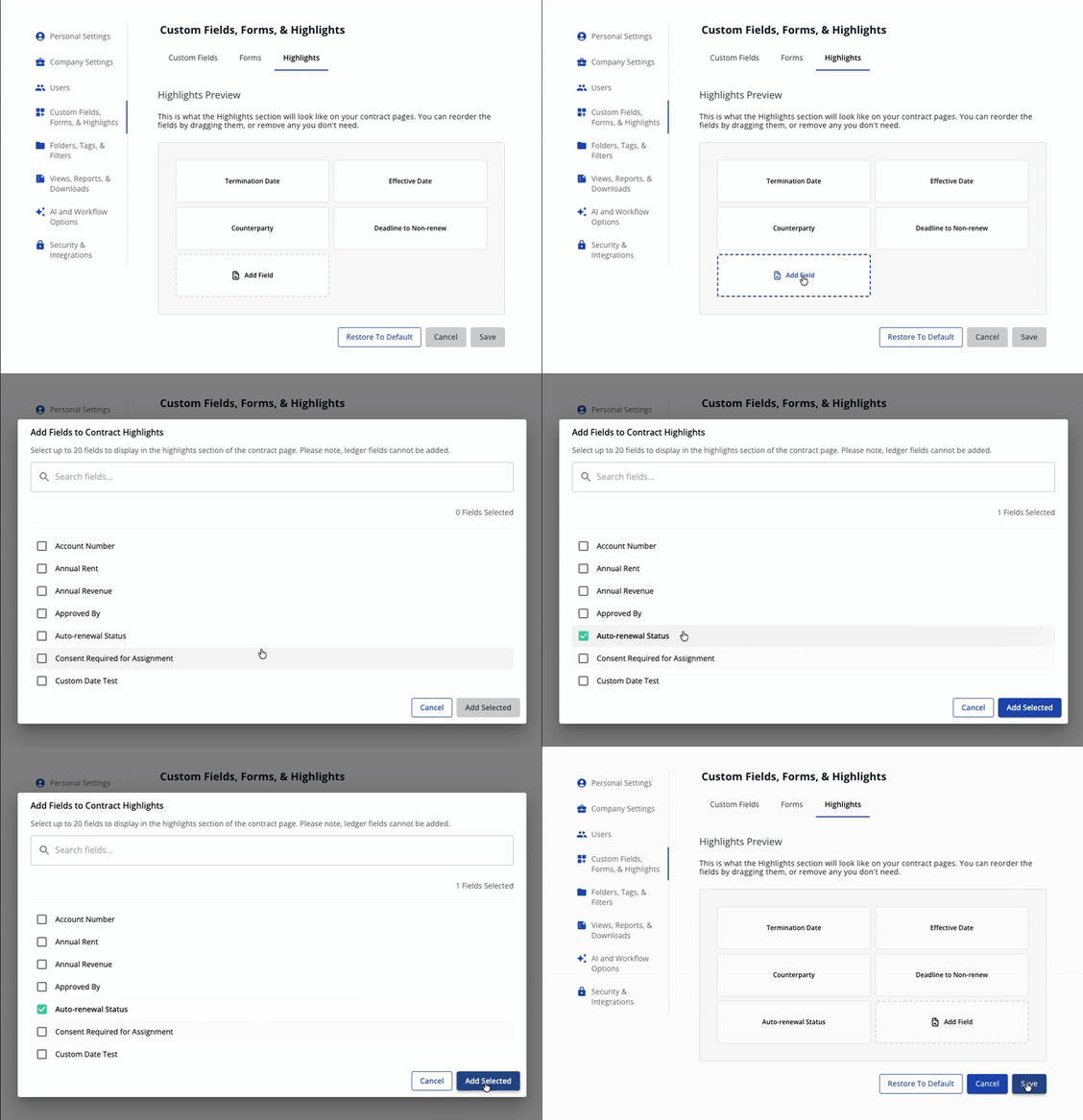
You can add any field, including Value, Counterparty, Effective Date, and your own custom fields. However, Ledger fields can't be added.
You can add up to 20 fields to the Highlights section. If you try to add more than this, the Add button will be disabled.
Reorder highlight fields
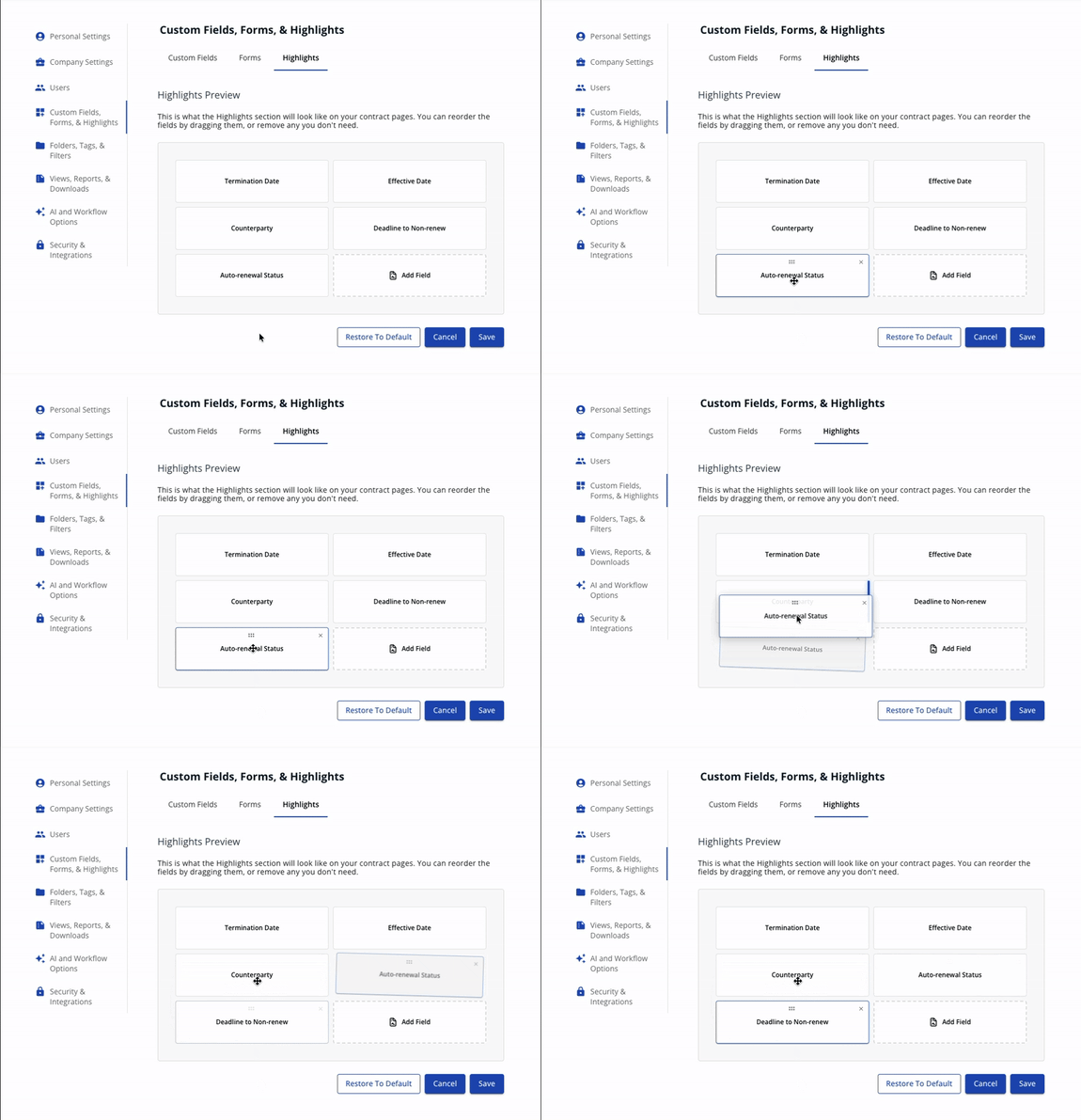
To change the order of fields in the highlights, click a field's tile and drag it to your desired position.
Remove a highlight field
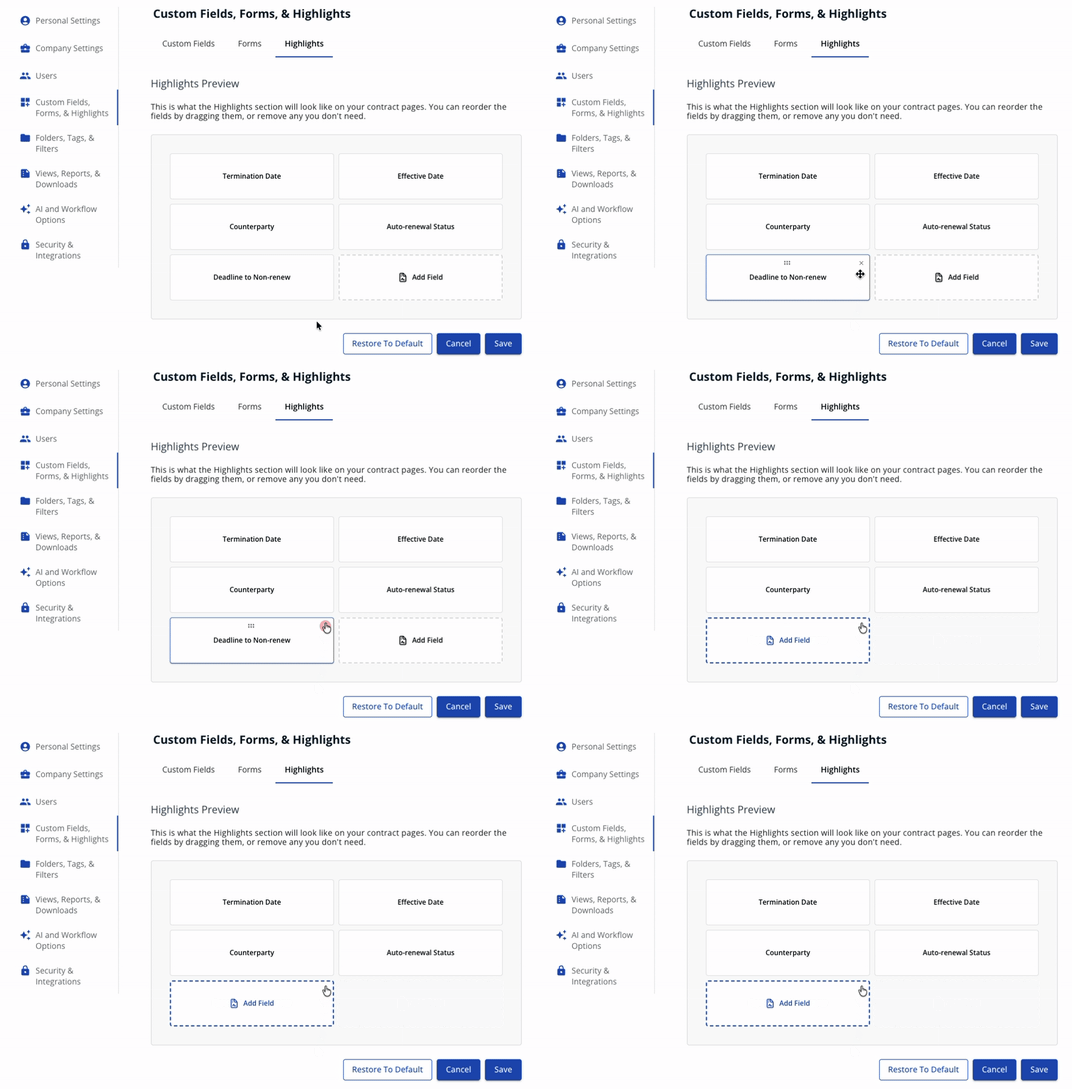
- Hover over the field's tile until a small x appears in the corner.
- Click the x.
Saving and display notes
Changes to the Highlights section don't auto-save, so always remember to save your changes!
The Highlights section is responsive, which means it adjusts to the size of your screen. The more fields you have, the more rows you may have.
Want to change what else shows beside the contract? See how to customize your Contract & Info side panel. For further inquiries, please reach out to [email protected].