
Announcement: Migrating to the new permissions model
ContractSafe is automatically updating all accounts to our upgraded permissions engine. This rollout spans multiple weeks, and no manual action is required from your Account Owner or Administrators. Your existing configurations, including user roles, group structures, and notification rules - will migrate seamlessly, with no changes to historical contract access.
To verify if your account has been updated, navigate to Settings > Users. If you see our refreshed, modern layout, your organization has successfully migrated.
Table of Contents
Beyond the UI, What’s New?
Our redesigned permissions engine eliminates hidden overrides and introduces cleaner, more intuitive logic for managing team access.
- Additive Permissions
Tracking user permissions just got a lot easier. We’ve upgraded the system to be completely additive, meaning a user's access is now the direct sum of their individual assignments and group memberships. By eliminating hidden overrides, you can manage access with confidence and zero surprises. - Multi-Group Memberships
We’ve made permissions more flexible by allowing users to belong to multiple permission groups. A user's total access is now the sum of all their group memberships combined with their Primary Role. This is perfect for team members who wear multiple hats—like someone who belongs to a specific department but also helps out on a cross-functional project team. - "Complex Permissions" Are Always Active
You no longer need to look for a global toggle to activate advanced setups. Folder-level overrides are natively active and can be managed directly within the user and group management panels.
Permissions Interface Overview
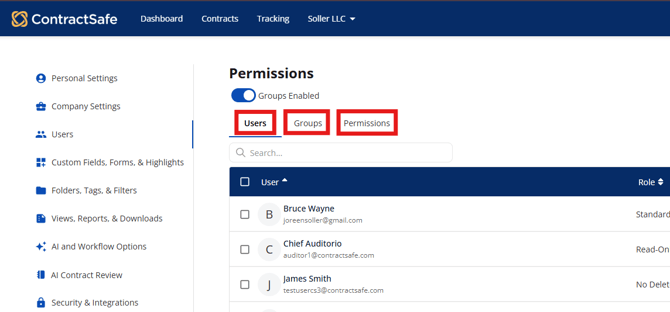
The unified layout splits your access control into three focus areas:
- Users: Your central directory to view, add, or remove users, assign their primary user role, and adjust individual contract access.
- Groups: The hub to build team-wide permission rules. Assign a primary permission role to a group, populate its members, and any changes will immediately apply to everyone with the permission group. (Note: This tab is hidden if Groups are disabled for your account).
- Permissions: A resource-first view structured around sub-tabs for Folders, Tags, and My Companies. This lets you see exactly which users or groups have access to a specific contract and adjust them directly for the folder, contract, or My Company.
Other important elements/buttons: Indicated in the screenshot below are essential buttons for managing your users. 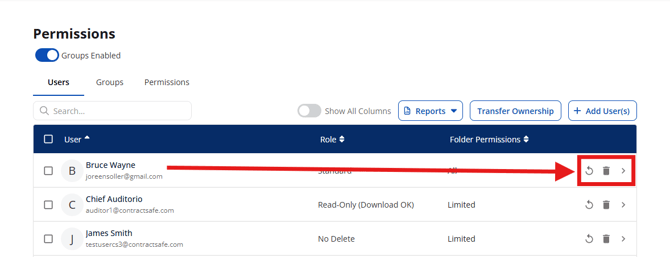
- Resend invite button (Spinning arrow): Resends the user invite email, and automatically resets the user's 2fa/DFA authentication setting- useful if they are locked out.
- Delete user button (Trash bin icon): Permanently deletes the user from the account, will always prompt the admin to transfer any email notifications to another user before deletion proceeds.
- IMPORTANT! Edit user button (Also known as Chevron icon): Allows the admin to access the user's advance settings. This includes the following:
1. Edit general settings such as name, email, role, user group, auto logout timer, SSO exemption, new contract notifications.
2. Permissions by Folder, Tags, My Companies, and Folder specific roles.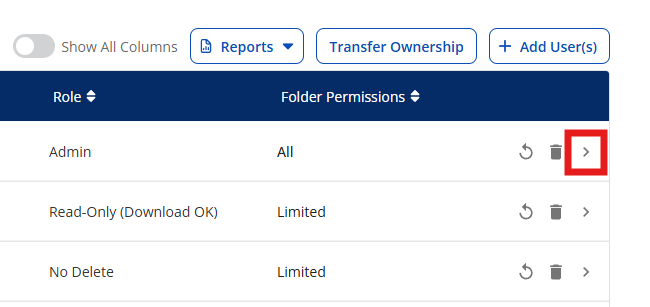
Primary User Roles Explained
ContractSafe features eight distinct functional roles. The info below outlines exactly what actions each tier can and cannot perform: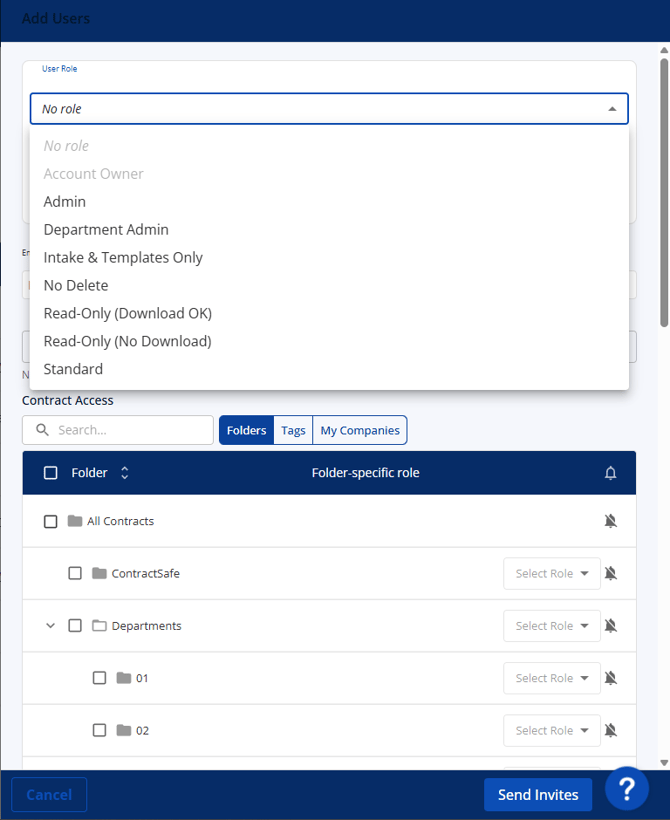
Administrative Roles
1. Account Owner: The Primary account contact. Complete access to all contracts, global settings, and configuration tools.
Permissions:
-
- Primary account contact.
- Complete access to all contracts, global settings, and configuration tools.
-
- None
Note: The Account Owner is an Admin by default, and is permanently exempted from SSO login. (The AO can choose to use SSO, but always has the option to login normally by typing in their ContractSafe username and password)
2. Admin: Full system operators who manage day-to-day user and data structures.
Permissions:
-
- Access to all files and settings;
- Can create/manage users;
- full customization of Folders, Tags, Custom Fields, and Views (including creating and sharing Saved Views).
-
- Cannot change the status of the Account Owner.
Permissions:
-
- Can create users and manage access for assigned Folders, Tags, or "My Companies".
Restrictions:- Access and administration rights are locked only to their assigned resources.
Note: Historically named "Account Manager"
Editing & Collaborative Roles
4. StandardPermissions:
-
- Can add, edit, and delete contracts.
- Can input metadata and create personal Saved Views/reports.
- allowed to add or remove tags from their permitted contracts.
- Access limited to assigned Folders/Tags.
- Cannot invite users, share Views, or access the system Audit Trail.
5. No - Delete
Permissions: Identical permissions to Standard (add/edit files, input data, create personal Saved Views).
Restrictions:
-
- Strictly blocked from deleting contracts.
- Cannot share Views, alter global settings, or view the Audit Trail.
Note: No Delete users can execute documents for electronic signature. Blocked from adding/removing tags.
Viewer & Submission Roles
6. Read-Only, Download OK
Permissions:
-
- Can view full contract text and details, download files, leave comments, tag users, and build personal Saved Views.
- Cannot add, edit, or delete contracts. Cannot share Saved Views or approve/reject workflows.
- Can utilize Intake Forms if globally permitted by an administrator.
7. Read-Only, No Download
Permissions:
-
- Can view contracts, leave comments, tag colleagues, and create personal Saved Views.
- Strictly blocked from downloading files. Cannot add, edit, or delete documents.
- Must use the New Contract Page UI to switch between active forms.
8. Intake Only
Permissions
-
- Restricted strictly to uploading files or submitting data via designated entry points.
- Isolated view. Cannot see documents, files, folders, layouts, or other system users.
- Only available for organizations utilizing Intake Forms on the Maximize Plan.
Security Guardrail: No-Delete and lower roles cannot add or remove tags from contracts. Because tagging a contract can alter its accessibility across the system, this restriction ensures baseline data security without Admin intervention.
Adding and Modifying Users
To add a single user or a batch of users simultaneously:
- Navigate to the Users tab and select Add Users.
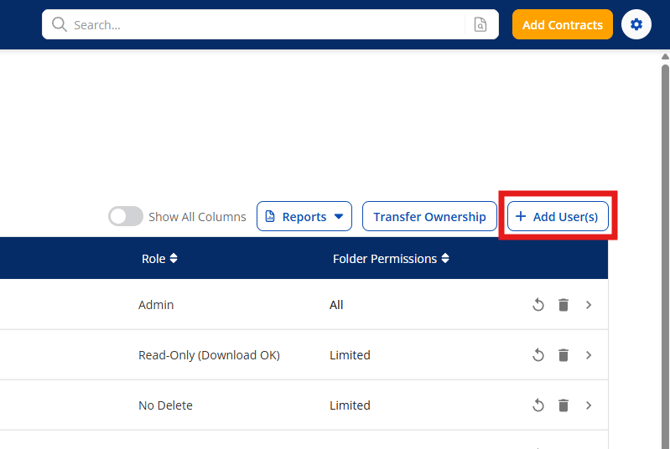
- Input the user's email address. To add multiple users at once, separate their target emails with commas. (Note: Only the email address is mandatory for the initial invite; First and Last names can be populated after creation).
- Define the security parameters: Primary User Role, Auto-Logout Duration (defaults to 45 minutes), and whether they are SSO Exempt.
- (Optional) Include a customized welcome invitation note.
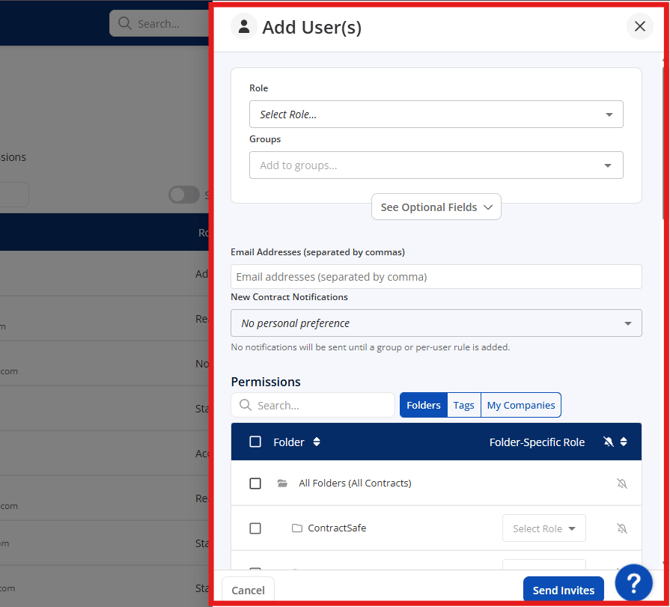
Security Note: New users default to a zero-trust architecture. They possess no access to contracts until you explicitly assign their Primary Role and contract access (i.e., Folders, Tags, and My Company) rules. If an invited user already exists, the platform displays an error. Use Resend Invitation in the table to clear pending registrations.
To update an existing account: Select the Chevron icon next to the user's name to expand their comprehensive user panel. Here, admins can update email records, adjust names (highly recommended for clean comment and approval tracking), and expand Optional Fields to manage session timeouts or SSO exclusions.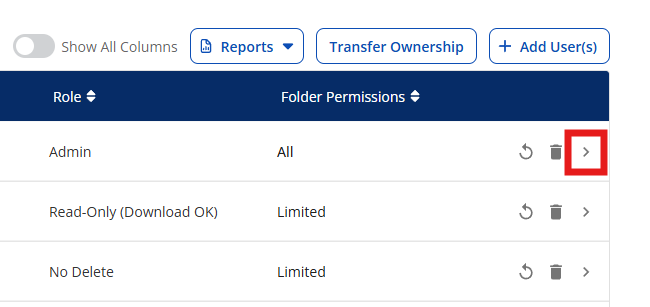
Creating Permission Groups
Permission groups (Also known as User Groups) let you manage contract access for multiple users at once. Instead of updating individual profiles, any changes made to a group are instantly applied to all users assigned to it.
Why Use Permission Groups?
- Reduced Time Investment: Create groups for users with similar departmental or role-based needs, eliminating the tedious task of individual permission assignments.
- Improved Consistency: Prevent human error and ensure identical, secure access levels across all users within the same functional team.
- Simplified Management: Easily update or revoke access for an entire department or project team in a single click, streamlining your overall user access control.
Note: Permission groups are optional and disabled by default. They can only be enabled and managed by Account Owners, Admins, or Department Admins.
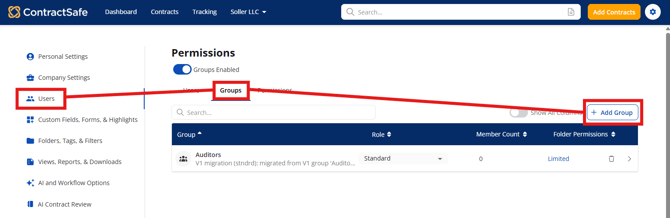
To create a new permissions group:
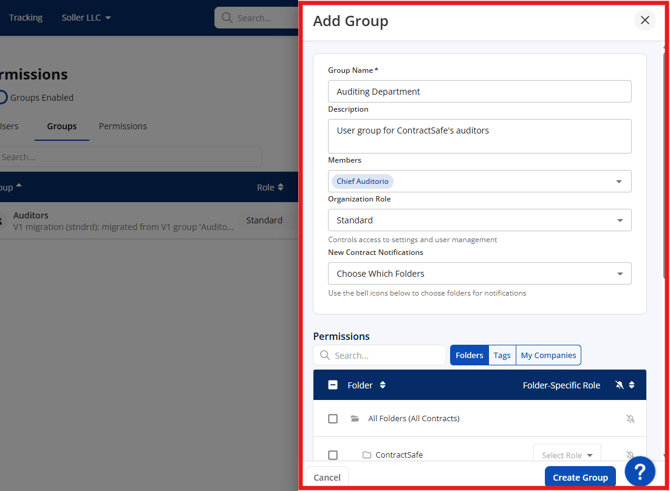
- Navigate to the Groups tab and select + Add Group.
- Name the group according to its department or project scope (e.g., Finance Team, Q3 Audit Taskforce).
- Select the primary user role for this group. This role defines the baseline permissions and available actions the group members will have within ContractSafe.
- Add one or many users to the newly created group to grant them these collective permissions.
Methods for Sharing and Restricting Contract Access (Folders, Tags, & Companies)
ContractSafe provides three distinct ways to share contracts and manage user permissions. Understanding how these methods interact ensures you can share information efficiently while maintaining strict security control.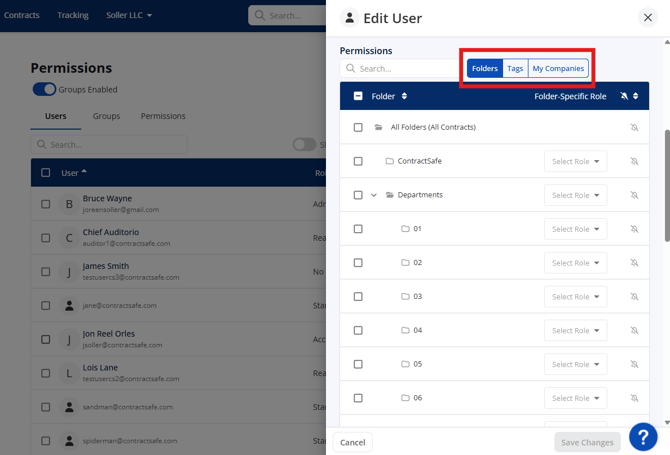
- How it works: Clicking the button under Permissions will display the specific user's role alongside a simple checklist of available Folders.
- Best used for: General, department-wide, or team-level access management
- Examples: Sharing only files tagged for a "2017 Audit" with an outside auditor, a "Due Diligence" tag for specific marketing contracts, or all files tagged with "Signed by Suzi in Sales."
- Override Rule: Tags override Folders. If you share a contract via a Tag, the user will be able to see it regardless of which Folder it lives in.
Security Note: Because Tags override folder restrictions, an option is available at the bottom of the screen to notify account Admins whenever access is granted to a file via a Tag—providing an extra layer of security and oversight.
- Override Rule: My Company overrides Folders. If you choose to share by My Company, the contract will be shared with the authorized users regardless of the Folder it is stored in.
Quick note on Override Rules: When mixing sharing methods, keep this hierarchy in mind to avoid accidental data exposure:
- Folders act as the baseline access level.
- Tags and My Company settings will always override Folder restrictions to ensure the designated files are visible.
Practical Deployment: Setting Up a Virtual Data Room
Because Tags and My Company rules override standard folder limitations, you can use these mechanisms to easily spin up an isolated, secure Virtual Data Room (VDR) on demand. This allows you to mix and match temporary cross-functional or external access without altering your baseline folder architectures.
- Audits & Compliance: Apply an audit tag to select operational or financial files to isolate them cleanly for external regulators.
- Fundraising or M&A: Group required due diligence contracts under a unified company or tag label, granting secure visibility to external partners instantly.
- Litigation Holds: Lock down access to sensitive legal matters by assigning a highly restricted tag group to active legal counsel.
Understanding Complex Permissions
By default, a user's Primary Role applies uniformly to everything they have access to. However, Complex Permissions allow you to customize role permissions on a much more granular level. You can adapt a user's or a permission group's capabilities based on specific Folders, Tags, or My Companies.
For example, you can assign a user the role of "Standard" for a specific folder, tag, or company, but restrict them to "Read Only" for all others. This means the user could modify data where they have a Standard role, but would completely lack that capability where they are set to Read Only.
Setting Up Primary Role Exceptions
Your Primary Role applies to all folders, tags, and companies a user can access, except where you deliberately create a complex permission override. If you want to make a user "Read Only" on specific segments despite being a "Standard" user overall, you can manage this via Primary Role Exceptions.
- Go to Settings > Users in the main menu.
- Find the specific user you want to modify and click on the Chevron Icon adjacent to their name.
- Locate the specific Folder, Tag, or Company where you want to change the access level. Use the Folder-Specific Role feature adjacent to that specific item to assign the new, customized role.
In the example below, the user is primarily set as Read Only, but on the ContractSafe folder, the user is designated as a Standard user. This demonstrates the granularity of ContractSafe's new permissions system.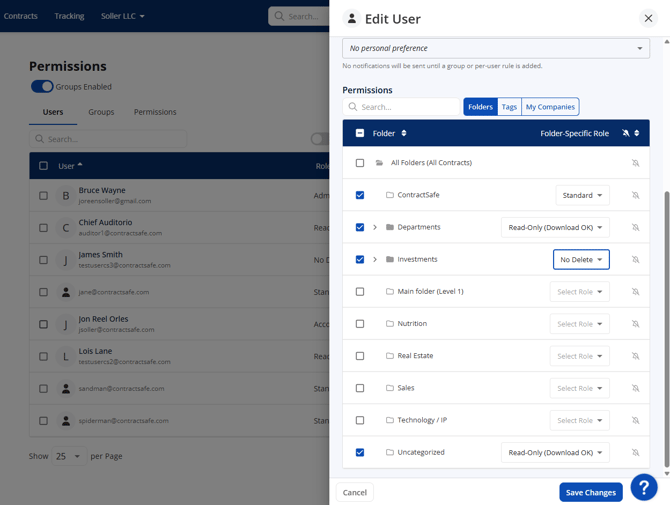
Managing New Contract Notifications
ContractSafe allows you to set up automated alerts so users know exactly when contracts are added or moved. This is especially useful for teams where specific individuals are responsible for maintaining certain folders (for example, Rob might manage the HR and Legal folders, while Suzanne oversees Finance and Corporate).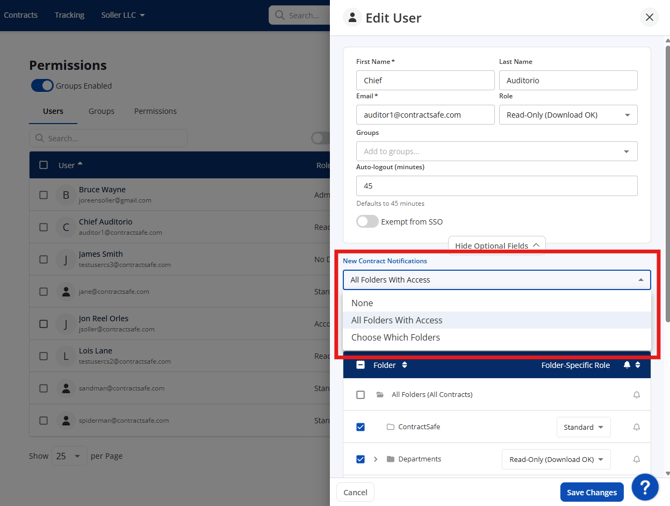
Notification Options: When configuring alerts for a user, you can choose from three distinct notification levels:
- None: The user will not receive any automated alerts when contracts are added.
- All Folders with Access: The user will receive an alert for any new contract added to any folder they have permission to view.
- Choose Which Folders: This allows you to selectively choose the exact folders that should trigger an alert for the user.
How to Check Notification Status: You can easily audit who is receiving alerts directly from the user management screen:
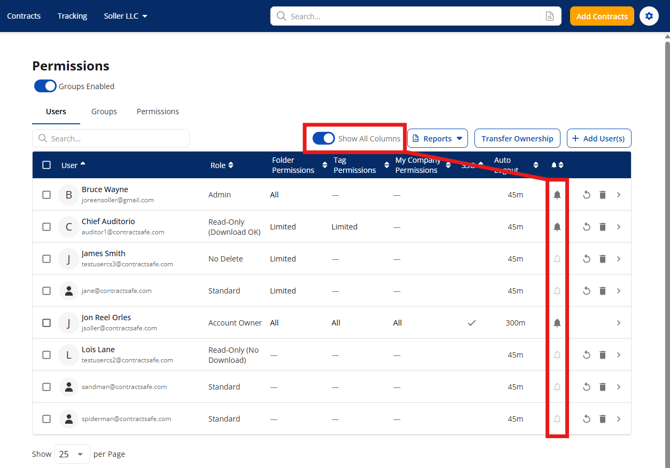
- On the Users Table: If a user has new contract notifications enabled, the bell icon next to their name will be filled in.
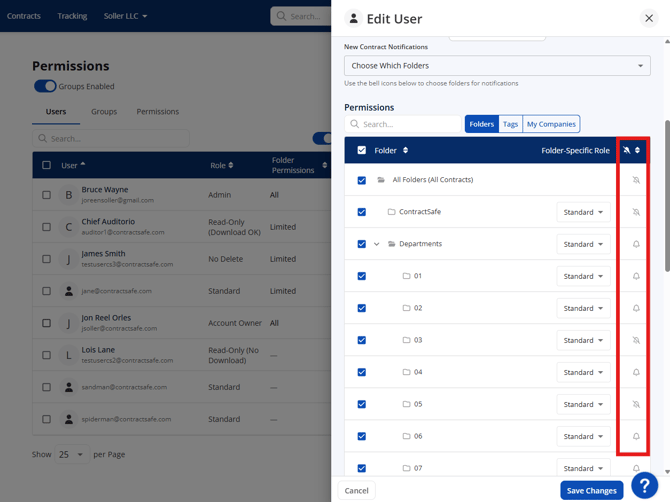
- On the Folder Access Table: To see the specific folders that are triggering alerts for that user, look at the bell icon in the folder access table located beneath their general contract access settings.
Frequently Asked Questions & Use Cases
- Will my team get spammed if I upload 50 contracts at once? No! If you add a batch of new contracts at the same time, ContractSafe will combine them into a single summary notification listing all the contracts, keeping your team's inboxes clean.
- Do notifications only apply to brand-new uploads? No. New contract notifications are triggered both when a brand-new contract is uploaded to the system and when an existing contract is moved from one folder into a monitored folder.
Checking Folder and User Permissions
ContractSafe gives you full visibility into your security settings, allowing you to audit access from two different perspectives: by looking at a specific folder, or by looking at a specific user.
If you want to quickly see everyone who can view a specific folder, you can do so directly from your main Dashboard.
-
- How to check: Look at the top right corner of any folder icon on your Dashboard. You will see a number indicating how many users currently have access to it.
- See the names: Simply hover your mouse cursor over that number, and a list will appear showing the exact names of the users who have access.
Method 2: View Access by User (From Settings)
If you want a complete, detailed breakdown of everything a single person can see, it is best to check their individual profile settings.
- Click on Settings in the main navigation menu.
- Select Users to view everyone registered on your account.
- Find the specific person you are auditing and click on Permissions next to their name. This will display a comprehensive list of all folders, tags, and companies they can access.
User deletion and reminder offboarding
To maintain business continuity, ContractSafe prevents accidental data loss when offboarding employees:
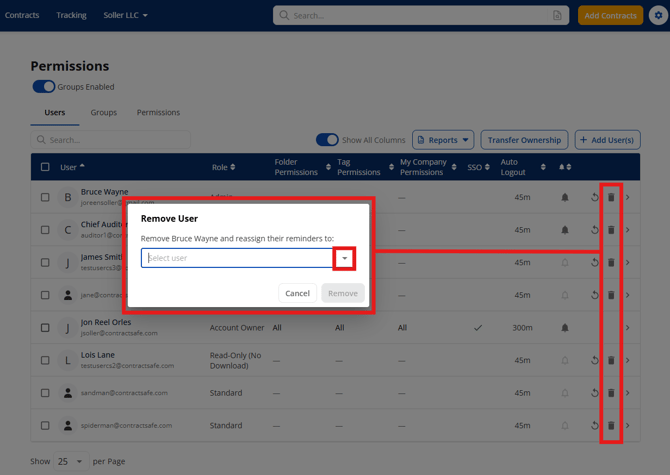
- Navigate to the Users tab and select the Trash Can icon next to the target profile to delete a user.
- If the user has active contract reminders or task assignments tied to their account, the platform will halt the deletion.
- You must select an active team member from the organization dropdown to cleanly inherit and reassign those active reminders before the system will permanently purge the user.
Please reach out to support@contractsafe.com for further inquiries.