
ContractSafe's User Groups feature empowers you to streamline user access and permissions within your organization. This article guides you through creating user groups and assigning them to relevant users.
Benefits of User Groups:
- Reduced Time Investment: Create groups for users with similar department or role needs, eliminating the need for individual permission assignments.
- Improved Consistency: Ensure consistent access levels across users within the same group.
- Simplified Management: Easily manage permissions for an entire group, streamlining user access control.
Enabling User Groups:
Note: Only users with Admin and Department Admin permission can activate User Groups within ContractSafe.
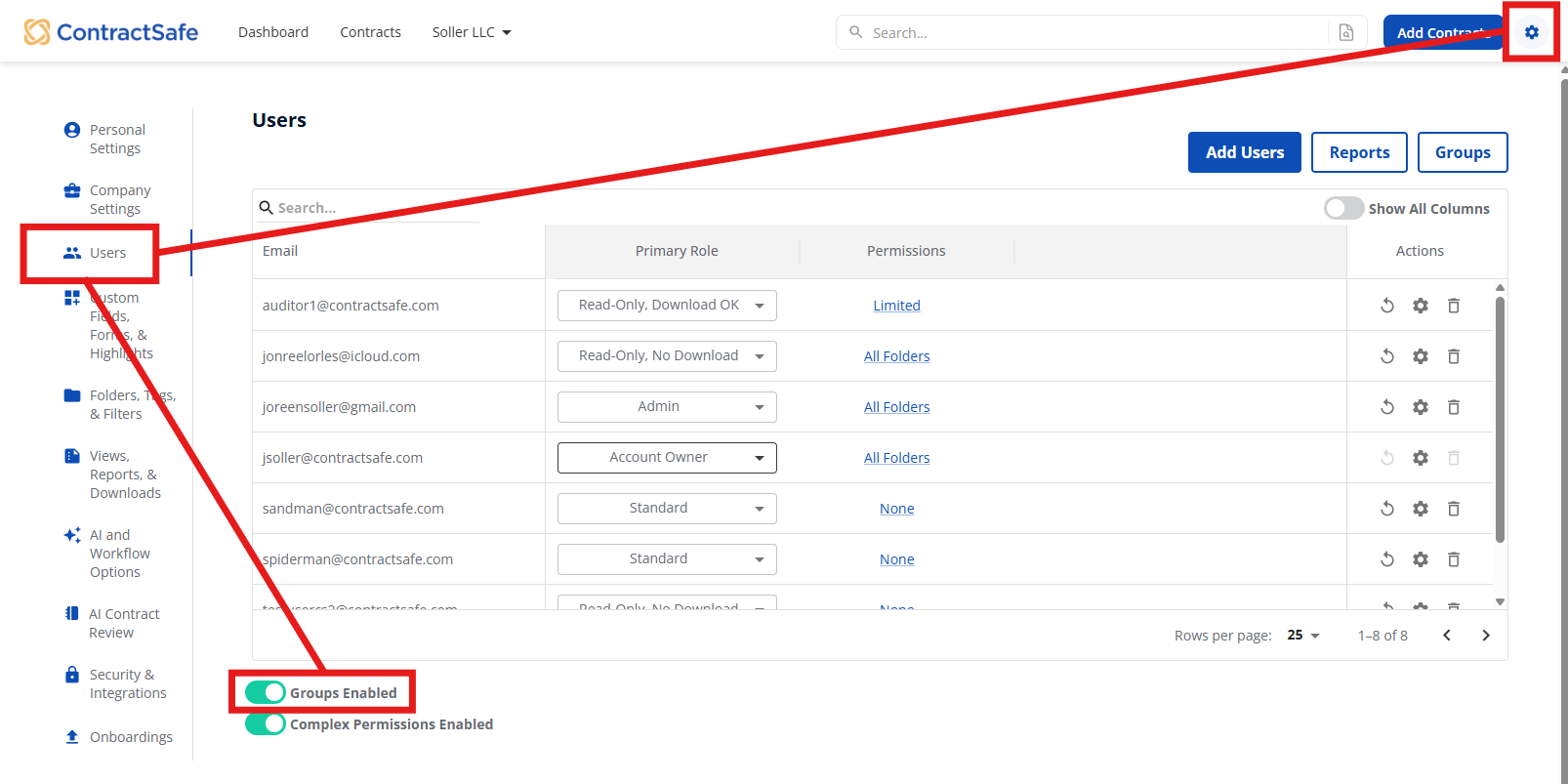
- Navigate to Settings: Access the Settings menu and select "Users."
- Activate User Groups: Toggle "Groups Enabled" to "ON."
Creating a User Group:
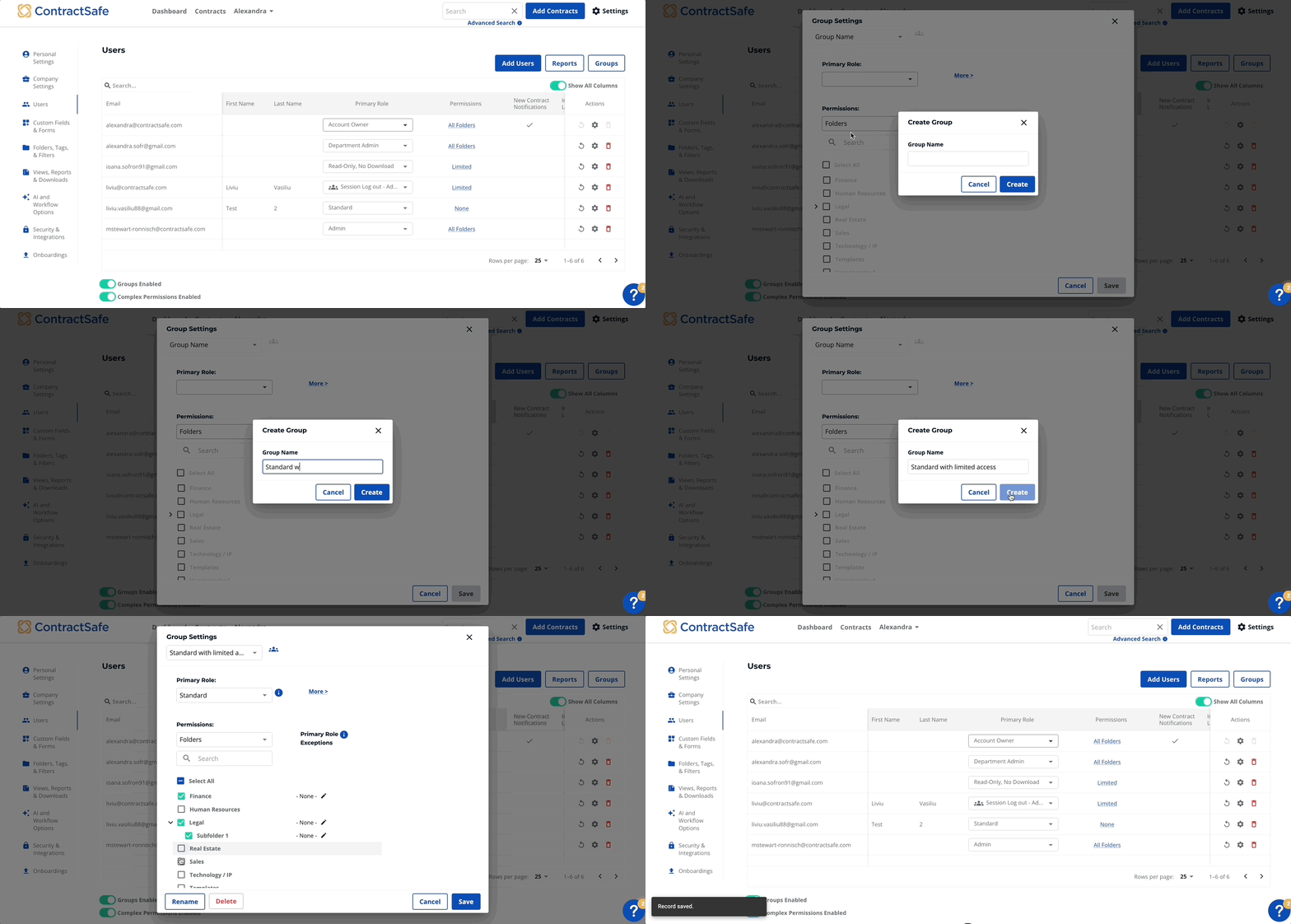
- Access User Groups: With User Groups enabled, navigate to the "Users" section and click "Groups" in the upper right corner.
- Add a New Group: Select "Add New Group" from the dropdown menu.
- Group Name: Choose a clear and descriptive name for your user group to easily identify its purpose.
- Configure Permissions: Define the specific permissions you want to assign to this user group. This includes access levels for various functionalities within ContractSafe.
Assigning Users to a Group:
- Identify Users: From the "Users" section, select the users you want to add to the newly created group.
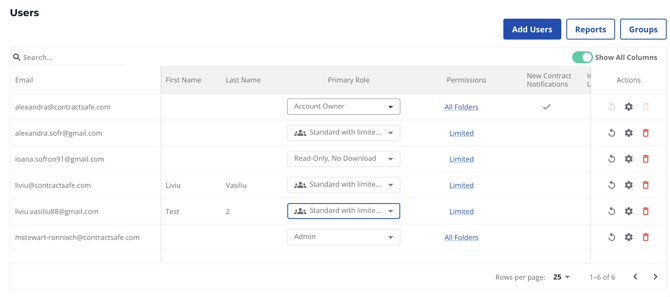
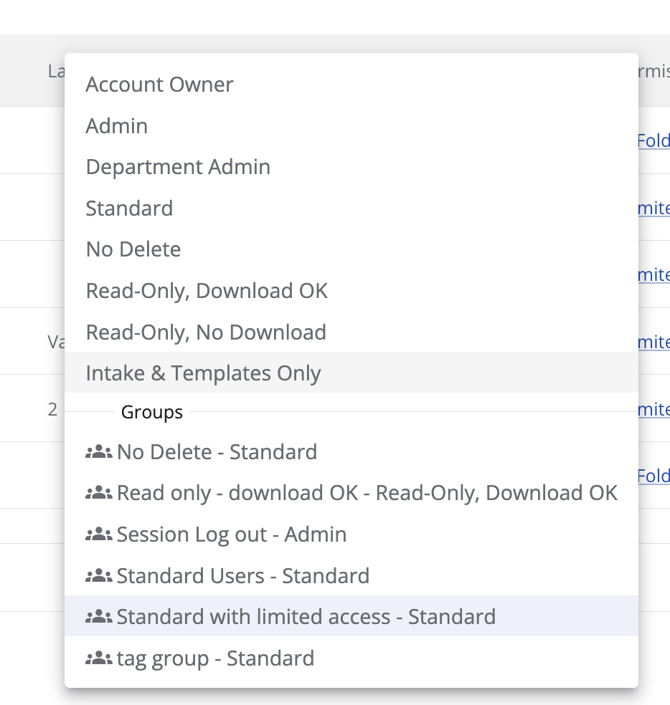
- Assign Primary Role: From the "Primary Role" dropdown menu, choose the user group you want to assign these users to. This will define their primary access level within ContractSafe.
Managing Existing User Groups:
- To edit permissions for an existing user group, access the "Groups" tab, select the group name, and modify the settings as needed.
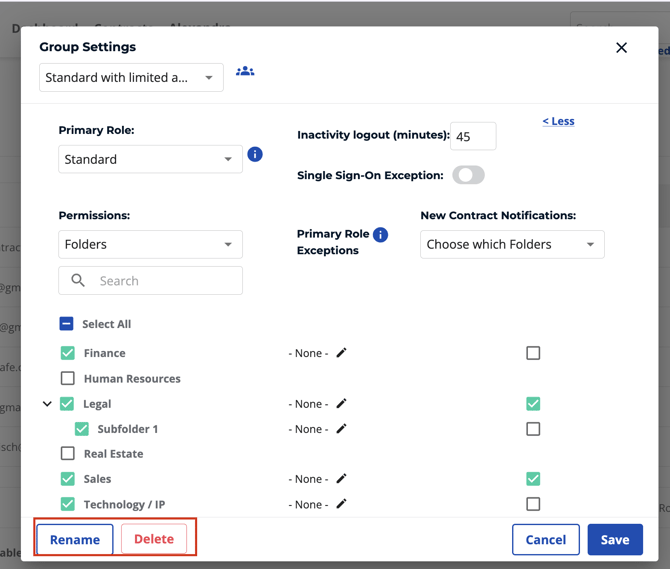
- You can also add additional users to an existing group by selecting them from the "Users" section and assigning them the desired group in the "Primary Role" dropdown menu.
Note: If you need to change the group in anyway after it has been created, you can select Groups tab at the top right of Users screen, select the group from the dropdown list, and start making the changes from there.
You can also add multiple users and assign them to the group. Here is how to add multiple users.
If you have any questions or would like more information, please reach out to Customer Success at support@contractsafe.com.