
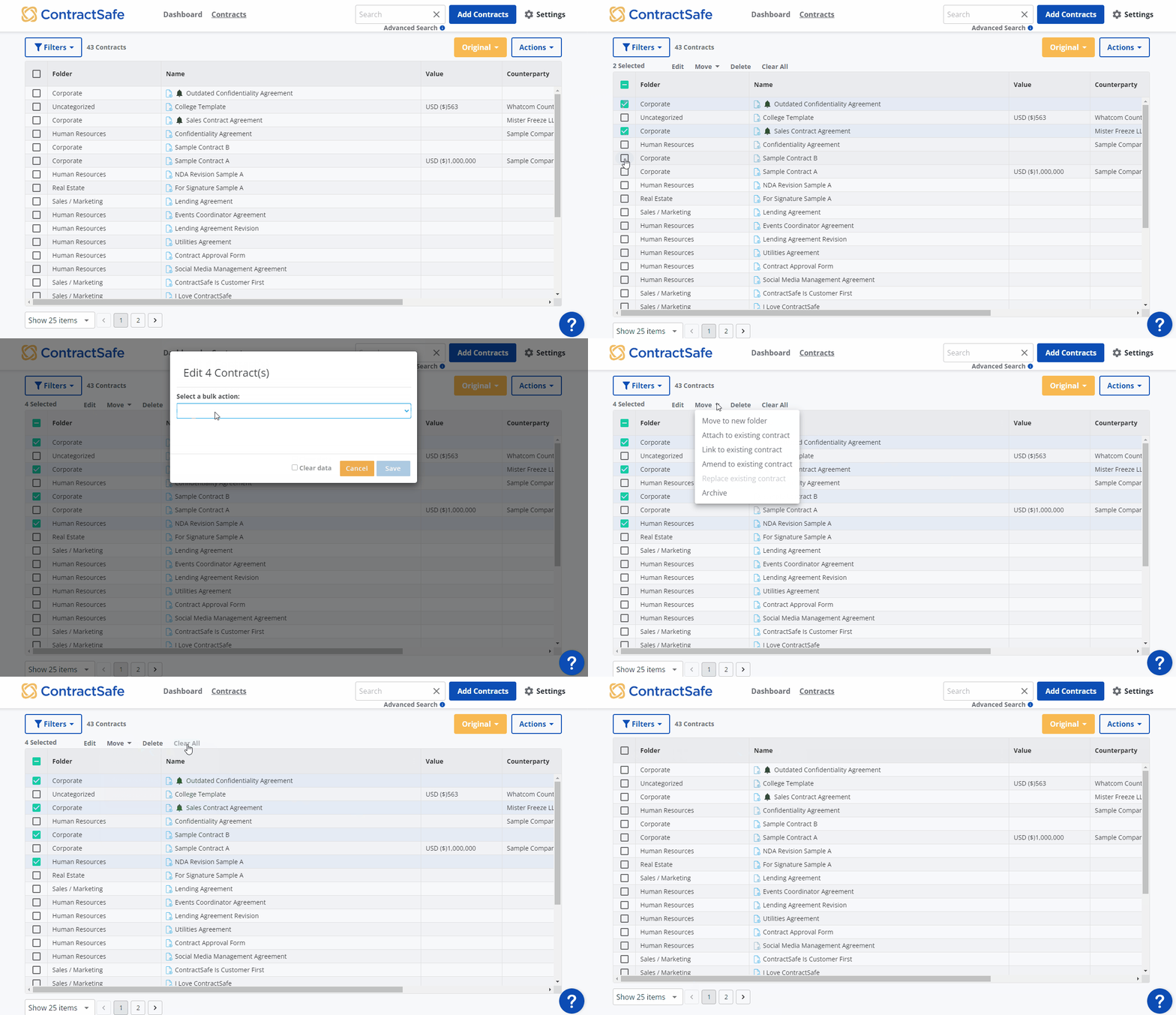
You can select any number (or all) of the contracts in your Contract List by ticking their checkbox in the far left column. You'll then see four options appear just above the list.
-
Edit: This is where you can make bulk edits to selected data fields, including Account, Counterparty, Notes, Tags and Value.
After clicking Edit, a small page will appear, where you can select a specific field to bulk edit.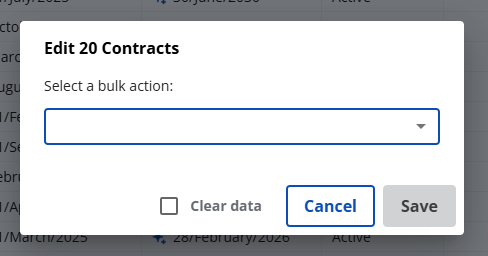
Select from the dropdown first. After doing so, a few more options related to the field will appear. In the example below, the Termination Date field was selected. Notice the "Clear Data" button, which will bulk delete the information you have previously inputted on the field.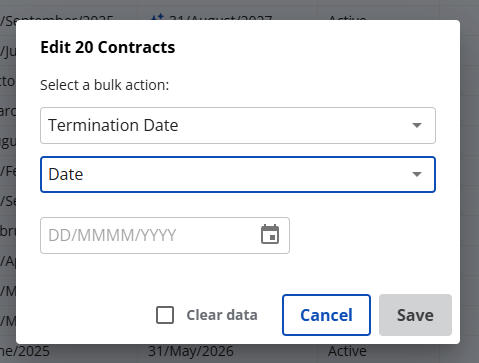
-
Move: Click here to move the selected contracts to a different Folder.
-
Delete: Use this to delete contracts in bulk. [Note: If you delete a contract by accident, you can easily restore it . . . here's how.]
-
Clear All: This unselects all the contracts that you had previously checked.
Because you are taking action on multiple contracts at the same time, please make sure to click on "Save" and wait for about a minute for the changes to apply. Do not refresh or leave the page until this banner appears.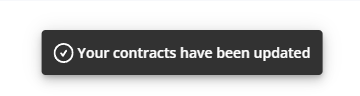
Please reach out to support@contractsafe.com for any questions.