
1. For Quick Fixes: In-App Editing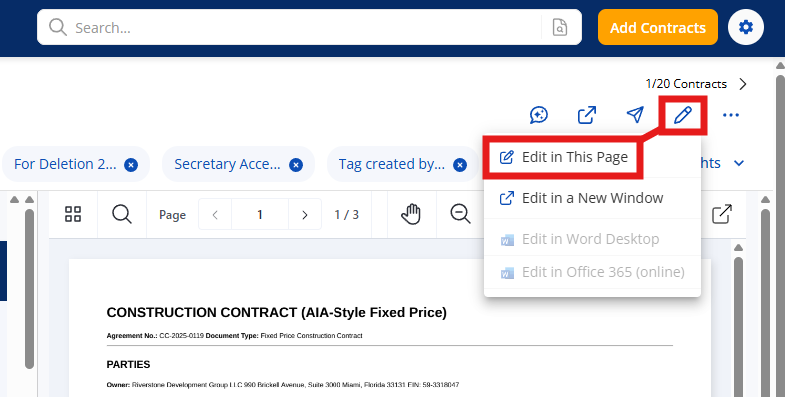
Sometimes you don't need a full review process; you just need to correct a date, a name, or a typo.
-
When to use it: Minor edits, spelling corrections, or quick updates that do not require a version history of who changed what.
-
How it works: Open the file directly in the In-App Viewer. You can edit text directly on the page.
-
Important Note: Edits made here will not generate redlines or "Track Changes." These changes are saved directly to the document but are not visually highlighted as "edits" for future viewers.
2. For Deep Collaboration: Word Integration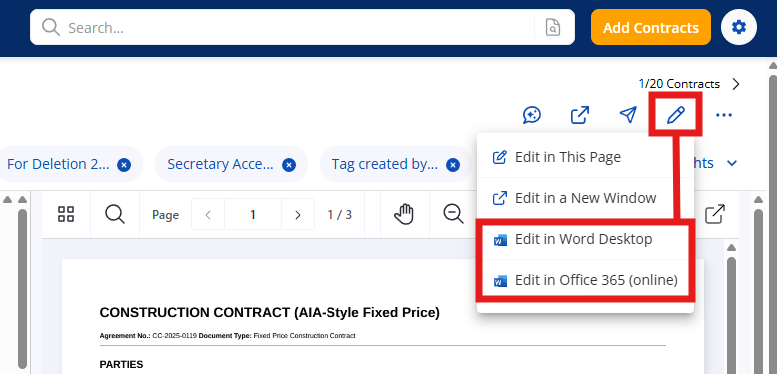
If you are on the Finalize or Maximize plan, you have access to our seamless Word integration. This is the gold standard for substantive drafting and negotiating.
The Workflow
-
Open in Word: From the application, choose to open the file directly in Word on your Desktop or Office 365.
-
Redline & Comment: Enable Track Changes in Word. You can now edit text, strike through clauses, and leave comments in the margins.
-
Save Back Automatically: When you save the file in Word, those changes and comments save directly back into the system as a new version.
Only one user may put the document in the editing state (also known as locked state). If another person wishes to edit the document, the first person who initiated the editing must finish and save their progress first to ensure no data loss.
Internal Collaboration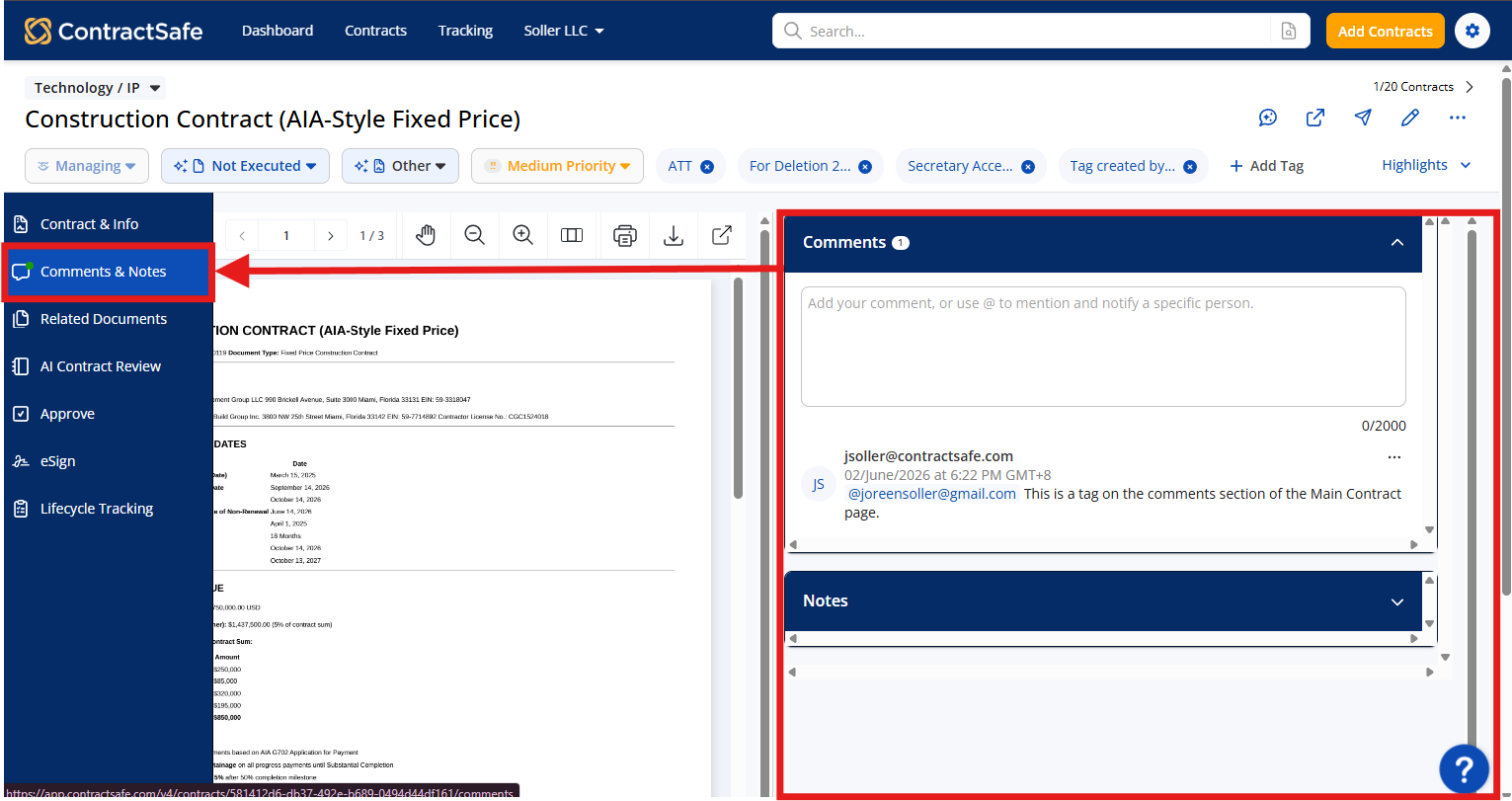
Internal stakeholders with access to the system can view these new versions immediately. They can see the redlines and comments inside the application, or open the file back up into Word to accept/reject changes and reply to comments.
Pro Tip: This cycle ensures a "single source of truth" remains in the system, rather than scattered across various email attachments.
3. Best Practice: The Check-In / Check-Out Process
When multiple internal team members are working on the same document, version control is critical.
We strongly suggest leaning into the Check-In / Check-Out process.
-
Check-Out: Locks the file so others know you are currently working on it. This prevents two people from saving conflicting edits at the same time.
-
Check-In: Once you save your work back to the system, "Check-In" the file to unlock it for the next collaborator.
4. Collaborating with External Parties
When you need to send a draft to a counterparty or a stakeholder who does not have access to the system, you have two primary options:
| Goal | Recommended Method |
| Review Only | Send from App: Send the file directly from the system. They receive a copy to review. |
| Co-Authoring | Word Sharing: Open the file in Word (O365) and utilize Word's native sharing functionality. This unlocks direct redlining and commenting capabilities for external users, allowing them to participate in the editing loop before the file is saved back to the system. |
5. Finalizing the Contract
Once the collaboration loop is complete:
-
Open the file one last time in Word.
-
Accept all changes and resolve all comments to create a clean copy.
-
Save the clean version back to the system.
-
Route the document for Approvals and Signing using the system's workflow tools.