
Prerequisites
-
Access to the original source file (e.g., the
.docxor.pdfon your computer). -
Permission to edit and re-save the source file.
Critical Failures (Files That Will Not Convert)
These issues prevent the conversion engine from processing the file entirely. You must fix these in the source file before uploading.
1. Password Protection
The system cannot open or convert files locked by a password.
-
The Issue: You receive an error indicating the file is encrypted or locked.
-
The Fix: Open the original document, remove the password protection, save it as a new version, and re-upload.
2. Corrupted Files
Files with broken metadata or internal errors cannot be processed.
-
The Issue: The file may open on your desktop but fails immediately upon upload with a "Corrupted" or "Read Error" message.
-
The Fix:
-
Open the file in its native application (e.g., Microsoft Word or Adobe Acrobat).
-
Select File > Save As.
-
Save it with a new name to rewrite the file structure.
-
Upload the new version.
-
Common Formatting & Quality Issues
These files will convert, but the final result may look messy or contain "gibberish" text. Most of these issues are preventable by adjusting the source document.
1. Scanned Images & Low-Quality OCR
-
The Issue: If your PDF is a scan of a physical paper (an image), the system uses Optical Character Recognition (OCR) to "read" the text. Blurry scans, handwriting, or low-resolution images often result in random characters or missing text.
-
Expected Behavior: High-quality digital PDFs convert well. Scanned images often convert poorly.
-
The Fix:
-
Avoid using "Print to PDF" from a scanner if possible.
-
Ensure scans are at least 300 DPI and perfectly straight.
-
Retype illegible handwriting before converting.
-
2. Complex Tables and Merged Cells
-
The Issue: Tables with merged cells, invisible borders, or nested tables (a table inside a table) often break across pages or lose their alignment.
-
The Fix: Simplify tables in the source document. Unmerge cells and ensure table rows do not break across pages.
3. Track Changes and Comments
-
The Issue: Active "Track Changes," unresolved comments, or "redline" markups can be converted as permanent static text, cluttering the final document.
-
The Fix:
-
Open the source document.
-
Accept All Changes and Delete All Comments.
-
Save a "Clean" version for upload.
-
4. Non-Standard Fonts
-
The Issue: If your document uses a custom or paid font not available on our servers, the system substitutes it with a default font (like Times New Roman or Arial). This often shifts line spacing and page breaks.
-
The Fix: Stick to standard, web-safe fonts (Arial, Calibri, Verdana, Times New Roman) to ensure the converted document looks identical to the original.
Conversion Success Guide
Use this quick reference to predict if your file will convert successfully.
| Feature | Conversion Probability | Recommendation |
| Standard Text (DOCX/PDF) | High | Best format for conversion. |
| High-Res Digital PDF | High | Ensure text can be highlighted/selected. |
| Blurry/Skewed Scans | Low | Retype or rescan at higher quality. |
| Password Protected | Zero | Remove password before upload. |
| Complex Forms/Macros | Low | Flatten forms and remove macros. |
FAQs
-
- Why does my converted document have random symbols instead of text?
- This usually happens with scanned PDFs. The system's OCR engine likely misinterpreted specks of dust, handwriting, or blurry font as random characters. Try to obtain a digital-first version of the document (one that was created on a computer, not scanned).
Workaround: Switch to the "Original" view of the document via this button: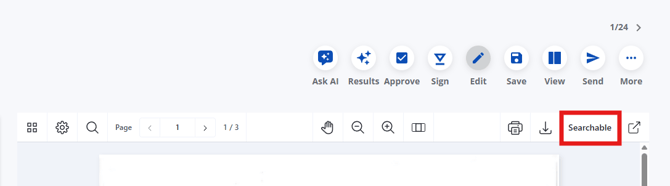
- This usually happens with scanned PDFs. The system's OCR engine likely misinterpreted specks of dust, handwriting, or blurry font as random characters. Try to obtain a digital-first version of the document (one that was created on a computer, not scanned).
- I removed the password, but it still fails. What do I do?
- The file might have "Owner Restrictions" (printing or editing restricted) even if it opens without a password.
- Open the PDF in a browser (like Chrome or Edge).
- Select Print.
- Change the destination to Save as PDF.
- Upload this new, flattened PDF.
- The file might have "Owner Restrictions" (printing or editing restricted) even if it opens without a password.
- Why does my converted document have random symbols instead of text?
Please reach out to support@contractsafe.com for further assistance.