
When someone leaves your organization or changes roles, it's important to make
sure their contract reminders are transferred to the right person. ContractSafe gives
you several ways to do this — whether you're removing a user entirely, updating
reminders on specific contracts, or doing a full audit across your account.
Method 1: Reassign Reminders When Deleting a User
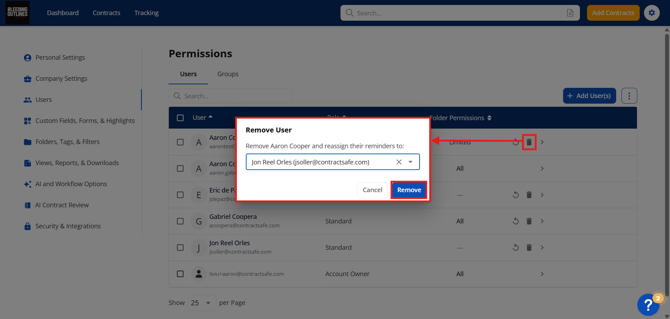
The fastest way to reassign all of a user's reminders at once is to do so at the
moment you remove them from your account. When you delete a user, ContractSafe
will automatically prompt you to transfer their reminders to another user before the
deletion is confirmed.
Steps:
1. Go to Settings > Users
2. Find the user you want to remove
3. Click the recycle bin symbol adjacent to the user's email address
4. Select the user you want to receive reminders.
5. Select the "Remove" button.
Method 2: Manually Update Reminders on Individual Contracts
If you want to update reminder recipients on specific contracts — without deleting the
user from the account — you can do so directly from each contract's page.
Steps:
1. Open the contract you want to update
2. Navigate to the Dates & Reminders section on the contract page
3. Locate the date field with the reminder you want to reassign
4. Click the bell icon next to that date
5. In the Edit Date box, remove the current recipient's email address and add
the new one
6. Click Update to save 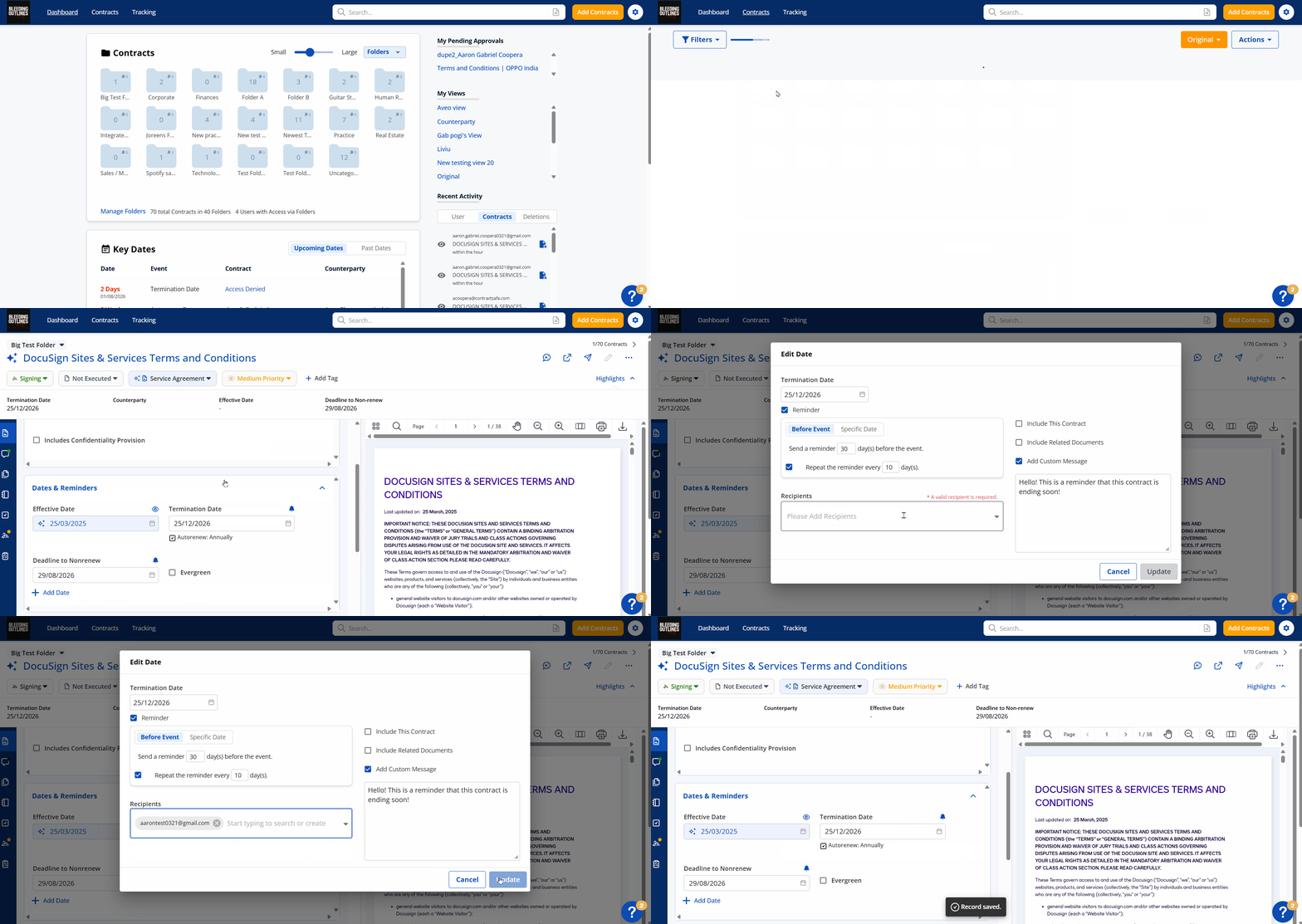
You can also search for a user's email address on the Contract List page and the results will show all contracts that have an alert scheduled for that user.

If you already deleted the User from your account or want to reassign a User's reminders without deleting the User from your account, we can handle that for you. Just contact us at support@ContractSafe.com with the details and we'll be happy to make the change.
See also: How Do I Manage User Permissions?