
1) Select the Saved View you want to send as a Scheduled Report. See: How to See Different Saved Views. If you haven't already created a Saved View, you can create it with the information you want included in the report. See: How to Create Saved Views.
It is important to know that a large part of custom/scheduled reports are based on a saved view, therefore, a saved view must be created first before you are able to schedule a report.
2) Select Actions and then Schedule Report.
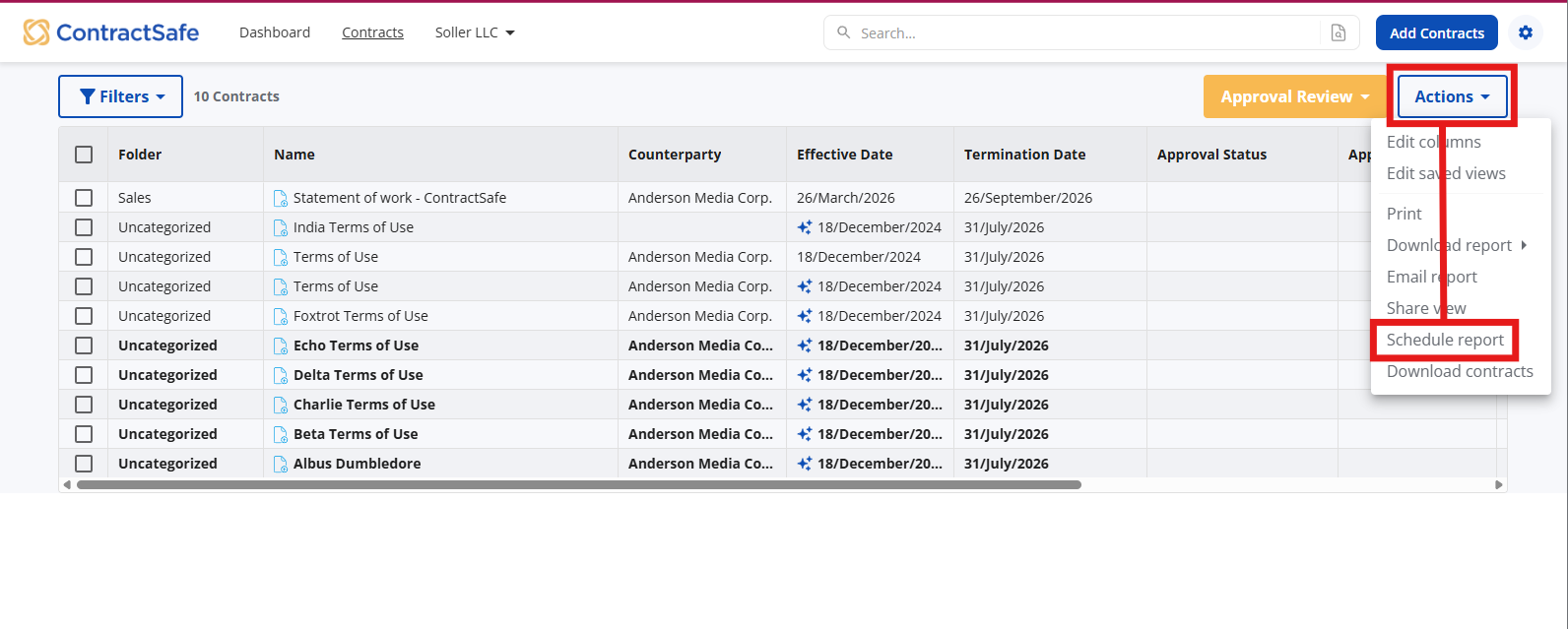
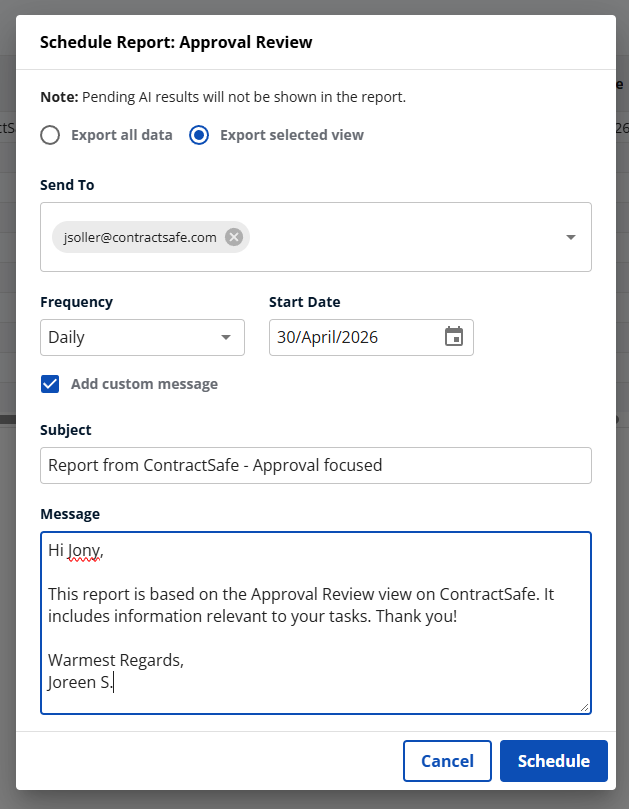
3) You can then choose the recipients, the date the report should first go out, and how often it will be sent. You can even add a custom message!
Note:
Sharing with non-users: Your report recipients don't need to be ContractSafe users to receive and view them.
Same-day scheduling: If you're scheduling a report to start today, it might not send out immediately. If you need it right away, we recommend downloading it directly instead.
Keeping it clean: To make sure your report only includes the most relevant details, double-check that "export selected view" is selected.
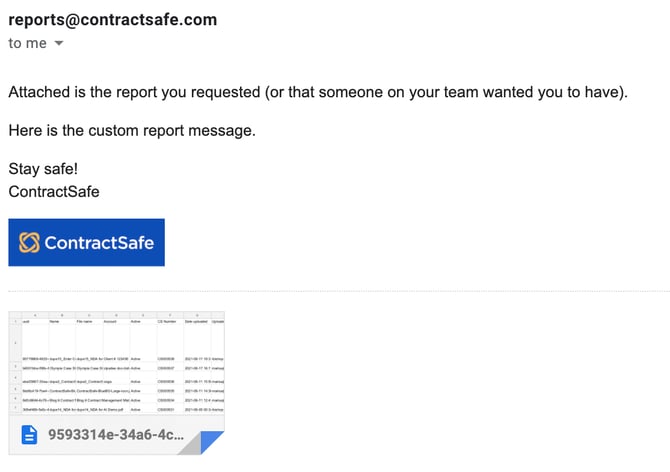
4) Here is what your recipients will see in their inbox. The email will be coming from reports@contractsafe.com, will include your custom message (if any), and the report as an attached CSV file.
Just sit back, relax, and wait for the report(s) to be rolled out like clockwork according to the instructions you have configured.
Tip: To stop/cancel a scheduled report, find the View with the Scheduled Report, it could be a Saved View or the Original View.
Once the view is opened, go to the "Actions" dropdown, click on "Schedule Report", and the option to cancel the report should appear on the small window that will pop up.
Here's a quick animation that shows how it's done.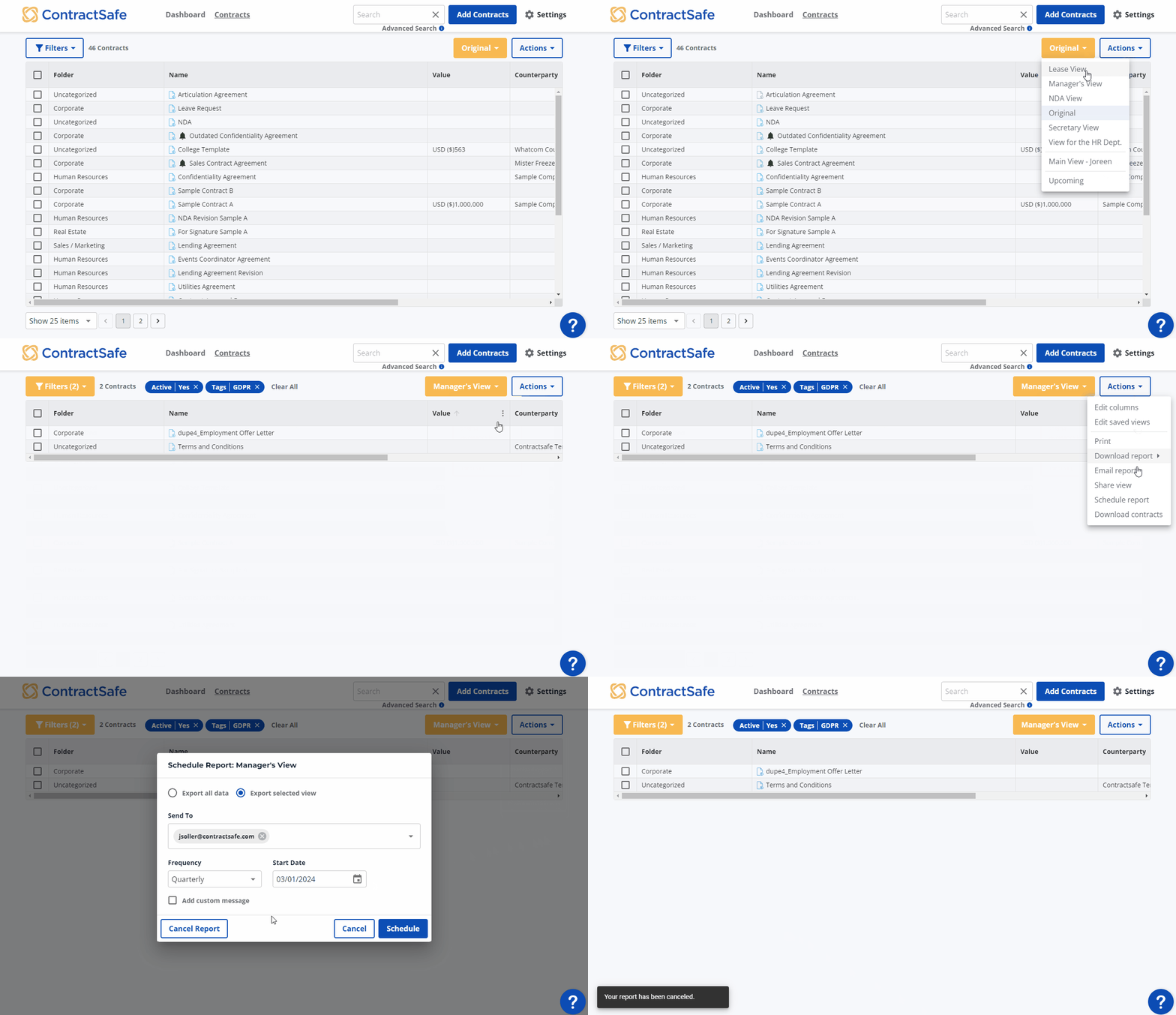
We’ve made it even easier for Administrators and Account Owners to get the data they need. You can now download a variety of general reports directly from your dashboard.
To get started, just head over to: Settings > Views, Reports, and Downloads > Reports & Downloads
What can you download? Whether you need a full backup or a quick audit, we’ve got a report for that:
-
All contracts and attachment files: Download everything at once (or choose to skip the attachments if you just need the main files).
-
All contract data: A comprehensive CSV file containing all your contract data.
-
Related document data: A handy CSV map that shows the names and locations of all attachments, links, and amendments.
-
Emails sent report: A CSV log of every email sent from the platform—both automated alerts and manual messages.
-
All reminders report: Grab a list of all upcoming date reminders in either XLSX or CSV format.
-
Folders & tags report: A quick snapshot of your current organizational structure and which tags are currently in use.
-
User & Role Summary: See who is on the account, their permission levels, and their total login counts.
-
Individual usage report: Need more detail? This report tracks specific user actions, including login activity and which contracts were viewed.
Please reach out to support@contractsafe.com for any questions.