
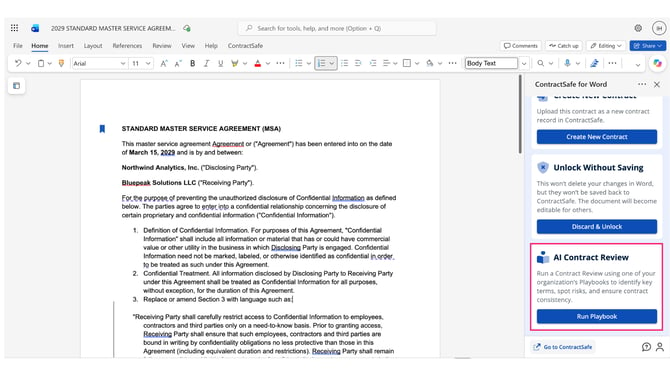
Review contracts where you already work. Run your playbook directly in Microsoft Word and see each rule’s Pass or Fail result next to your draft, so you can redline without switching tools. You’ll find it in the ContractSafe for Word panel, under AI Contract Review.
Before you start
- Plan: AI Contract Review is available on the Maximize plan.
- Permissions: Read-only users can’t run a playbook.
- Turn on Sign in with Microsoft: Go to Settings > Security & Integrations and switch on Sign in with Microsoft.
- Playbook: Your team needs at least one playbook. See [LINK: How to create a playbook from a contract in ContractSafe].
Try the interactive demo: Run your playbook in Microsoft Word
Run a playbook in Word
- In ContractSafe, open the contract you want to review.
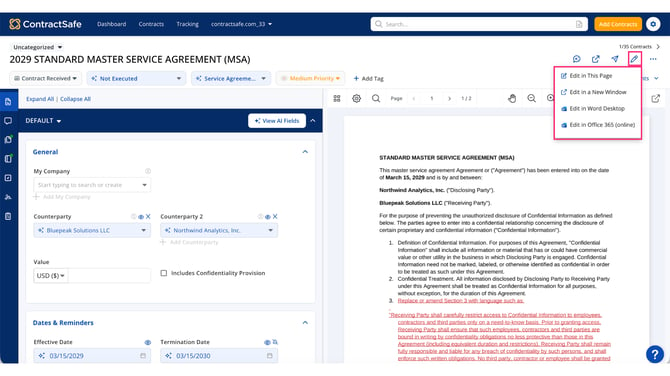
- Click the pencil icon in the top right, then select Edit in Word Desktop or Edit in Office 365 (online).
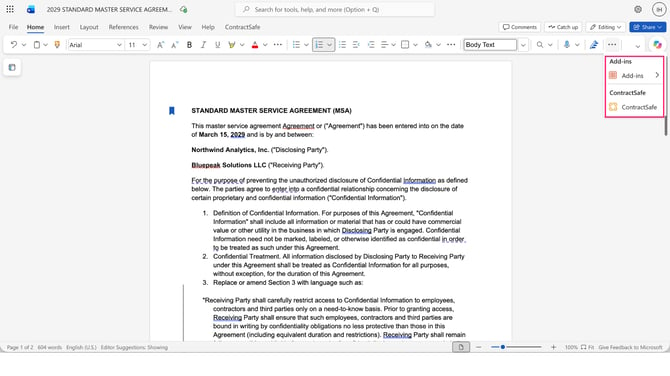
- In Word, on the Home tab, click the more options (…) icon and go to Add-ins.
- If this is your first time, add ContractSafe from Add-ins. After that, just click ContractSafe to open the ContractSafe for Word panel.
Review results in Word
- In the ContractSafe for Word panel, find AI Contract Review and click Run Playbook.
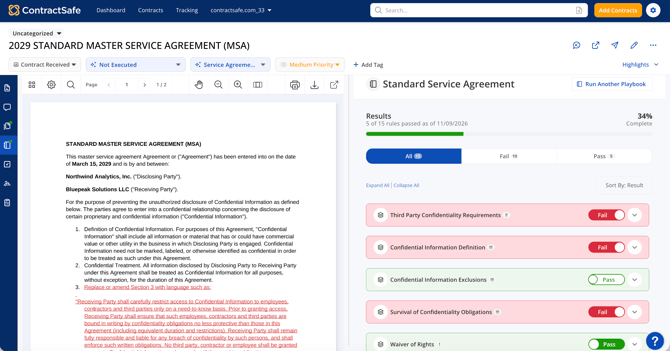
- At the top of the results, check how many rules passed (for example, “4 of 15 rules passed”).
- Use the All, Fail, and Pass tabs to filter the results.
- Click a rule to expand it and read the Result, which explains why it passed or failed.
- Click the eye icon to find that language in your contract.
Redline using suggested fixes
- In the top right of Word, click Editing and select Reviewing. Your changes now show as tracked redlines.
- For a rule that failed, find the Suggested Fix and click the copy icon.
- Paste the suggested language into your contract.
Save your redlines to ContractSafe
- When your redlines are complete, go to the Home tab, click the three-dot icon, and select ContractSafe.
- In the ContractSafe for Word panel, under Update in ContractSafe, click Upload Version.
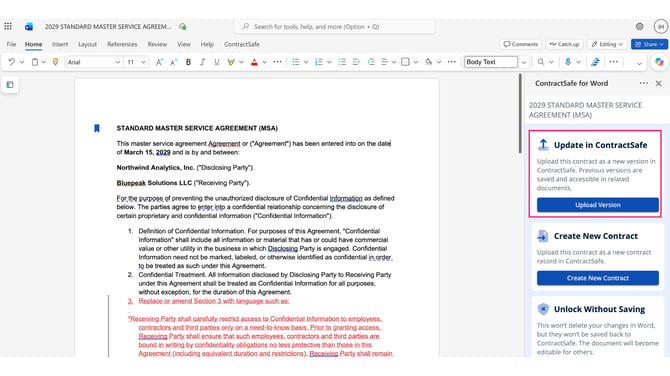
Your redlined version shows up on the contract page in ContractSafe. Earlier versions are saved in Related Documents, so you can always go back to one.
Notes for AI Contract Review in Word
Results reflect your last playbook run.
If you’ve made changes to the document, re-run the playbook to see the latest results.