
Table of contents
- Overview
- Personalized Settings
- Working in the Contract & Info Workspace
- View and Approve AI Fields
- Comments & Notes
- Related Documents
Overview
See a contract's key details, including the AI-extracted fields. You'll always see the Contract & Info Form here. If you've turned on Comments & Notes or Related Documents in My Settings, those appear too.
There are plenty of small tweaks to make your Workspace fit your needs.
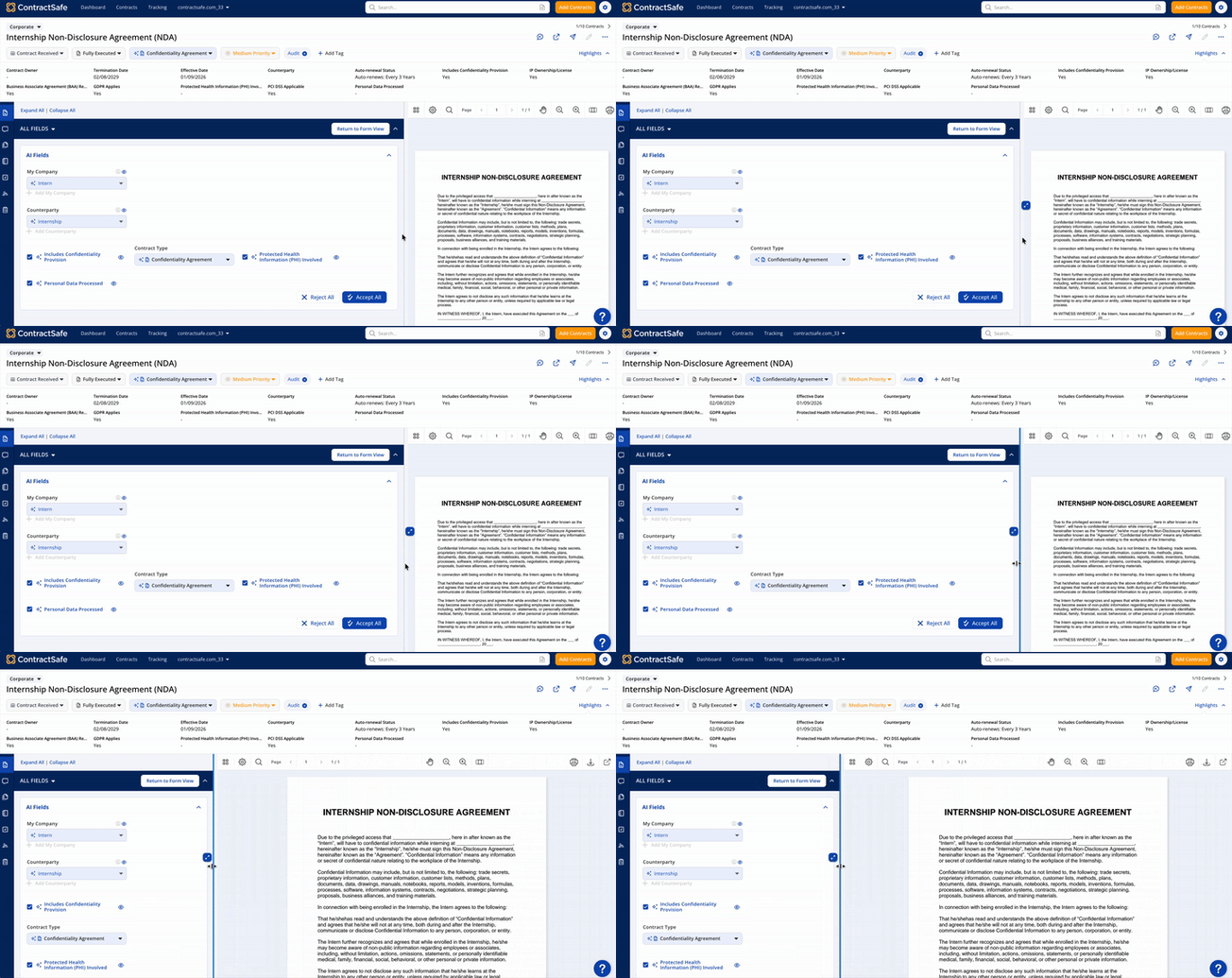
Adjust size of contract viewer
To adjust the size of the contract viewing, simply click and drag the line between the form and document viewer. When you hover your mouse over an expandable pane, an expand icon should also appear.
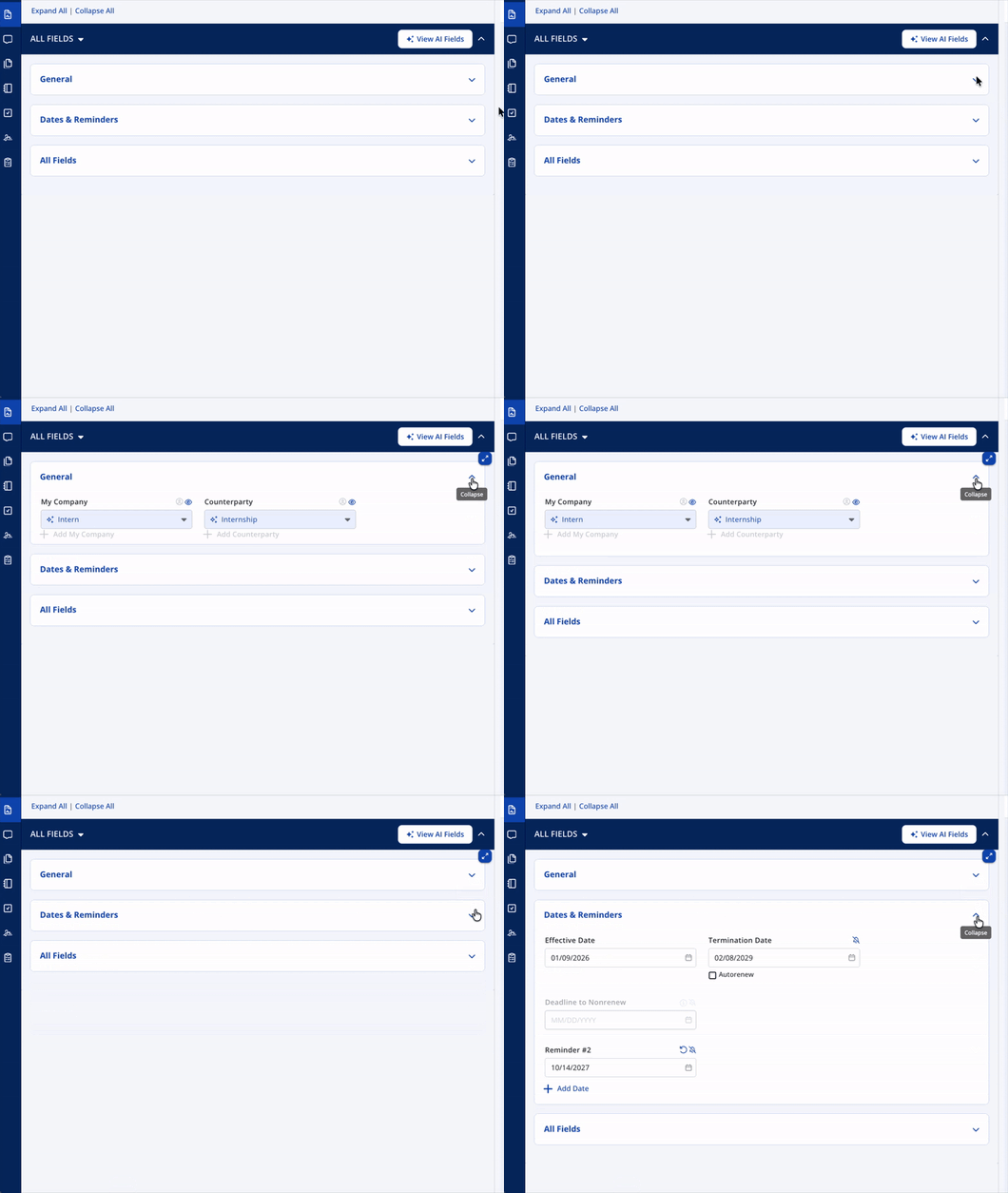
Collapse and expand forms
Simply click the arrow icon to collapse and expand your form fields
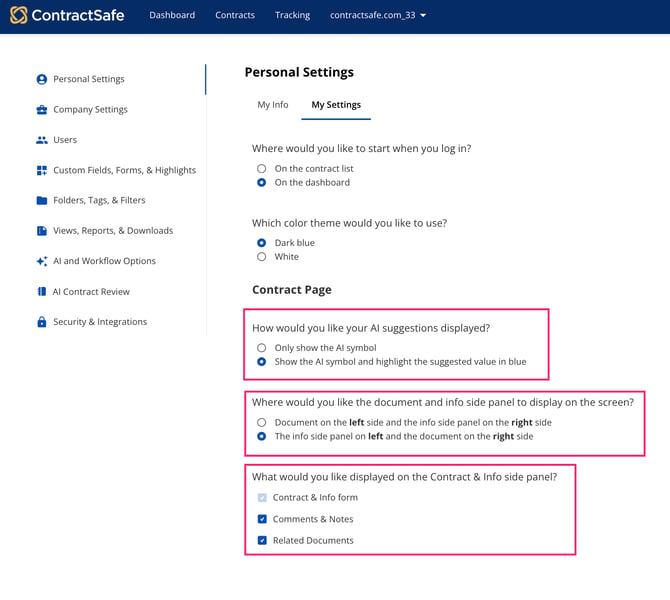
Personalized Settings
To adjust your contract page settings, go to Settings > Personal Settings > My Settings
1. AI suggestions - If you just want to show the AI symbol for AI suggestions, select that. Otherwise, you'll see the AI symbol and value in blue as seen above.
2. Contract viewer - You can also move the contract to the right or left of the viewer.
3. Side panel - You can also choose whether Comments & Notes and Related Documents appear in your Contract & Info view.
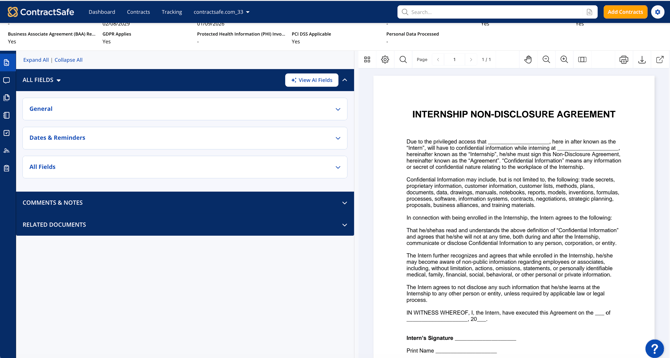
Working in the Contract & Info Workspace
Contract & Info Form
Your core contract details, including the AI-extracted fields.
View and approve AI fields
To see all AI fields to approve, select View AI fields in the form and Return to Form View when done.
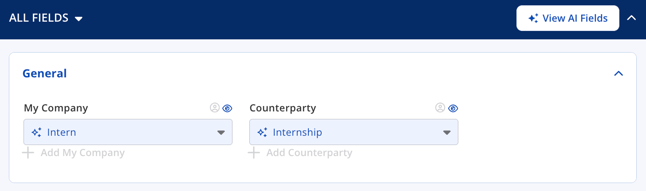
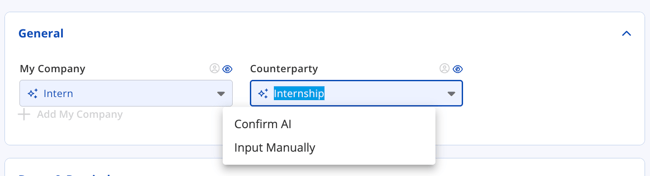
To confirm or change the AI results, click on the field and choose Confirm AI or Input Manually which will allow you to change the field.
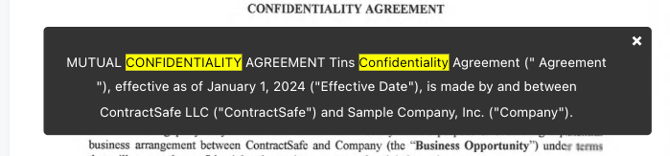
If AI recognizes other options for that field, you'll see an additional option with links directly to the part of the contract where it came from. See an example below:
Comments & Notes
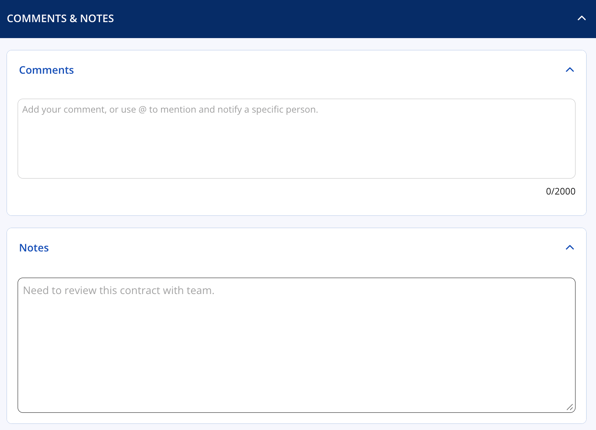
Keep discussion and internal notes right next to the contract. Expand Comments to add or read comments, and Notes to capture internal notes, all without leaving the page.
Related Documents
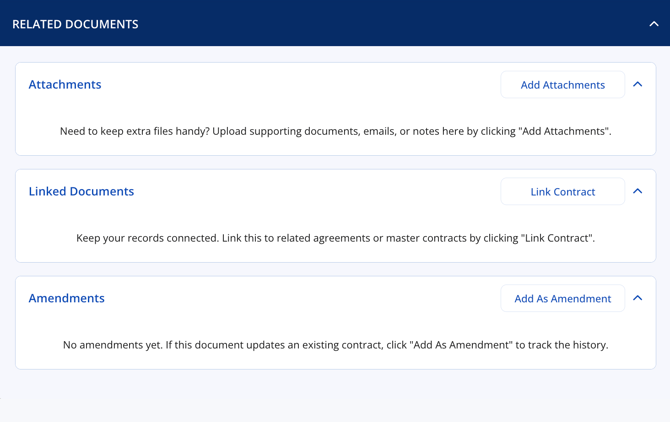
Connect this contract to related files and records. This section has three parts:
- Attachments - Upload supporting documents, emails, or notes by clicking Add Attachments.
- Linked Documents - Connect this contract to related agreements or master contracts by clicking Link Contract.
- Amendments - If this document updates an existing contract, click Add As Amendment to track the history.
For further inquiries, please reach out to support@contractsafe.com