
The Highlights
- One place to review: See contract details alongside the extra context you need, so you can make decisions faster.
- Personalized side panel: Choose whether Comments & Notes and Related Documents appear in your Contract & Info view.
- Always-on key details: Keep the Contract & Info Form visible at all times, so the core contract information stays easy to access.
- Faster scanning: Use Expand All to open every available section at once when you need the full picture.
- Cleaner focus: Use Collapse All to tidy up your view when you want less on screen.
Try it next time you’re reviewing a contract: go to Personal Settings > My Settings > Contract Page and set up your Contract & Info side panel your way.
How to Customize the Contract & Info Side Panel
The Contract & Info side panel can help you keep key contract details, related documents, comments, and notes in one place while you review a contract. You can choose which optional sections appear in the side panel from your Personal Settings, then expand or collapse the sections as needed on the Contract Page.
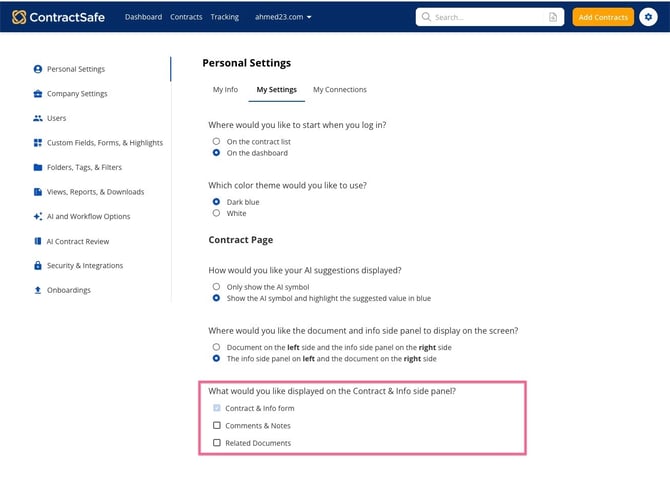
Customize what appears in the Contract & Info side panel- Go to Personal Settings.
- Select the My Settings tab.
- Find the Contract Page section.
- Under “What would you like displayed on the contract and info side panel?” review the available options.
- The Contract & Info Form option is selected by default and cannot be turned off. This form always appears in the Contract & Info side panel.
- Select Comments & Notes if you want comments, notes, or both to appear in the side panel.
- Select Related Documents if you want related documents to appear in the side panel.
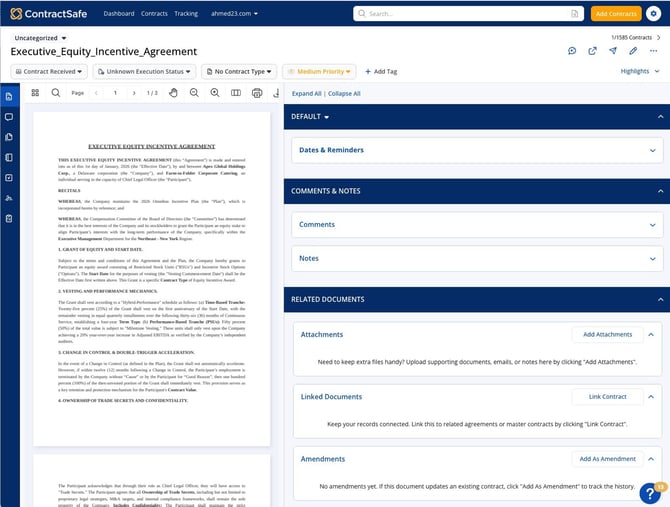
- Return to the Contract Page and open the Contract & Info workspace to view your selected side panel sections.
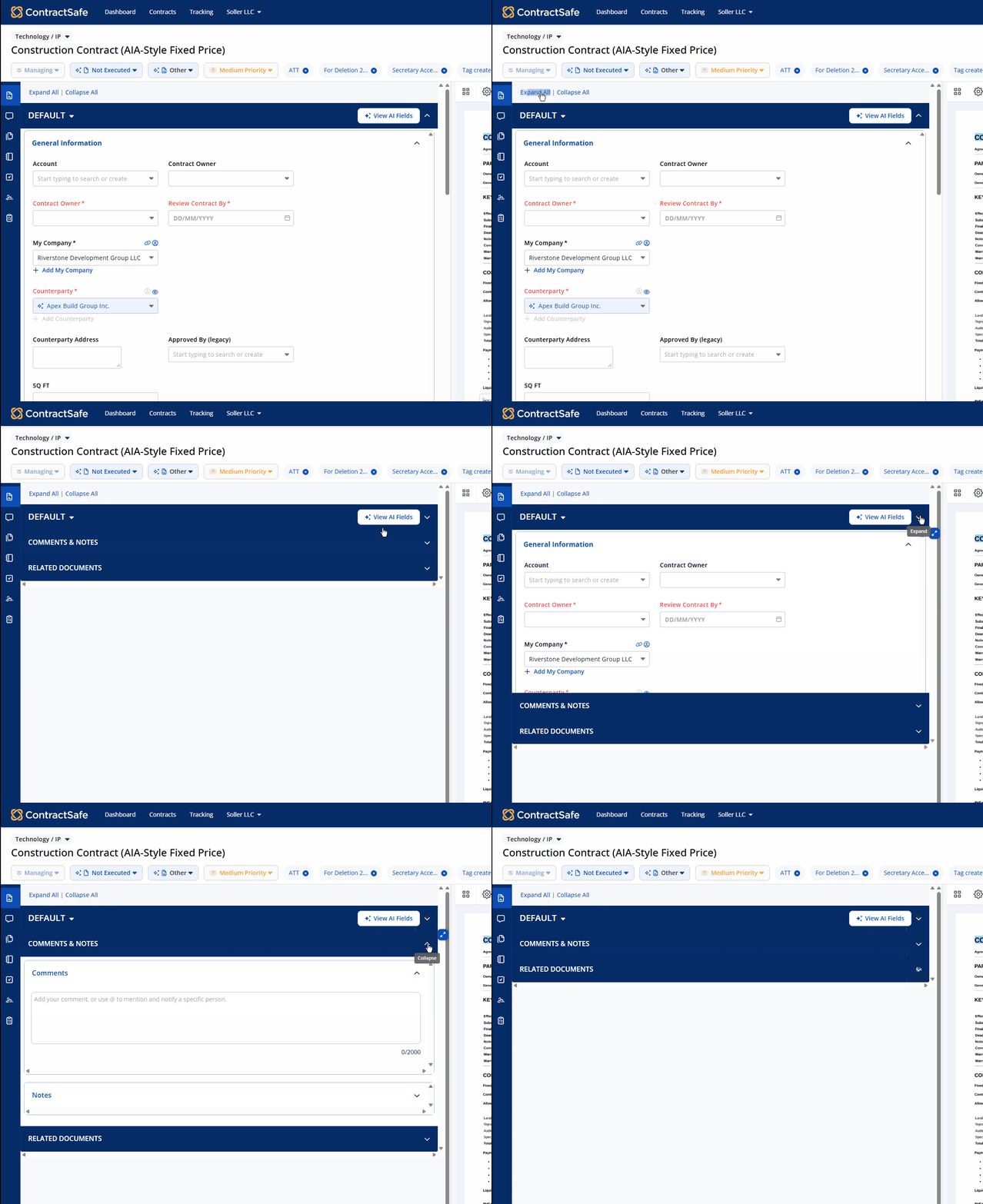
Expand or collapse side panel sections
If you turn on at least one optional side panel section, such as Comments & Notes or Related Documents, the side panel shows Expand All and Collapse All controls.
- Open a contract.
- Go to the Contract & Info workspace.
- Select Expand All to open all available side panel sections and any nested sections.
- Select Collapse All to close all side panel sections so only the section headers remain visible.
Notes and tips
- The Contract & Info Form is always displayed in the Contract & Info side panel. If you hover over the locked checkbox in your settings, you will see a message explaining that it always appears.
- The Comments & Notes label may vary based on your organization’s settings. For example, if your organization only uses Comments, the setting may appear as Comments.
- Expand All and Collapse All only appear when at least one optional side panel section is enabled.
- If both Comments & Notes and Related Documents are turned off, the side panel does not show Expand All or Collapse All.
Please reach out to support@contractsafe.com for further inquiries.