
Before you begin
- This feature is available only on the Maximize plan.
- Your organization must have AI extraction enabled.
- You must have permission to create or edit Custom Fields. Typically, this includes the Account Owner, Admins, and Department Admins.
- Custom AI Fields work with the following field types: Text, Number, Date, Currency, Checkbox, Links, Dropdown, and Multiple Choice.
- AI results are suggestions. Always review the suggested value and the source language in the contract before accepting it.
AI Extraction for Custom Fields extend AI extraction beyond ContractSafe’s standard fields. They do not replace the standard fields that are already available in your account.
Create a Custom Field or Enable AI for existing ones
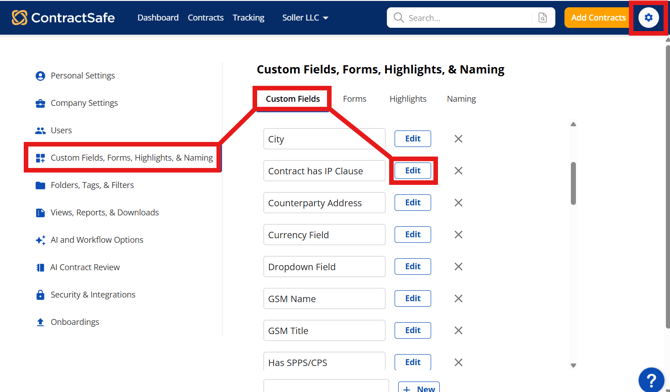
- Go to Settings.
- Select Custom Fields and Forms.
- Open the Custom Fields tab.
- Create a new Custom Field, or open an existing Custom Field to edit it.
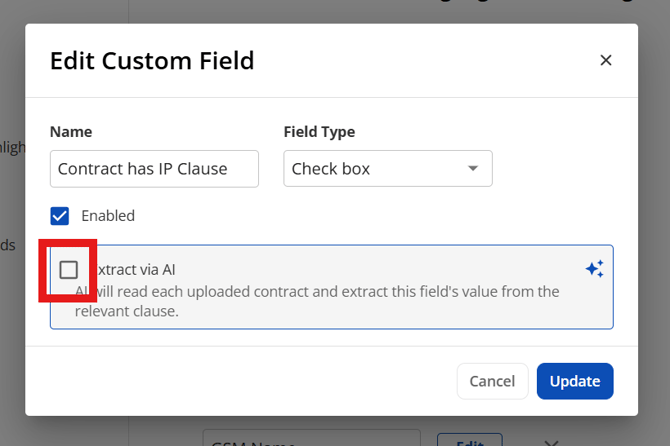
- Turn on the option to use AI extraction for the field.
- Describe what the AI should find in the contract. Be specific about which clause to read and what to extract. AI uses this description to build its extraction instructions for this field. Please see the next section for guidelines on how to write an effective AI Field Description.
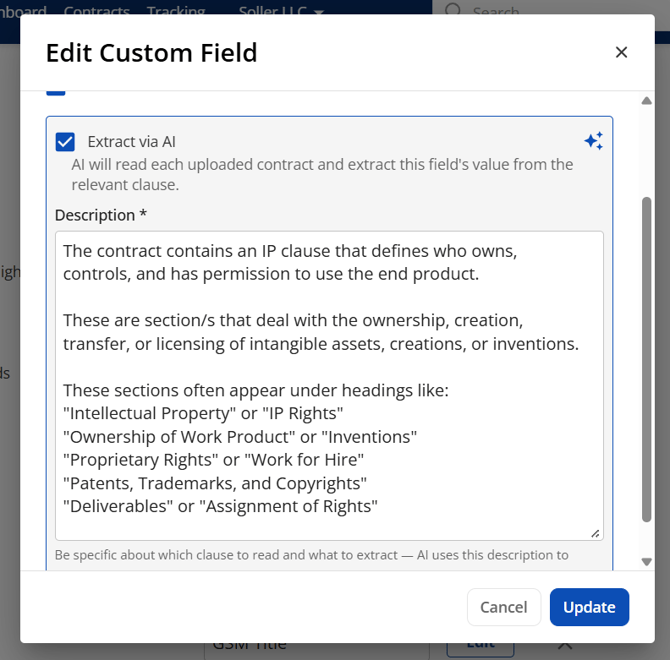
- Save the Custom Field.
- Start uploading new contracts. Only newly uploaded contracts will have the custom AI field included among its AI Assistant result. If you wish to rerun the AI on prior uploaded contracts, please reach out to ContractSafe Support.
- Open your contract and select View AI Fields.
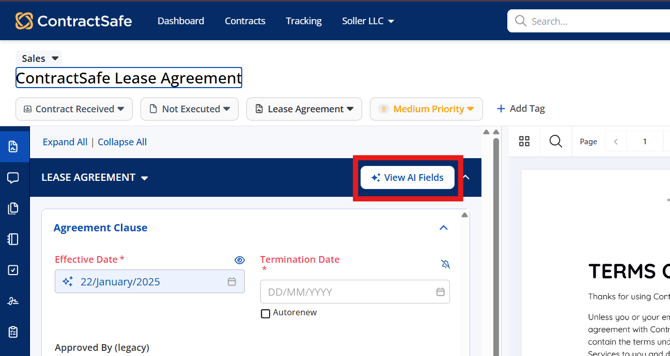
- Scroll to the bottom of all the AI Fields, and you will see the "Custom Fields" section of the AI result. Select a suggested Custom Field value.
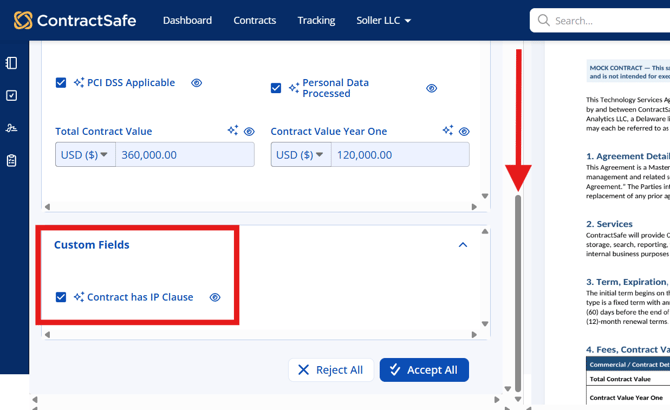
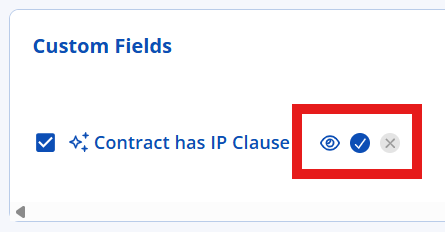
- Review the suggested value and click the eye icon to see on the document where the AI captured the information.
- Choose one of the available actions: Confirm (Blue check) or Clear (Grey X icon)
- Alternatively, you can opt to use the "Accept All" button instead. This will accept all pending AI results within the contract, including the Custom Field result.
- Repeat for each suggested field or on other newly uploaded contracts.
Guidelines for writing an effective AI Field Description.
Review your description and ask:
- Does it identify one specific contract detail?
- Would another person interpret it the same way?
- Does it explain which part of the contract AI should use?
- Does it specify the expected answer or format?
- Does it match the Custom Field type? (Text, multiple choice, checkbox, etc..)
- Does it explain how to handle missing or unclear information?
- Would the suggested value be easy for a user to review and accept?
A few tips and important things to note
- Start with your most important workflows. Create fields for information your team routinely searches for, filters by, reports on, or reviews during contract intake.
- Use one field for one concept. Smaller, focused instructions usually produce the most reliable and consistent result.
- Match the field type to the expected result. Use a Date field for dates, a Number field for numeric values, and a Checkbox for yes/no questions.
- Use dropdowns and multiple-choice fields carefully. Make sure the available options clearly describe the values you want to track.
- Review the source language. AI may find a related clause that does not exactly answer the question you intended to ask.
- Use readable documents when possible. Machine-readable contracts generally produce more reliable results than low-quality scans or image-only PDFs.
- Keep manual entry available. If a contract does not contain the requested information, or the AI cannot identify a clear match, enter the value manually when appropriate.
Test out your custom AI field on a real contract. Copy an existing one, or upload a new one. All field data and information can be deleted or reversed later on, so please play around with the new feature.
AI Extraction for Custom Fields are designed to reduce manual work while keeping your team in control. AI suggests values based on the description and shows where it found the information in the contract. Review each suggestion before accepting it so your contract records remain accurate and aligned with your business needs. The best descriptions are specific, objective, and easy to understand: you define what matters, and AI finds it.
Please reach out to support@contractsafe.com for further inquiries.