
Whether you're reviewing dense contract language or moving between workspaces all day, your contract page can now match the way you prefer to work.
The Highlights
- More comfortable viewing: Choose Dark Blue to reduce the brightness of your contract page during longer review sessions.
- Clearer navigation: Workspace labels now use different shades of blue so you can quickly see what’s selected, what’s available, and where you’re working.
- Easy switching: Change your theme anytime from Personal Settings, so your view fits your preference.
- Action that stands out: The Add Contract button appears in Amber on the Dark Blue theme, helping you spot your next step quickly.
- Cleaner branding: The ContractSafe logo automatically adjusts for better visibility on the blue background.
How to change your contract page color theme
ContractSafe now includes a color theme setting for contract pages. You can choose between Dark Blue and White to make your contact page workspace more comfortable for your viewing preferences.
Dark Blue gives the contract page a higher-contrast look, including updated navigation colors, a visible ContractSafe logo, and an Amber Add Contract button.
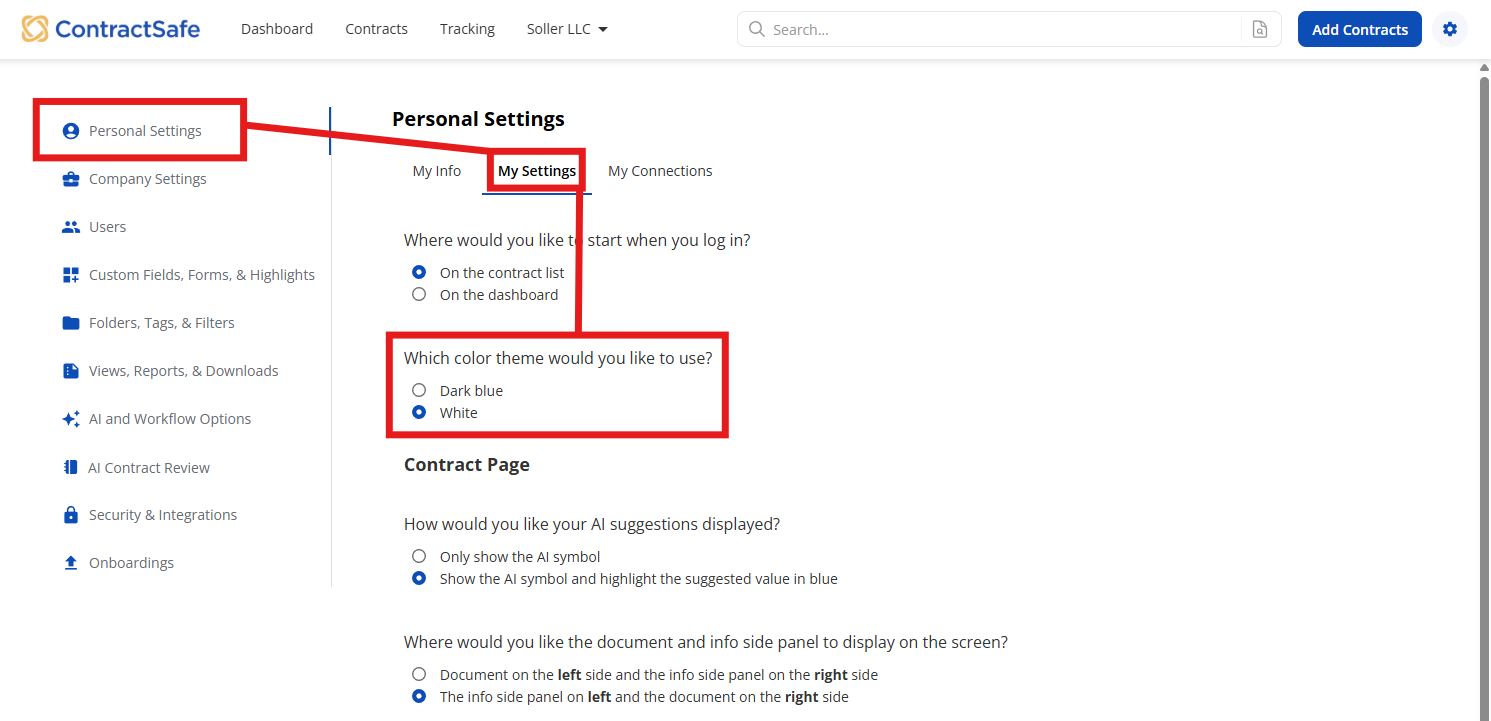
Change your color theme- Log in to ContractSafe.
- Go to Settings
- Select Personal Settings
- Open the My Settings tab.
- Find the setting labeled: What color theme would you like to use?
- Choose one of the available options: Dark Blue or White
For reference, the image below shows the original white theme:
What changes when Dark Blue is selected
When you select the Dark Blue theme, the contract page updates to use the Dark Blue color style: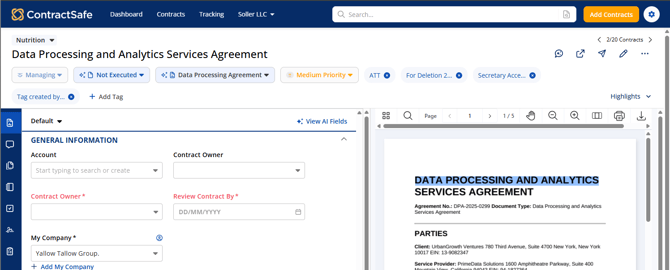
You will see changes in these areas:
- Top navigation bar
The top navigation bar uses the Dark Blue theme.
- Add Contract button
The Add Contracts button appears in Amber so it stands out as a primary action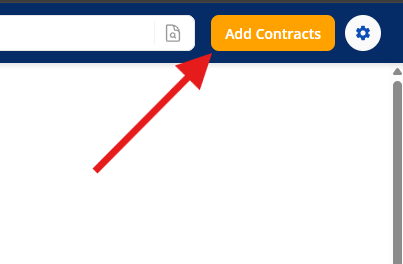
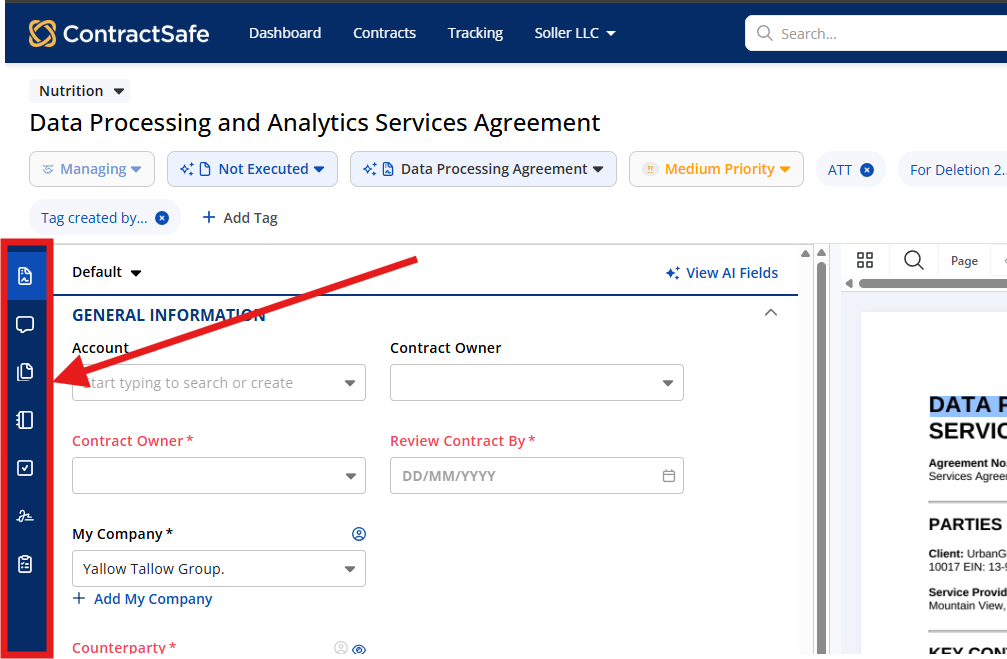
- Workspace navigation
Workspace labels use different shades of blue to help show where you are on the contract page: - Unselected workspace labels appear in the darkest blue.
- Hovering over an unselected workspace label changes it to a lighter blue.
- The selected workspace label appears in a medium blue.
- ContractSafe logo
The ContractSafe logo text appears in white so it remains visible on the blue background.
Notes
- The color theme is a personal setting. Changing it updates your view of the contract page.
- New user accounts default to Dark Blue.
- You can switch back to White at any time from: Settings > Personal Settings > My Settings.
- The color theme applies to the contract page experience, including the header and workspace navigation.
Please reach out to support@contractsafe.com for further inquiries.