
Open the All Reminders Report area
To find the report:
- Go to Settings.
- Open Views, Reports, & Downloads.
- Click Reports & Downloads section
- Go to Alerts section
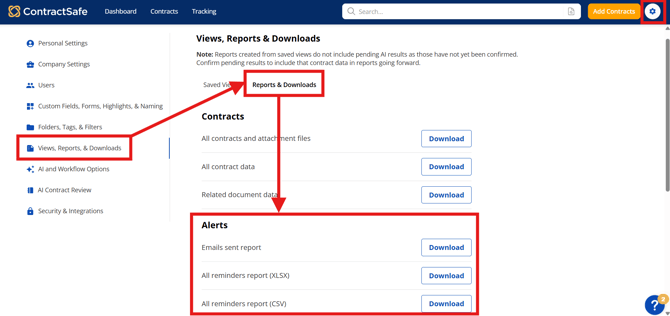
Choose a report format
Choose the format that best fits your workflow:
- XLSX — use this format for spreadsheet analysis, sorting, formulas, and additional review columns.
- CSV — use this format for lightweight exports, data transfers, and systems that accept comma-separated files.
Tip: Use XLSX when you need to filter or annotate the report in Excel. Use CSV when you need to load the data into another system.
Once the download button is selected, depending on which you chose, an XLXS or CSV file will be generated and sent as an attachment to your registered email address. This is how it will look like: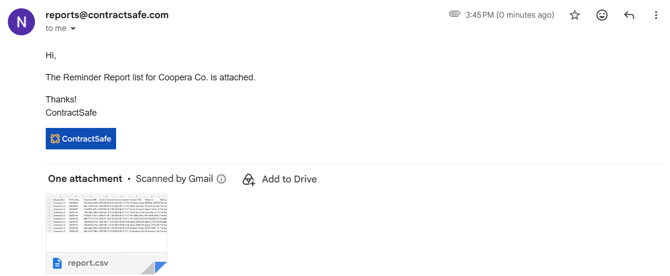
Note: The download process is not instantaneous. An email will be sent to you once the zip file is ready.
Troubleshooting and FAQs
Why haven’t I received the report email yet?
Report generation is asynchronous. Wait for the completion email, check spam or quarantine folders, and confirm that your registered email address is current.
Is the report delivered as a ZIP file?
No. The All Reminders Report is delivered as an XLSX or CSV attachment, depending on the format selected.
Who receives the report?
The report is sent to the registered email address of the user who requested the download.
Why can’t I see the All Reminders Report?
Your role may not have access to organization-level reports. Ask an Administrator or Account Owner to confirm your permissions.
Can I edit reminders from the report?
No. The report is a downloadable snapshot. Use the contract link in the report to open the contract and update the reminder in ContractSafe.
Why are reminders missing from the report?
Confirm that the reminders are scheduled, that you are viewing the correct account, and that the report was generated after the reminders were created or updated.
What should I do if the attachment will not open?
Confirm that you selected the correct format, download the attachment again, and open it with a compatible spreadsheet application. Contact Support if the file remains unreadable.
Please reach out to support@contractsafe.com if you require further assistance.