
Approvals are available on the Finalize and Maximize plans. If you don't see the Approve workspace, contact your account administrator.
What's new in the Approve workspace
Approvals are easier to set up, send, and track, with fewer follow-ups, fewer permission surprises, and a smoother path from review to approval.
- Clearer approval setup: See approvers, approval options, and email details in one organized workspace before you send.
- Smarter approver selection: Choose from people and groups who can access the contract, so you don't accidentally route requests to someone who can't review it.
- Flexible review order: Send approvals to everyone at once or set a specific sequence when each reviewer needs to approve in order.
- Better group visibility: Expand Approval Groups to confirm who's included before you send.
How to add approvers
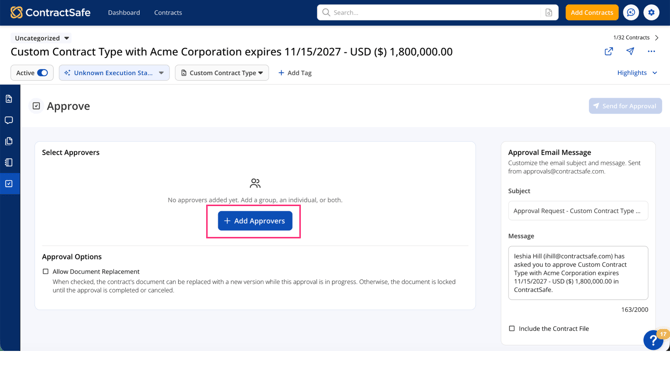
- In Selected Approvers, select Add Approvers.
- Search for an Approval Group or individual users.
- Review the results. Approval Groups show the group name and number of members. Individuals show each person's name and email address.
- Select the checkbox next to each person you want to add, or select one Approval Group.
- Confirm your approvers appear in the Selected Approvers list.
Note: The list only shows people and groups who can access the contract. You may see the message Only showing groups and individuals with contract access. An Approval Group appears only when every member has access to the contract.
How to review and remove approvers
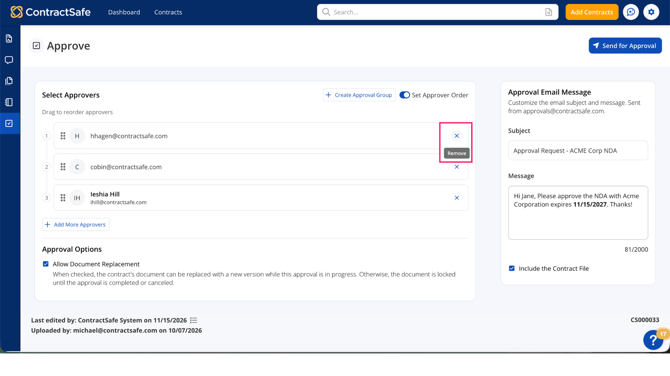
Each approver or group appears as a card in Selected Approvers.
- Hover over an approver's name to see their email address.
- To see who's in an Approval Group, select the chevron on the group card. Select it again to collapse the group.
- To remove an approver or group, select the X on their card.
Note: If you remove every approver, the Send for Approval button is unavailable until you add at least one.
How to set the approval order
When you add two or more individual approvers, you can send the request to everyone at once or in a set order.
-
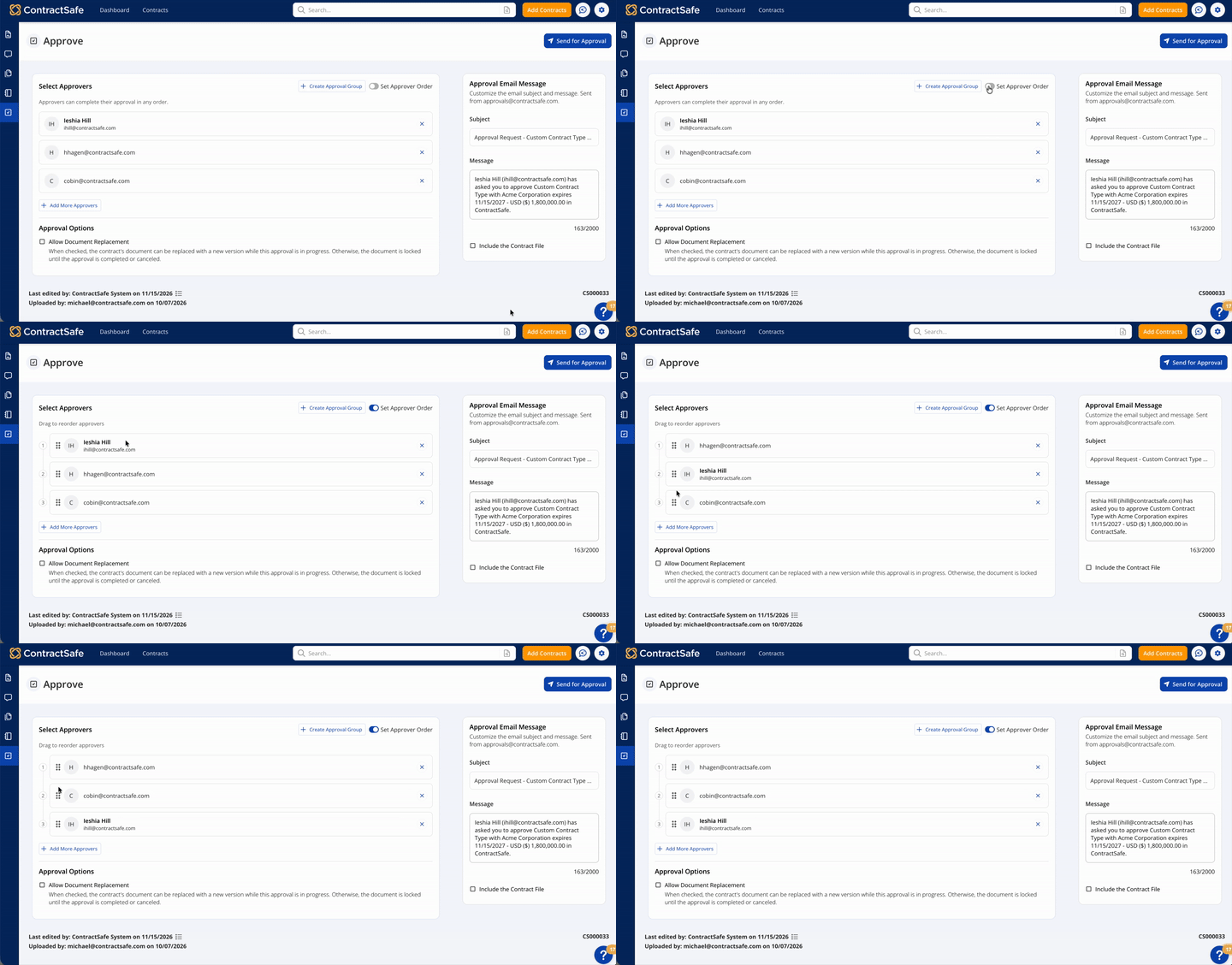
In Selected Approvers, find Set Approver Order.
- Leave it off to send the request to all approvers at the same time.
- Turn it on to have approvers review one at a time.
- Drag the approver cards into the order you want.
- Review the order before you send.
Note: If an admin already set an order for an Approval Group, the workspace shows that order with the note Order set in Admin Settings.
How to allow or lock document replacement
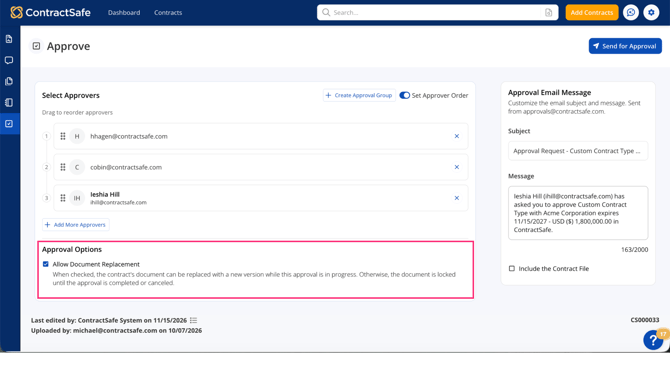
- In Approval Options, find Allow Document Replacement.
- Leave it unchecked (the default) to lock the document until the approval is completed or canceled.
- Check it to let users replace the contract document while the approval is in progress.
How to customize the approval email
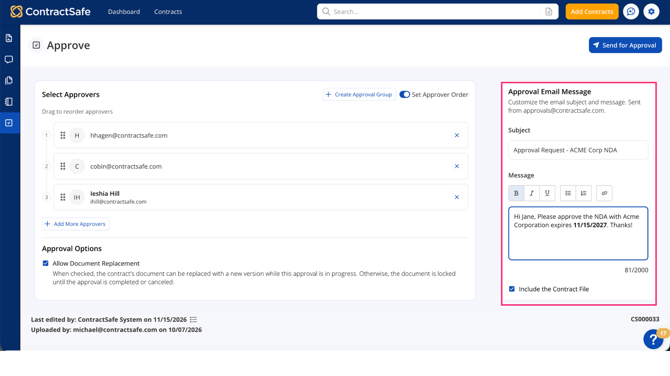
The Approval Email Message section includes a default subject and message.
- Review the default Subject and edit it if you want to add context.
- Review the default Message and edit it if you want to add instructions for approvers.
- Keep both fields filled in. The subject and message are required. If you delete either field or leave only spaces, ContractSafe shows a message such as Subject is required or Message is required and won't send the request until you add valid text.
Include the contract file in the email
- In Approval Email Message, find Include the Contract File.
- Leave it unchecked (the default) so approvers open the contract from the email link.
- Check it to attach the contract file to the email.
Note: If the contract file is too large to send reliably as an email attachment, approvers receive a secure link to view or download the document instead.
How to send the approval request
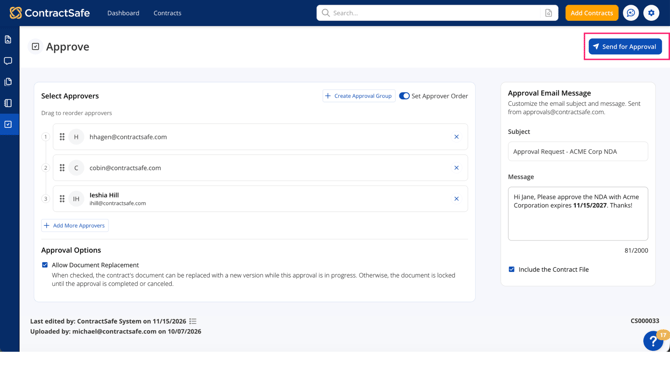
- Confirm you've added at least one approver.
- Review the approval order, if you set one.
- Review your approval options.
- Confirm the email subject and message are filled in.
- Select Send for Approval.
After you send, the approval workflow becomes active and approvers receive the approval notification email. You'll see the confirmation message Approval Request Sent!, and the Approve workspace changes from setup mode to the active approval tracking view.
For admins: editing Approval Groups with pending approvals
If you add, remove, or reorder users in an Approval Group that already has pending approval requests, ContractSafe may display a confirmation message before saving the change. Changes to the group apply only to future approval requests. Pending approval requests are not changed automatically.
To save the change, select the confirmation option. To keep the group as is, select Cancel. If the group has no pending requests, your changes save right away.
FAQ
-
Why can't I select Send for Approval? The button stays disabled until you add at least one approver and fill in the email subject and message.
-
Why don't I see someone in the approver list? Only people and groups with access to the contract appear. This helps prevent sending an approval request to someone who can't view or approve the contract.
-
Why isn't my Approval Group showing up? A group appears only when every member has access to the contract.
-
Should I set an approval order? Turn on Set Approver Order when one person must approve before the next person gets the request. Leave it off when everyone can review at the same time.
-
How do I check who's in an Approval Group? Expand the group card to confirm its members before you send.
-
When should I allow document replacement? Turn on Allow Document Replacement only when it's acceptable for the contract file to be updated while an approval is pending.