
The Highlights
- Faster reminder audits: Filter by whether a contract has date reminders, so you don’t have to open contracts one by one.
- Better deadline coverage: Find contracts without reminders and fix gaps before they create renewal, termination, or compliance risk.
- Clear recipient visibility: Filter by “Reminder Sent To” to see which contracts send reminders to specific people.
- More useful list views: “Add Date Reminder Set” and “Date Reminder Sent To” columns to see reminder details directly in your Contracts List.
- Flexible team access: Admins can manage date reminder filter visibility, with the filter available to everyone by default.
Try it next time you’re reviewing upcoming deadlines or auditing contract setup.
How to find contracts with or without date reminders
1. Use the Date Reminders filters and columns on the Contracts List to quickly see which contracts have reminders set, who receives those reminders ("Reminders Recipients"), and which contracts may need reminder setup.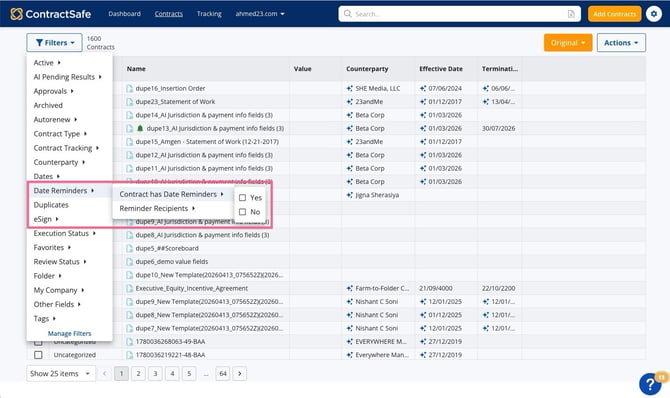
This is especially helpful for contract managers, administrators, and teams who need to confirm important deadline alerts without opening contracts one at a time.
Filter the Contracts List by date reminders
- Go to the Contracts List.
- Select Filters.
- Open the Date Reminders filter category.
- Choose one of the available date reminder filters:
- Contract has Date Reminders
- Reminder Recipients
- To find contracts based on whether reminders are set, select Contract has Date Reminders, then choose:
- Yes, to show contracts with date reminders.
- No to show contracts without date reminders.
- To find contracts by reminder recipient, select Reminder Recipients, then choose a recipient from the list.
- Review your filtered Contracts List.
2. Add date reminder columns to the Contracts List
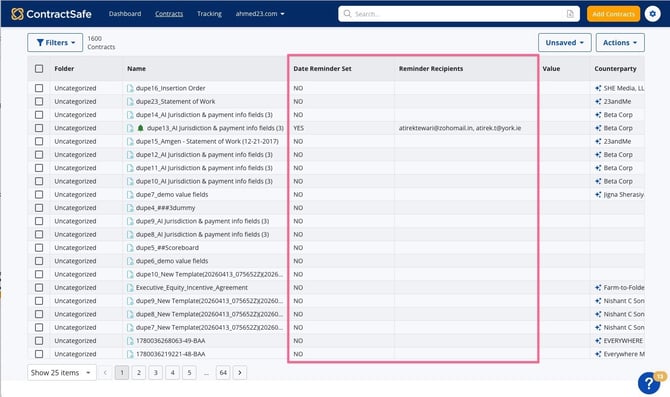
You can also add reminder information as columns so you can review reminder details directly from the main list view.
- Go to the Contracts List.
- Select Actions > Edit Columns.
- In the Edit Columns window, search for the reminder column you want to add.
- Add either or both of these columns:
- Date Reminder Set
- Reminder Recipients
- Save or apply your column changes.
- Review the Contracts List to see reminder information without opening each contract.
3. Manage date reminder filter visibility
Administrators can manage the visibility of the Date Reminders filter from the filter settings area.
- Go to Settings.
- Open the Filters settings area.
- Find the Date Reminders filter configuration.
- Adjust the visibility settings as needed.
Default Setting: By default, the Date Reminders filter is set to Available for Everyone.
Notes and tips
- Recipient Availability: The Reminder Sent To filter only shows people who are currently associated with at least one date reminder.
- Sorting: Recipient names appear in alphabetical order.
- Proactive Auditing: Use Contract has Date Reminders = No to quickly find contracts that may need reminder setup.
- Custom Views: Use the Date Reminder Set and Date Reminder Sent To columns when you want reminder details visible in your regular contract view.
- Save for Later: After applying filters or changing columns, you can save the setup as a custom view if you want to use it again later.
Please reach out to support@contractsafe.com for further inquiries.