
Creating a playbook from a contract is the fastest way to set up AI Contract Review. Pick a contract you’ve already negotiated in ContractSafe, and AI uses it to draft rules for you to review. Don’t have one handy? See How to create a playbook from a sample or from scratch.
Before you start
- Role: Only Admins can create and edit playbooks.
- Plan: AI Contract Review is available on the Maximize plan.
- Turn it on: Go to Settings > AI Contract Review and switch the toggle to Enabled.
Create your playbook from a contract
- In Settings > AI Contract Review, find the Create From a Contract option and click Playbook.
- Choose how to create rules: Create for Me or Highlight Contract to Create Rule(s).
- Select a contract you’ve already negotiated and click Next.
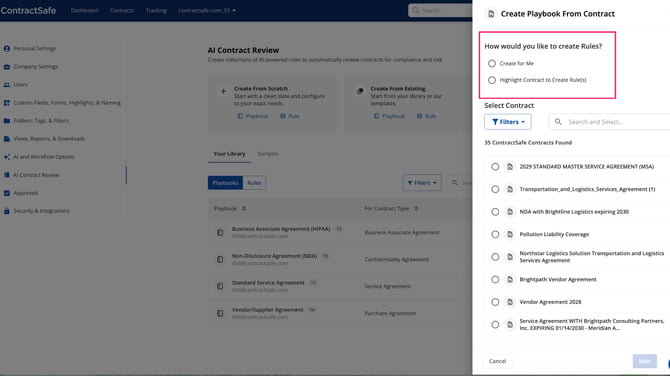
Option A: Create for Me
AI reads your contract and suggests rules based on its terms. It’s the quickest way to get a full playbook.
Try the interactive demo: Create rules for me
- Select Create for Me.
- Enter how many rules you’d like AI to create. We recommend 10 to 25.
- Choose a contract you’ve already negotiated, then click Next.
- Follow the steps in Review and confirm your rules below to review your rules and save your playbook.
Option B: Highlight Contract to Create Rule(s)
Turn any clause into a rule by highlighting it. You pick the clauses, and AI drafts a rule from each one.
Try the interactive demo: Create rules by highlighting a contract
- Select Highlight Contract to Create Rule(s), choose your contract, and click Next. The contract opens on the left, and the playbook details are on the right.
- Highlight the clause you want to check.
- Click Create rule from Highlight. AI drafts a rule based on that clause.
- Repeat for each clause you want to check.
- Follow the steps in Review and confirm your rules below to review your rules and save your playbook.
Review and confirm your rules
AI suggests each rule, and you decide what goes in your playbook.
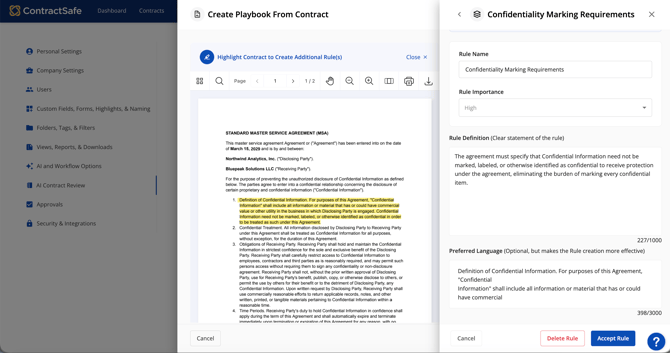
- In Playbook Name, give your playbook a name.
- Choose a Contract Type (optional) so this playbook is suggested automatically for those contracts. You can also add Notes.
- Open each suggested rule to review it.
- Create for Me: click a rule under Review and Confirm Rules.
- Highlight: the rule opens automatically after you click Create rule from Highlight.
- Check the Rule Name, Rule Importance, Rule Definition, and Preferred Language. Edit anything that doesn’t match your standards.
- Tip: AI checks contracts against the Rule Definition, not the Preferred Language, so make sure the Rule Definition states exactly what you require.
- Click Accept Rule to keep it, or Delete Rule to remove it.
- Repeat for each suggested rule.
- Once you’ve reviewed all of your rules, click Create Playbook.
You’re set. Your playbook is ready to use on every contract of that type. Next, see How to run an AI Contract Review playbook in ContractSafe.
Notes for creating a playbook from a contract
Only Admins can create and edit playbooks.
You need to review and confirm the suggested rules before you can save the playbook.
When AI creates rules for you, 10 to 25 rules gives the best results.
There is no limit on the number of playbooks you can create.