
You manage Approval Groups in ContractSafe from one dedicated place: Settings > Approvals. From there you can create, edit, order, and delete the groups your team relies on without jumping into individual contracts. Approvals are available on the Finalize and Maximize plans, and you need permission to access Approval settings.
Table of contents
- Open approval settings
- Review your approval groups
- Create an approval group
- Edit an approval group
- Set an approver order
- Delete an approval group
Before you begin
- Approvals are available on the Finalize and Maximize plans.
- You must have permission to access Approval settings and manage Approval Groups. If you don't see the Approvals setting, contact your account administrator. See ContractSafe permissions: roles, groups, and access control.
Open approval settings
- Go to Settings.
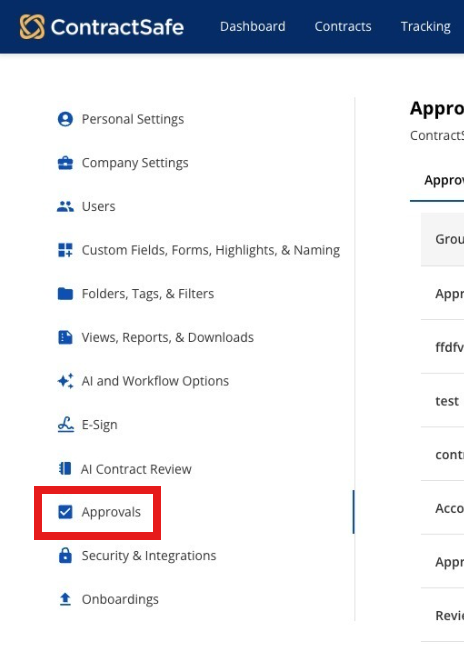
- Select Approvals from the left navigation menu.
- Use the Approvals page to review and manage your Approval Groups.
The Approvals setting is enabled by default for supported plans. If your organization previously managed Approvals from AI and Workflow Options, the Approvals setting is now managed from the Approvals page in Settings.
Review your approval groups
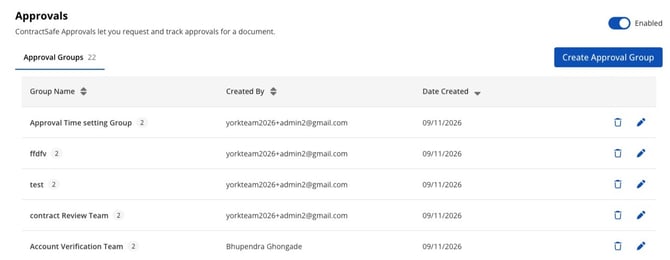
On the Approvals page, the Approval Groups list shows key information about each group, including:
- Group name
- Description
- Members
- Created by
- Date created
Use this list to review existing groups before creating, editing, or deleting an Approval Group.
Create an approval group
- Select Create Approval Group on the upper right side of the page.
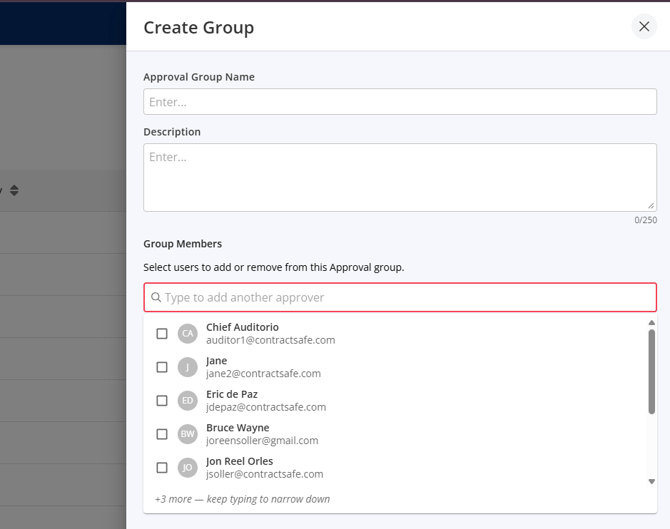
- In the drawer that opens, enter an Approval Group Name.
- Add an optional Description to explain the group's purpose.
- Add at least one Group Member.
- If the group has at least two members and approvals should happen in a specific sequence, turn on Set Approver Order.
- Arrange the members in the order they should approve.
- Select Save or Create.
Group requirements and guidelines
When setting up or updating an Approval Group, keep these guidelines in mind:
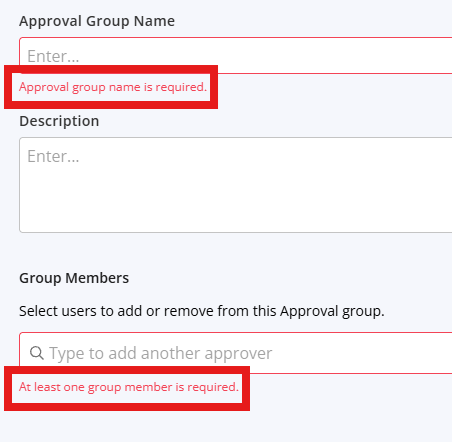
- Group Name: Required. Each group name must be unique (names aren't case-sensitive).
- Members: You must add at least one group member.
- Description: Optional, with a limit of 250 characters.
If any required details are missing or need fixing, ContractSafe displays a helpful message directly next to the field so you can update it before saving.
After you save, ContractSafe creates the Approval Group, closes the drawer, and updates the Approval Groups list.
Edit an approval group
- Go to Settings > Approvals.
- Find the Approval Group you want to update.
- Select the Edit icon.
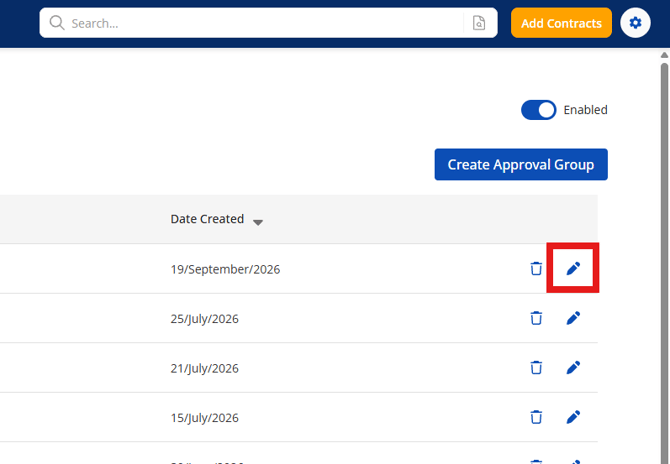
- Update any of the available group details:
- Approval Group Name
- Description
- Group Members
- Set Approver Order
- Select Save.
After you save, ContractSafe updates the Approval Group, closes the drawer, and refreshes the Approval Groups list.
If you select Cancel or close the drawer without making changes, the drawer closes. If you have unsaved changes, ContractSafe asks you to confirm that you want to discard them.
Set an approver order
Use Set Approver Order when group members need to approve in a specific sequence.
- Create or edit an Approval Group.
- Add at least two members to the group.
- Turn on Set Approver Order.
- Use the drag-and-drop controls to arrange members in the correct order.
- Save the group.
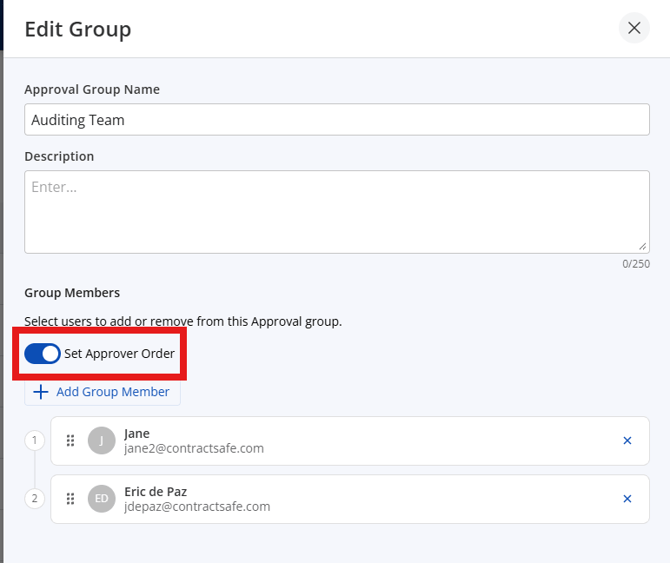
If you turn off Set Approver Order, the ordered view is hidden and the group no longer uses a specific approval sequence for future approval requests.
Changing the approver order for an Approval Group doesn't change approval requests that are already pending. If the group has pending approvals, ContractSafe displays a message before you continue so you understand how the change affects existing requests.
Delete an approval group
You can delete Approval Groups that your organization no longer needs. ContractSafe shows a confirmation message before deleting a group so you can understand what will change.
- Go to Settings > Approvals.
- Find the Approval Group you want to delete.
- Select the Delete icon.
- Review the confirmation message.
- Choose one of the following:
- Select Cancel to keep the group.
- Select Delete if the group has no active approvals.
- Select Delete & Cancel Approvals if the group has active approval requests that must be canceled.
What happens when you delete an Approval Group?
If the group has no active approvals:
- The group no longer appears as an option when assigning Approval Groups.
- Previously approved contracts remain valid and unchanged.
- The deleted group no longer appears in the Approval Groups list.
- Historical approval records show that the group was deleted, while preserving the validity of the completed approval.
If the group has active approval requests:
- ContractSafe shows the number of affected contracts and the contract names before you confirm.
- If you confirm, active pending or rejected approval requests connected to that group are canceled.
- Approved approval requests remain approved and aren't canceled.
- Affected contracts return to the point where a new approval request can be created.
- Relevant stakeholders receive cancellation emails.
- The contract activity log records that the approval request was canceled because the group was deleted.
Deleting an Approval Group can't be undone. If you need the group again later, you must recreate it.
What happens when you delete a user who is part of Approval Groups or has pending approvals
When you delete a user from Settings > Users, ContractSafe checks whether that user is connected to an active approval request.
If the user is part of an Approval Group with ordered approvals, part of a group where all members must approve, or currently assigned to pending approvals on active contracts, ContractSafe displays a warning before deletion.
The warning may include:
- Approval Groups affected by the user's removal
- Contracts currently waiting on that user's approval
From the warning message, you can:
- Select Cancel to keep the user and make any needed changes first.
- Select Remove User to delete the user and cancel pending approval requests assigned to them.
Important: When pending approval requests are canceled because a user account is deleted, the contract activity log records that the approval request was canceled because the approver's account was deleted.
See also: Approvals feature in ContractSafe, how lifecycle stages update with approvals, and ContractSafe's contract approval workflow.
Please reach out to support@contractsafe.com for further assistance.