
To duplicate (copy or clone) a contract in ContractSafe, find the Contract Page you want to duplicate and select Duplicate from the More menu. A copy of the Contract Page is created with the contract file in the Viewer, and all the information you've entered in the fields is copied.
When to duplicate a contract
Do you ever have multiple contracts with the same party? Or would you like to set up a template for your team to use with certain information already filled out in ContractSafe? It's easy to duplicate a contract and all associated data, so you can use another contract as the starting point. If you're drafting new agreements from standard language, you can also look at creating and managing templates.
Duplicate a contract from the More menu
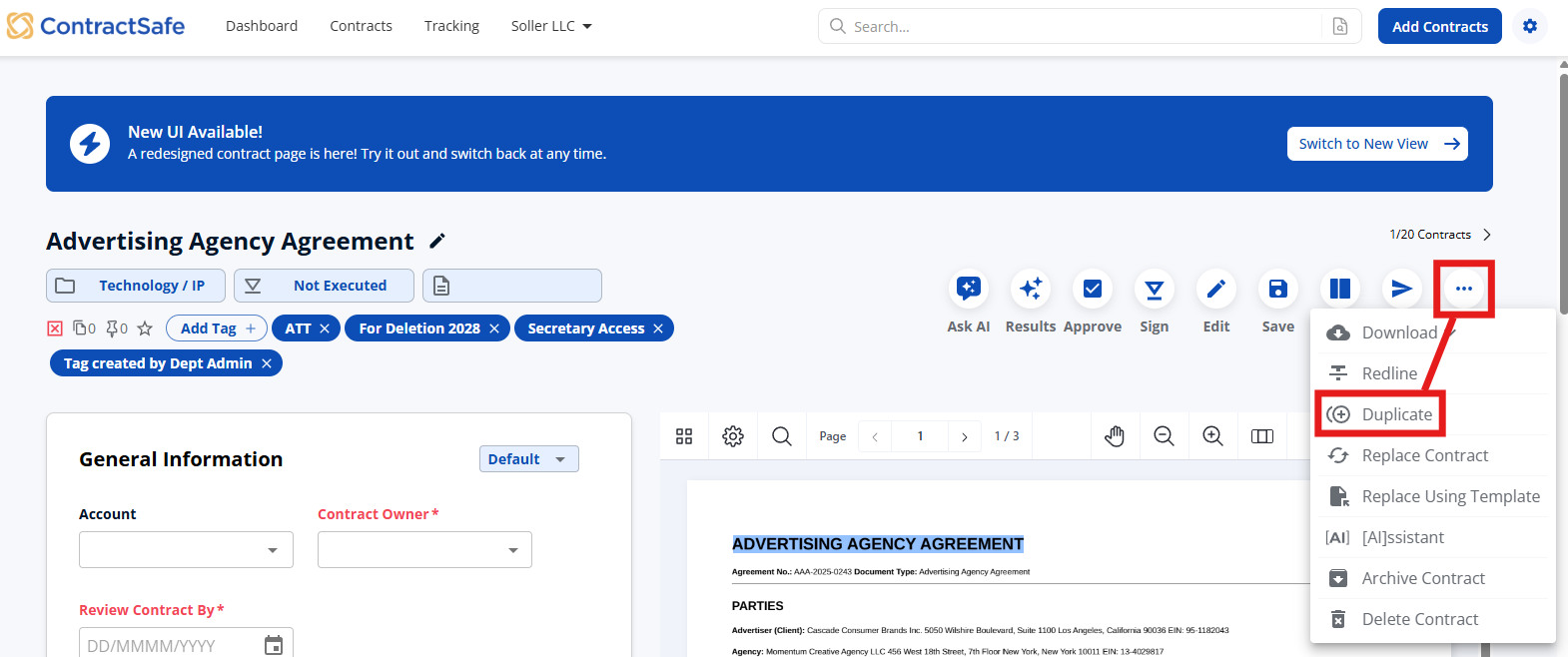
Just find the Contract Page you want to duplicate and select Duplicate from the More menu.
On the Legacy Contract Page:
On the New Contract Page:
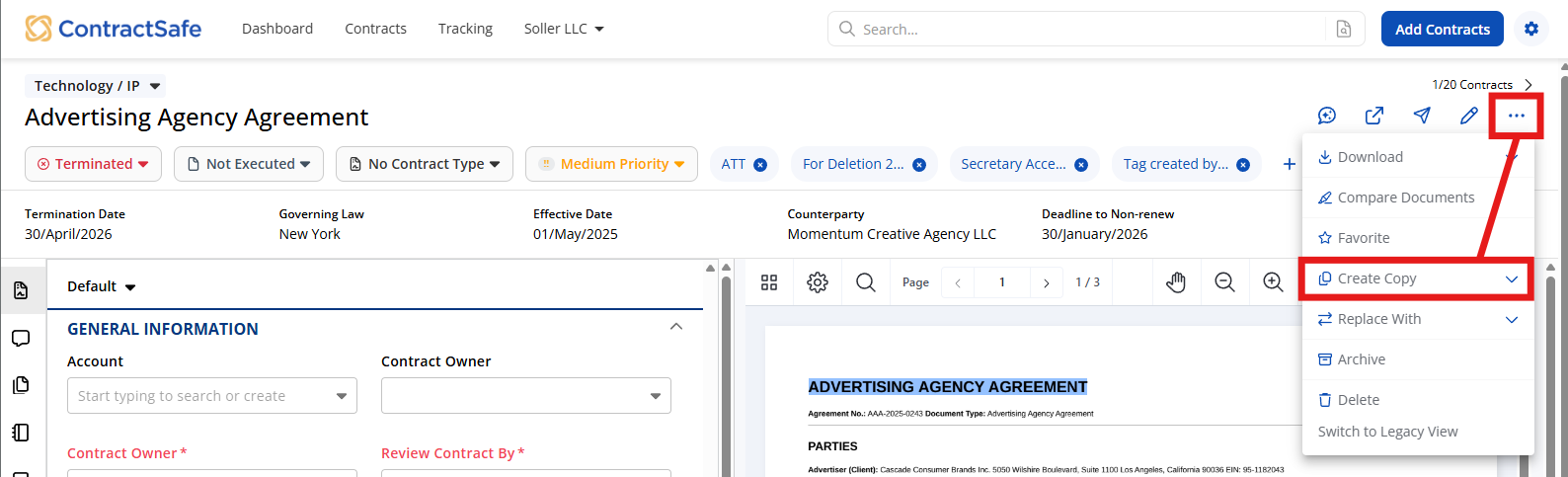
That's it! A copy of the Contract Page (with the contract file in the Viewer) will be created, and all the information you've entered (in the fields) will be copied.
Find and update the duplicate
The new document will be at the top of your Contracts List. It'll also have a "dupe" indicator at the beginning of its name so that you can differentiate it from the original contract. It'll be located in the same folder as the original document.
Once you're on the new (duplicate) Contract Page, you can replace the contract file with a new contract by using Options > Replace (see how to replace or update a contract) and change any other information (the name, dates, etc.) that you'd like. To rename it, see how to change a contract's file name.
Please reach out to support@contractsafe.com if you need further assistance.