
Table of contents:
- Prerequisites
- Create a Contract Review Playbook
- Run a playbook on a contract
- Review results
- FAQ
Prerequisites
-
Plan Required: You must be on the Maximize plan to use this feature.
-
Permissions: Only Admins can create and edit playbooks. Any user with access to a contract can view playbooks ran on contracts. Read-only users cannot run a playbook.
-
This feature is available exclusively on the New Contract Page.
Create a Contract Review Playbook
Before reviewing contracts, you must set up a "playbook", a standard set of rules your contracts will be tested against.
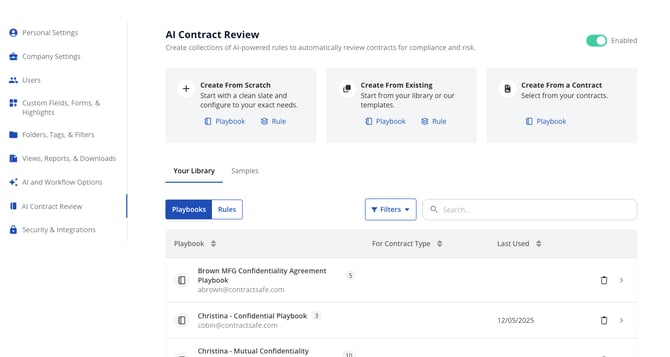
Navigate to the AI Contract Review setup area by going to Settings > AI Contract Review
Click Create Playbook and choose one of the three setup options:
-
Create from Existing: Copy a pre-made sample (e.g., "Legal" or "Confidential") or duplicate an existing playbook from your library.
-
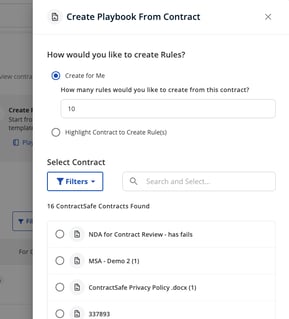
Create from a Contract (Recommended): Select a fully negotiated contract from your system to use as a model. There are two options once you select Playbook:
- Create for me:
-
Select Create for me to have the AI suggest rules based on that contract.
-
Choose a rule count (we recommend 10-25 rules for best results).
-
Review each AI-suggested rule and click Accept to add it to your playbook.
- You can also add new rules to this AI created playbook using the highlight function (see next bullet), from your existing rule library, or from scratch.
-
- Create from highlights:
-
If the AI misses a specific clause you want to track or you prefer to create these rules direction without an initial AI creation, you can manually create a rule from the document text.
-
Highlight the relevant text directly in the contract viewer.
-
Select Create rule from highlight from the menu that appears.
-
The highlighted text will automatically populate the rule builder.
-
- Create for me:
-
Create from Scratch: Manually build rules or select individual rules from your Rule Library
.
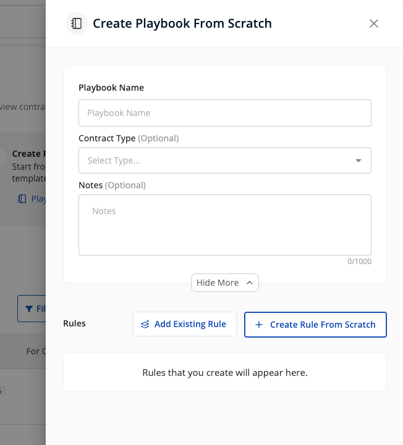
Save your playbook. You can associate it with specific Contract Types (e.g., NDAs) so it appears automatically as a suggested playbook for those documents.
Note: There is no limit on the number of Playbooks that can be created.
Run a Playbook on a Contract
Open the contract you want to review on the New Contract Page UI.
Click the AI Contract Review tab.
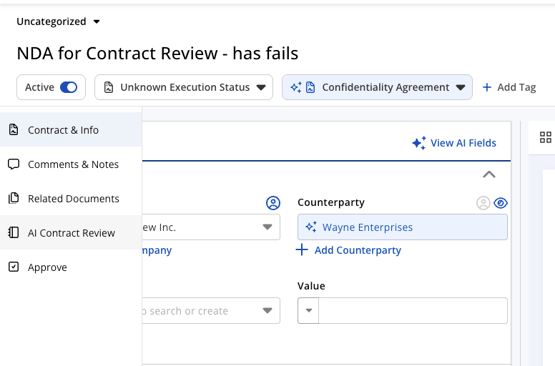
Select the appropriate playbook from the dropdown menu.
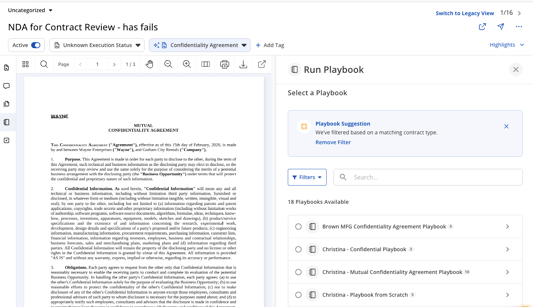
Note: If you associated a playbook with this contract type, it will be suggested automatically.
Scroll down and click Run Playbook. The AI will analyze the document, which typically takes a few seconds.
Review Results
Review the Pass/Fail status for each rule:
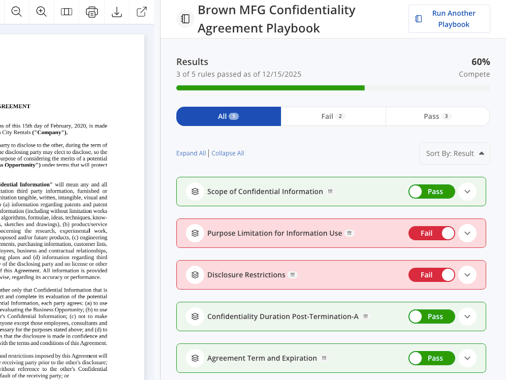
- Pass: The contract meets your rule criteria. You can click the eyeball icon to see the specific text in the document that passed the rule.
- Fail: The contract does not meet the criteria. The system may provide a Suggested Fix.
Take Action:
-
If a rule fails, you can use the Copy to Clipboard icon to grab the suggested language or change and paste it into your document editor.
-
If you believe a "Fail" is actually acceptable, you can manually toggle the status to Pass. A note will appear indicating the result was manually changed.
FAQs
Why did a rule fail when the language seems acceptable?
The AI is deliberately biased towards a "Fail" result. We prefer to flag potential issues for your scrutiny (a false negative) rather than letting a risky clause pass incorrectly (a false positive).
Is the AI checking against my "Preferred Language"?
No. The test runs against the Rule Definition. The "Preferred Language" field is optional and primarily helps the AI generate an accurate Rule Definition during setup.
How do I use this on a legacy plan? (My organization is on old pricing)
This feature is exclusive to the Maximize plan and is not available on legacy pricing plans.For further questions, please reach out to support@contractsafe.com