
Table of contents:
An upgraded contract page experience is here. Organized into Workspaces, it provides a cleaner, more focused way to manage contracts and complete tasks. Your contracts, fields, attachments, and history all carry over exactly as they are.
What’s New
- Get to what you need faster with Workspaces, a dedicated space for each task, from contract details and eSign to AI Contract Review and Lifecycle Tracking (some available on select plans)
-
Easily see the contract details AI pulls for you, built right into your workflow. New fields now capture compliance, payment terms, and contract value, with more fields on the way
- Get more out of eSign. Send requests, swap signers, and sign directly from the contract page
- Personalize your view. Choose which contract details appear front and center, and set up your page to work the way you do
See how it works in this short demo below
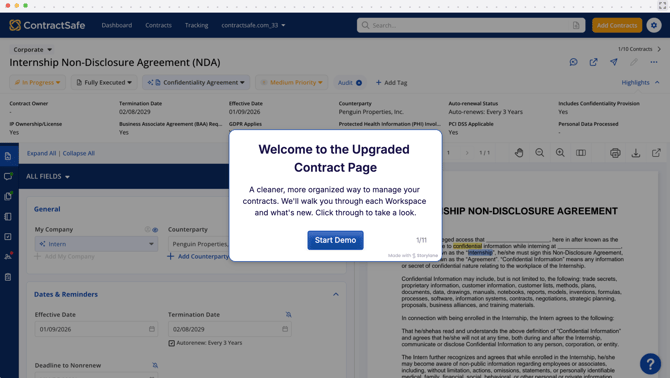
Workspaces
The first thing you'll notice in the new view is Workspaces. Instead of hunting around a single crowded page, everything has its own dedicated section so you can find what you need, take action, and move on faster.
The workspaces available to you depend on your plan and access level.
| Workspace Type | What It’s For | Availability |
| Contract & Info | See a contract's key details, including the AI-extracted fields. This is your home view for working with a contract | All plans |
| Comments & Notes | Add context, track discussions, and use @mentions |
|
| Related Documents | Add amendments, linked documents, and related files | All plans |
| AI Contract Review | Identify key terms, spot risks, and ensure consistency across your agreements, reducing time spent on manual reviews | Maximize |
| Approve | Pick approvers, customize the request email, and send a document for approval | Finalize and Maximize |
| eSign | Manage signature requests, reminders, and signers | Finalize and Maximize |
| Lifecycle Tracking | Track a contract's progress through its stages, from Contract Received, In Progress, Approving, and Signing. | Maximize |
Frequently Asked Questions
- Why is my contract page changing? The upgraded Contract Page brings everything together in one place: contract details, AI suggestions, eSign, approvals, and related documents, all without switching tabs. It also unlocks powerful new capabilities like AI Contract Review and Lifecycle Tracking. Moving everyone to one experience lets us build faster and support you better.
- What's changed on the updated Contract Page? Here's a quick overview of what's different:
- Workspace-based navigation - the Contract Page is now organized into dedicated Workspaces: Contract & Info, Comments & Notes, Related Documents, Approvals, eSign, Lifecycle Tracking, and AI Contract Review. Available Workspaces vary by subscription plan. Learn more →
- Highlights section - a new section at the top of every contract showing key details at a glance (termination date, effective date, counterparty, auto-renewal status). You can customize which fields appear here. Learn more →
- AI fields - moved to the Contract & Info Workspace and now appear inline within the contract form, with 17 new fields covering compliance, payment terms, and contract value. Learn more →
- More flexible layout - you can choose whether Comments & Notes and Related Documents appear in the side panel. Learn more →
- Is the switch per person or does it affect the whole team at once? Each person switches on their own using the toggle in their account. If you'd rather move your whole team at once, just contact your CSM and they'll take care of the org-wide migration for you.
- Where are my AI-extracted fields? AI suggestions now appear inline within the contract form, right next to each field. Look for the sparkle icon (✨) and blue text. Click "View AI Fields" to review, accept, or reject all suggestions at once. To manage which fields AI looks for, go to Settings > AI and Workflow Options > Manage AI Fields. Learn more →
- What new AI fields are available? AI now extracts more details from your contracts automatically. New fields cover compliance, payment terms, and contract value, including:
- Personal Data Processed — flags whether the contract involves processing of personal data
- PHI Involved — identifies contracts subject to HIPAA obligations
- GDPR Applies — surfaces contracts with GDPR requirements
- Payment Terms — extracts the standard payment window (e.g., Net 30, Net 60)
- Total Contract Value — captures the total dollar value over the full contract term
- Contract Value Year One — useful for multi-year agreements with variable pricing
More fields are on the way, with additional coverage for data breach notification, notice recipients, obligation dates, signature date, and document type rolling out very soon. Learn more →
- How is eSign better on the new page? eSign does more now, and it all happens right from the contract page. You can:
- Send signature requests from your own @contractsafe.com address, so they come from you and reliably reach signers
- Swap in a different signer without starting over
- Send a reminder with one click when someone hasn't signed yet
- Sign a document yourself with Sign Now, right from the contract page.
- What happens to an in-progress eSign request when I move to the new Contract Page? Good news, they won't be affected. Any signature requests already sent will keep moving forward as normal.
The one thing to know: once you're on the new Contract page, those older eSign requests will have a couple of limitations. Sign Now won't be available for them, and you won't be able to send reminders. If a signer needs a nudge, just ask them to check their original email for the signing link. - Will I lose any of my contracts or data when I switch? Not at all. Your contracts, fields, attachments, and history all carry over exactly as they are. The only thing that changes is the look and layout of your contract page.
- Where are my comments, notes, and related documents? If your comments, notes, or related documents aren't showing on the contract page, they're still there — they just need to be turned on.To enable them:
- Go to My Settings
- Scroll down to the Contract Page section
- Check Comments & Notes and/or Related Documents
Helpful Resources
Here are a few resources to get you comfortable: