
Overview
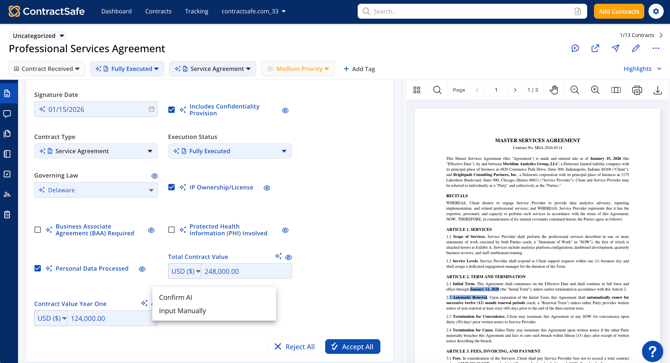
[AI]ssistant now extracts 29 data points from every uploaded contract — up from the original 12 core fields. The expanded set covers six categories: compliance and privacy, contract value, jurisdiction and structure, payment terms, and notification and date fields.
These fields are especially useful for legal, procurement, and compliance teams who need to quickly identify risk exposure, financial commitments, and regulatory obligations across a large contract portfolio — without reading every document line by line.
Available on all plans — no upgrade required Every new field is included at every plan level. Whether AI extraction is on or off for your account, you can use all new fields manually through the centralized field component on any contract page.
Before you start
- You'll need an active ContractSafe account on any plan.
- To use AI extraction, AI must be enabled for your account. Check this in Settings → [AI]ssistant tab. See Managing AI Fields if you need help turning it on.
- All fields listed in this article are live now across all regions. No action required to unlock them — they are already available in your account.
- New fields are off by default for AI extraction. Your admin controls which fields [AI]ssistant actively extracts. Turn them on individually in the [AI]ssistant tab under Settings.
- All new fields are visible on the new version of the contract page. AI extraction results for these fields will only appear there.
Compliance & privacy fields
Six yes/no fields that flag key compliance and intellectual property considerations. These are the fastest way to identify which contracts carry regulatory obligations or IP restrictions — no need to search for keywords manually.
| Field | What it captures |
|---|---|
| Personal Data Processed | Does this contract involve the processing of personal data? |
| GDPR Applies | Is the contract subject to GDPR obligations? |
| PHI Involved | Does the contract involve Protected Health Information (PHI) under HIPAA? |
| PCI DSS Requirements | Does the contract reference PCI DSS obligations? |
| BAA Required | Does this contract require a Business Associate Agreement (BAA)? |
| IP Ownership / License | Does the contract include IP ownership or licensing provisions? |
Contract value fields
Two numeric fields that extract dollar amounts directly from the contract. Useful for building financial dashboards, tracking total spend, or flagging contracts above a certain threshold — all without opening each document.
| Field | What it captures |
|---|---|
| Total Contract Value | The total dollar value of the contract over its full term. |
| Contract Value Year One | The contract value for the first year only — useful for multi-year agreements with variable pricing. |
Jurisdiction & structure fields
Open-text and dropdown fields for governance, jurisdiction, invoicing frequency, and contract term structure.
| Field | What it captures |
|---|---|
| Governing Law | The state or country whose laws govern the contract (e.g., "State of California"). |
| Jurisdiction | The specific court or jurisdiction designated for dispute resolution. |
| Invoice Frequency | How often invoices are issued (e.g., Monthly, Quarterly, Annually). |
| Term Type | The structure of the contract's duration (e.g., Fixed Term, Perpetual, Auto-Renew). |
Payment fields
Three fields that surface how and when payments are structured — including triggers, windows, and any penalties, late fees, or early-payment discounts that are easy to miss during manual review.
| Field | What it captures |
|---|---|
| Payment Terms | The standard payment window for invoices (e.g., Net 30, Net 60, Due on Receipt). |
| Payment Triggers | The events or milestones that trigger a payment obligation (e.g., On Delivery, On Acceptance, Monthly). |
| Other Payment Info | Any additional financial terms — penalties for late payment, volume discounts, early-payment incentives, and similar provisions. |
Data breach notification & date fields
[AI]ssistant extracts whether the contract requires a party to notify upon discovering a data breach or security incident. This field is about the notification obligation — the duty to report — not the general duty to prevent a breach.
| Field | What it captures |
|---|---|
| Data Breach Notification | When enabled, the AI scans uploaded contracts for breach notification language and surfaces the required response window in hours. |
| Notification Window (hours) | Whether the contract includes a data breach notification requirement (Yes/No) and the required notification window in hours (e.g., 72 hours) |
Signature date
Useful for audits, establishing the timeline of an agreement, and reconciling cases where the signature date differs from the effective date.
| Field | What it captures |
|---|---|
| Signature Date |
The date the contract was signed by all parties |
Up next
We're always expanding what [AI]ssistant can surface for you. Here's a look at what's coming — and why it's worth the wait.
| Field | What it will capture |
|---|---|
| Notice Recipients | The contacts or roles designated to receive formal notices under the contract. |
| Obligation Dates | Key dates tied to specific obligations defined in the contract — extracted as date + description pairs. |
| Document Type |
The type of document the file is such as a Contract, Receipt, SOW, etc. |
Turning AI extraction on or off
You control AI extraction for all fields — new and original — from the same place:
- Go to Settings in the top navigation.
- Click the [AI]ssistant tab.
- Toggle AI extraction on or off as needed.
If AI is off, all new fields are still available on every contract page through the centralized field & form components. You'll just enter values manually rather than reviewing AI suggestions.
How to use AI-extracted values
When you upload a contract, [AI]ssistant scans it and displays extracted values for every applicable field. Here's how to review and save them:
- Make sure AI extraction is enabled for the field(s) you wish to use in the Settings>[AI]ssistant tab.
- Open the "View All AI" section on the contract page after uploading. Allow a few minutes for scanning to complete on larger files.
- Review the extracted values. Each field shows what the AI found, with the relevant contract text highlighted in blue in the document view.
- Accept the values you want. Check the fields you're happy with and click Accept Selected Values. This saves them to your contract record.
- Explore alternatives if needed. Click Alternatives next to any field to see other options the AI identified in the document.
- Edit before accepting. Click the extracted value text to modify it directly before saving.
- Skip and come back. Click Skip for now to dismiss AI suggestions and fill in any field manually at any time.
Good to know: Not every contract will contain every data point — results depend on the content of your document. If a field isn't extracted, it just means the AI didn't find a clear match in the text. You can always enter the value manually. Refresh the page if results haven't appeared after 15 minutes.
Note: The new fields will only show AI extraction results on the new version of the contract page.
Pro tips
- Start with the compliance fields. If your team has regulatory obligations, check the boolean fields first — they give you an instant read on which contracts need closer attention before they get filed away.
- Use "Other Payment Info" as a catch-all. Even if Payment Terms and Triggers are straightforward, the Other Payment Info field surfaces penalty clauses and discount provisions that often get missed during manual review.
- Combine Contract Value with filters. Once Total Contract Value is populated across your contracts, you can use ContractSafe's search and filtering tools to quickly find all contracts above a certain dollar threshold.
- New fields work with existing workflows. Any field populated by AI — or manually — is immediately available in your contract list views, contract page, search filters, and reports. No extra setup needed.
Frequently asked questions
Do I need to upgrade my plan to access these fields? No — all 29 fields are available on every ContractSafe plan at no additional cost.
Can I use these fields without AI turned on? Yes. Every new field is available on the contract page through the centralized all field component, regardless of whether AI is enabled for your account. When AI is off, you simply enter values manually instead of reviewing AI suggestions.
Will my existing contracts be scanned for these new fields? For now, only new uploads will automatically extract all fields available. That said, you can add these fields to legacy contracts and even reupload the contract file to trigger AI to run and extract for these new fields [once AI extraction is enabled for the desired field(s)].
Are these fields searchable and filterable in ContractSafe? Yes. Once a field is populated — whether by AI or manually — you can use it in search filters, list views, and reports just like any other contract field.
Why aren't my new fields extracting anything? New fields are off by default. An admin needs to enable them in Settings > [AI]ssistant tab before [AI]ssistant will look for them during extraction.
Questions about the new fields, rollout timing, or your AI settings? Reach out at support@contractsafe.com — we're happy to help.