
Contract Lifecycle Tracking stage names can now reflect your organization’s workflow. Admins on the Maximize plan can rename lifecycle stages so contract pages, lists, tracking views, exports, notifications, searches, and supported integrations use the terms your team already knows.
For example, you can rename Approving to Legal Review if that better describes your internal process.
Before you start
- Contract Lifecycle Tracking is available on the Maximize plan.
- Only admins can manage lifecycle stage names.
- Standard users can see your organization’s current stage names, but they cannot change them.
- If your organization has not added custom stage names, users continue to see the default stage names.
Customize lifecycle stage names
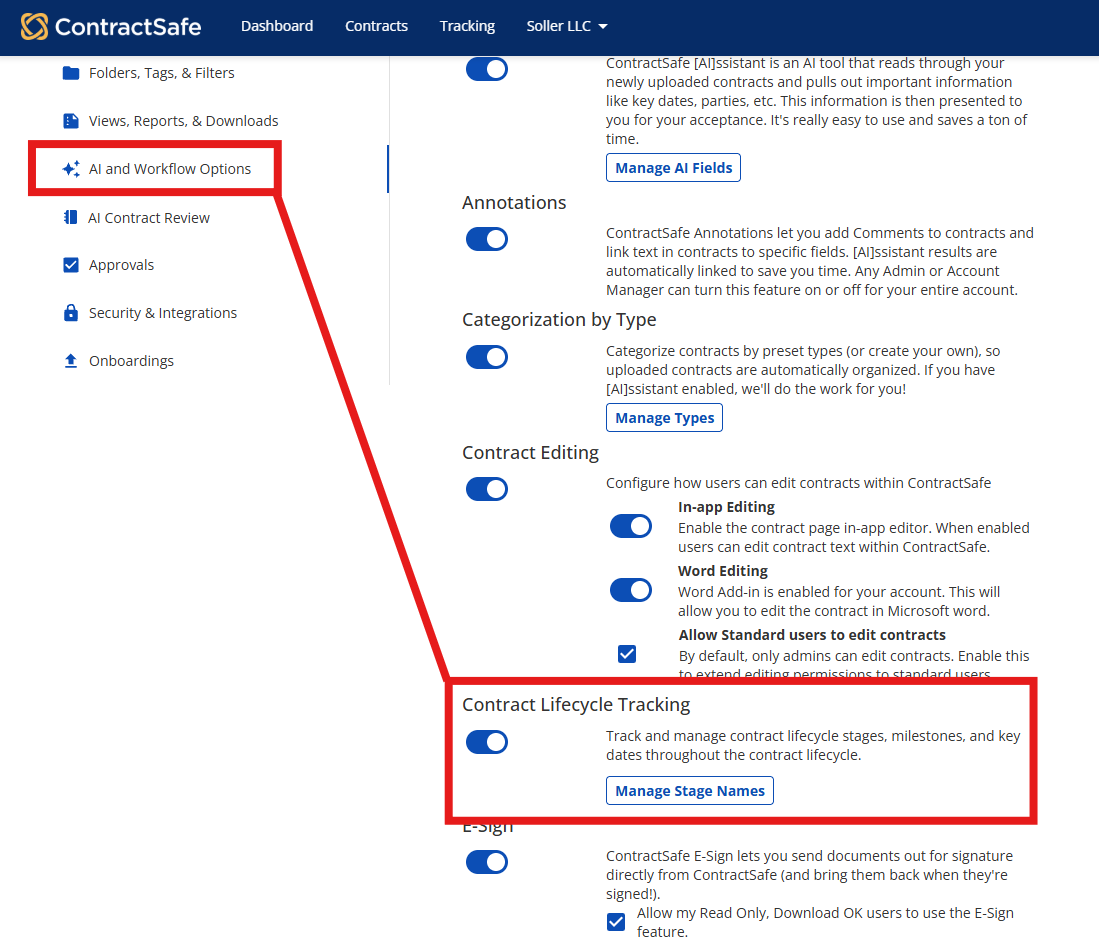
- Go to Settings > AI and Workflow Options
- Find the Contract Lifecycle Tracking section.
- Select Manage Stage Names.
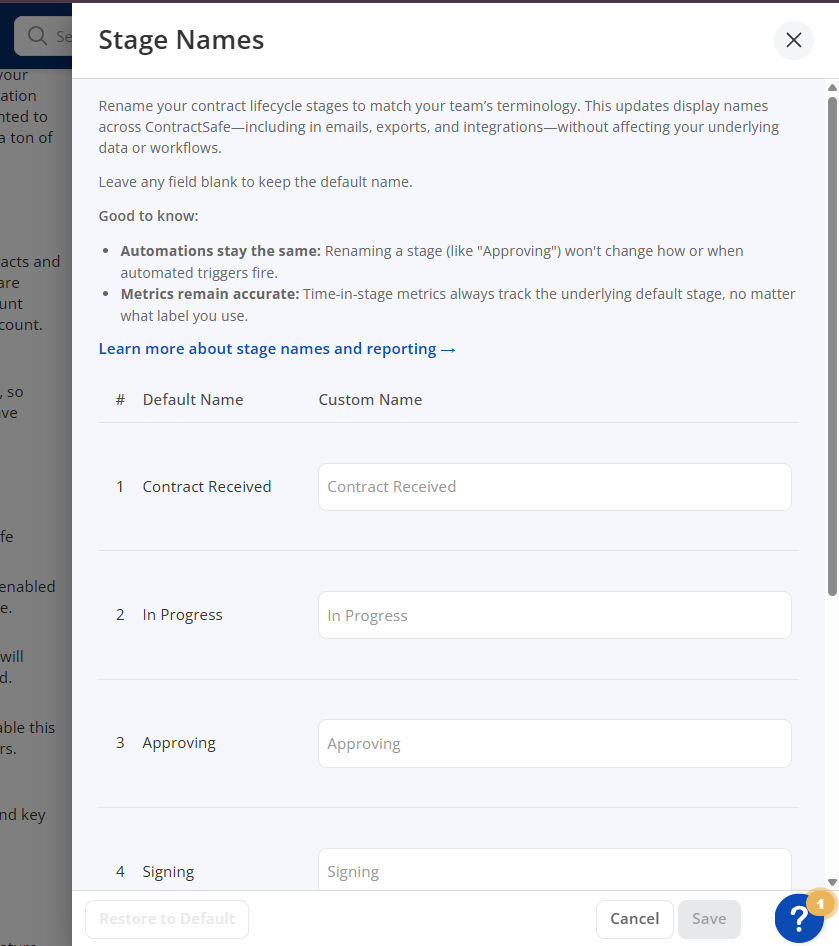
- In the drawer that opens, review the seven lifecycle stages in their fixed order.
- Enter a custom name beside any stage you want to rename.
- Select Save.
- Confirm that the “Stage names saved” message appears.
Tip: If a stage does not have a custom name, the field remains blank and displays the default stage name as the placeholder.
Reset one stage to its default name
- Open Manage Stage Names.
- Clear the custom name from the stage you want to reset by erasing the name from the text box.
- Select Save.
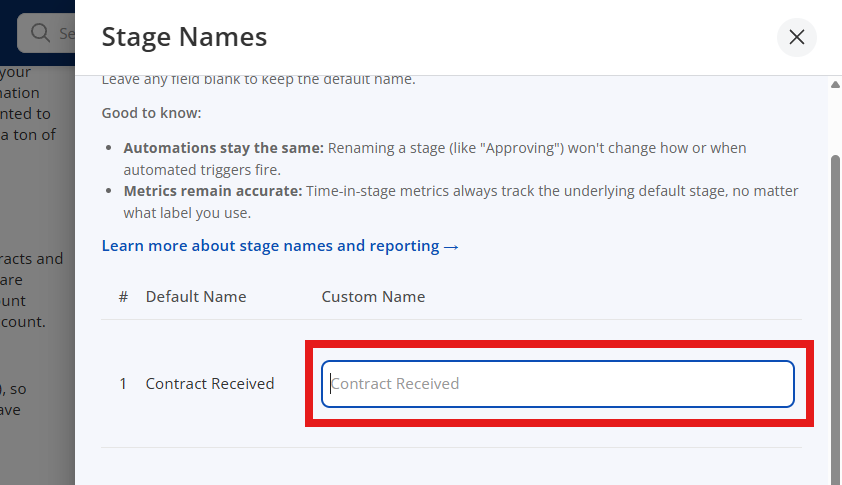
The stage returns to its default label after you save.
Reset all stage names
- Open Manage Stage Names.
- Select Restore Default.
- Review the confirmation message: “Reset all stage names to defaults?”
- Confirm the reset.
All custom names are cleared, and the default stage names are restored.
Where custom stage names appear
After an admin saves custom stage names, users see those names wherever Contract Lifecycle Tracking stages appear, including:
- The stage chip and stage dropdown on the contract page.
- Contract highlights.
- Forms, templates, and intake stage pickers.
- The Contracts List, including stage cells, filters, active filter chips, and stage-duration column titles.
- Excel and CSV exports.
- Pipeline rows, metric tiles, analytics charts, and stage-duration tiles.
- Stage logs and stage-change confirmation dialogs.
- Stage-change emails for contract owners, requesters, and guests.
- Keyword Search and Smart Search.
- Public API responses, webhooks, and Zapier triggers.
Note: Existing contracts display the new stage name after the rename. If another user already has ContractSafe open, they may need to refresh the page before the updated name appears.
Search with custom stage names
You can search for contracts using either your organization’s custom stage names or the default stage names.
Example: If your organization renames Approving to Legal Review, searching for either “Legal Review” or “Approving” can return contracts in that stage.
If Smart Search includes a word or phrase that does not match any stage name, ContractSafe ignores that stage portion of the request and returns results for the rest of the search.
Exports, reports, and saved views
Custom stage names appear in lifecycle stage values and related stage-duration column titles in Excel and CSV exports.
Saved views and saved filters continue to work after a stage is renamed. For example, if a saved view included a stage-duration column before the rename, that view still includes the same column afterward, but the column title reflects the updated stage name.
Notifications
Stage-change emails use the stage names configured for the contract’s organization. This applies to messages sent to contract owners, requesters, and guests outside the organization.
Emails that were already sent keep the stage name that was in use when the email was sent.
Integrations
For API, webhook, and Zapier users, ContractSafe keeps the existing lifecycle stage value and also includes your organization’s custom stage name as an additional field. This allows existing integrations to keep working while connected tools can display friendlier labels.
Integrations can continue using the existing stage value. They can also use the organization’s custom stage name when a workflow or connected system is designed to show your team’s preferred terminology.
Note: Review the published API or integration documentation for the exact field names, formats, and payload details available to your account.
Related articles
- Getting started with Contract Lifecycle Tracking
- Understanding Contract Lifecycle Tracking stages and automation
- Understanding Contract Tracking Fields
- Tracking and reporting on contracts using Lifecycle Tracking
- Automated Notifications for Contract Lifecycle Tracking
- Search for contracts using AI
- How do I integrate Zapier with ContractSafe?
- Does ContractSafe have an open API?
- Managing the highlights section of the contract page
For further questions, contact support@contractsafe.com