
ContractSafe is designed to make your day-to-day contract management simple, efficient, and stress-free. As a Standard User, you can:
- Find any contract instantly — even within scanned documents — using powerful keyword and AI-powered search.
- Never miss an important date — set automated email reminders for renewals, terminations, and any custom date that matters to your business.
- Generate reports with the data you need, on demand.
- Collaborate with your team — share contracts, notes, leave comments and tag someone, and share views with your colleagues.
- Sign e-signature requests directly within the platform — no more hunting through your inbox.
This guide will walk you through the core features you'll use every day, and explain how each one can help you in real-world situations.
For Account Owners, Admins, and Account Managers only: You have additional permissions for account configuration. View the Admin Quick Start Guide.
Need help along the way? Select Support under the Settings icon at the top right of any page, or reach out directly at support@contractsafe.com. See this video guide for more info!
Table of Contents
- Setting Up Your Account
- Understanding ContractSafe's Layout
- Uploading Your First Contract
- Finding Your Contracts
- Navigating the Contract Page
- Using the [AI]ssistant to Auto-Fill Contract Data
- Setting Dates and Reminders
- Searching for Contracts
- Customizing Your Contract List with Saved Views
- Creating Reports
- Signing E-Signature Requests In-Platform
- Getting More Help
1. Setting Up Your Account
How it works:
- You will receive an email invitation from ContractSafe to create your user account. It will be coming from new-user@contractsafe.com.
- Click the link "HERE" in the email to set your password.
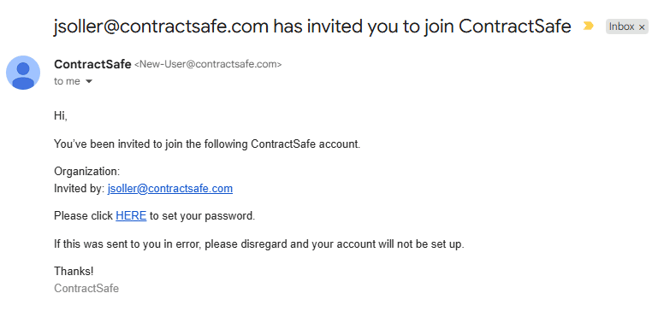
⚠️ Important: Invitation links expire after 24 hours. If your link has expired or you did not receive the invitation, contact your Account Administrator and ask them to resend it. If you are the administrator, email support@contractsafe.com.
Depending on your organization's regional preference, your log in link may be the following:
1. app.contractsafe.com - For US based customers
2. app.contractsafe.ca - For Canada based customers
3. app.contractsafe.eu - For Europe based customers
4. au.contractsafe.com - For Australia based customers
What is used for data residency is completely up to your organization during the onboarding period. Please reach out to your Admin to know the appropriate link.
2. Understanding ContractSafe's Layout
ContractSafe is organized into four main layers. Understanding this layout will help you navigate with confidence:
|
Layer |
What It Is |
What You'll Use It For |
|---|---|---|
|
The Dashboard |
A high-level overview of your account |
Viewing upcoming dates, recent activity, and Saved Views |
|
The Contracts List |
A searchable, filterable list of all contracts |
Finding, filtering, and generating reports on contracts |
|
The Contract Page |
The detail page for each individual contract |
Viewing and editing contract data, setting reminders, managing e-signatures |
|
The Tracking Section |
(Maximize plan only) Contract lifecycle stages |
Tracking a contract through 7 stages from creation to execution |
Whether you need a bird's-eye view of your portfolio or want to drill into the details of a single contract, ContractSafe's layered structure gets you there in just a few clicks.
For a more detailed overview, see: A High Level Introduction to ContractSafe's Layout — The 4 Layers
3. Uploading Your First Contract
There are four ways to upload contracts into ContractSafe. Choose whichever fits your workflow best.
Option A: Upload from the "Add Contracts" Button
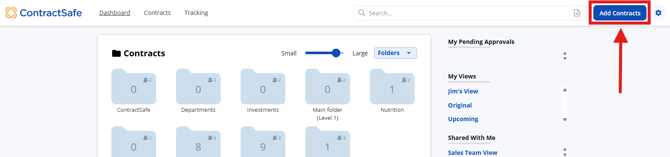
- Log in and click Add Contracts at the top of any page.
- From the Choose Folder dropdown, select the folder where the contract will be stored.
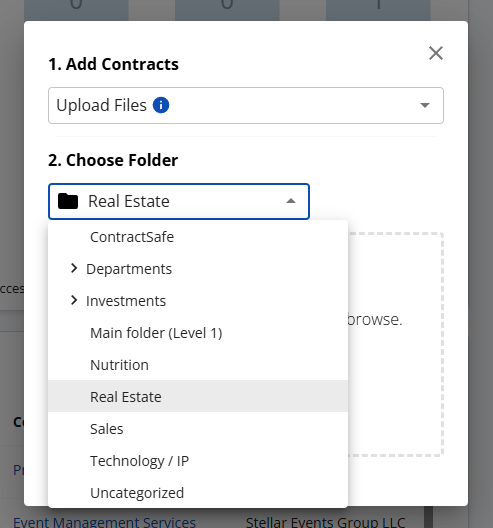
- Select the file from your computer, or drag and drop it into the upload area.
Option B: Drag and Drop from Your Desktop
- From the Dashboard, make sure the Folders section is open (not Tags or Counterparties).
- Locate the contract file on your computer.
- Drag and drop it directly into the target folder in ContractSafe.
💡 Pro Tip: Drag and drop is the fastest method if you're uploading a handful of contracts at once and your folders are already set up. You can drag and drop 25 items at a time.
Note that if one of the many files you are trying to upload is unsupported, the whole upload will not proceed.
Option C: Email Contracts In (Our Favorite!)
- Find your account's unique Email In Address by clicking Upload Via Email in the Add Contracts pop-up, or by navigating to Email Settings.
- Forward any contract — or attachment from any email — to that address. It will automatically be uploaded to your account.
- Want it placed in a specific folder? Add Folder=___ (fill in the folder name) at the end of your email's subject line.
💡 Pro Tip: If your organization has a scanner that sends emails, add your ContractSafe email address to it and scan contracts directly into your account.
⚠️ File Size Note: Contracts sent via email are subject to email provider restrictions. If a file is larger than 7MB, it may not deliver successfully. For large files, use the Add Contracts button or drag and drop instead.
Option D: Upload Online Agreements
ContractSafe also supports the upload of online agreements. Use the upload flow and select the appropriate option when prompted.
Real-world benefit: Emailing contracts in means you can upload a fully executed agreement the moment it lands in your inbox — no logging in, no downloading, no uploading manually. Your team's contracts get into the system immediately.
For more details, see: How to Upload Contracts into ContractSafe
4. Finding Your Contracts
From the Contracts List
- Select Contracts from the top navigation. This is where all your contracts live.
- Newly uploaded contracts will appear at the top of the list, highlighted in bold.
- Click on any contract to open its detail page.
Using the Search Bar
- Use the search bar at the top right of any page for a fast, Google-like keyword search.
- ContractSafe searches across all metadata AND full contract text, including text in scanned documents (via OCR).
Real-world benefit: Imagine needing to find every contract that mentions "auto-renewal clause" before your fiscal year closes. With full-text search, you can surface all relevant documents in seconds — even if they are scanned PDFs uploaded years ago.
💡 Tip: If your search results look incomplete, check that you haven't left any active filters on the Contracts List. See: Remember to Remove Filters and Searches to See All Your Contracts
For more details, see: How to Search for a Specific Word or Phrase
5. Navigating the Contract Page
When you open a contract, you are taken to the Contract Page — the central hub for all information about that specific contract. The document itself is displayed in the Viewer on the right side of the page.
Editing Contract Information
On the Contract Page, you can view and edit all key details for your contract:
- Rename the contract: Click directly on the contract name at the top of the page to edit it inline.
- Change the folder: Use the Folder field in the contract details panel to select a different folder from the dropdown.
- Add key data: You can enter and edit fields such as Parties, Value, Account, Tags, Effective Date, Termination Date, and any custom fields your admin has configured.
💡 Note: If you do not see the folder or tag you need, your Account Administrator can add new options. Contact your admin or reach out to support@contractsafe.com.
What You Can Do from the Contract Page
|
Action |
Where to Find It |
|---|---|
|
Edit contract fields (Name, Dates, Value, etc.) |
Directly on the contract detail panel |
|
Set date reminders |
Next to any date field — select "Set reminder" |
|
Add attachments and related documents |
Attachments section on the contract page |
|
Send the contract via email |
Use the Send button (files up to 7MB) |
|
Download the contract |
Download button on the contract page |
|
Add notes |
Notes section on the contract page |
|
View the full audit trail |
Audit Trail tab on the contract page |
|
Sign a pending e-signature request |
Sign Now button (V4 only — see Section 11) |
Real-world benefit: Instead of having a contract buried in an email thread with no context, ContractSafe's Contract Page acts as a complete, always-accessible term sheet for every agreement your company manages. Anyone on your team can pull it up, see the value, parties, key dates, and history — without asking you.
6. Using the [AI]ssistant to Auto-Fill Contract Data
When you upload a new contract, ContractSafe's built-in [AI]ssistant will automatically analyze the document and suggest values for key fields such as:
- Contract Name
- Effective Date
- Termination Date
- Counterparty
- Contract Value
- Contract Type
- Governing Law
- And more
Reviewing AI Suggestions
- After uploading, you will be prompted to review the AI suggestions.
- You can Accept, Edit, or Reject each suggestion individually.
- Select Accept All to apply all suggestions at once and get set up in seconds.
💡 Pro Tip: For contracts with pending AI suggestions, you'll see a "Pending AI" indicator on the Contracts List — making it easy to see which contracts still need your review.
Real-world benefit: Manually entering data from every new contract is time-consuming and error-prone. The [AI]ssistant does the heavy lifting for you — extracting key dates and parties automatically so your team spends less time on data entry and more time on what matters.
For more details, see: What Data Does the [AI]ssistant Tool Search For?
7. Setting Dates and Reminders
One of ContractSafe's most powerful features is its date reminder system. Never be caught off guard by a contract renewal or termination again.
How to Set a Reminder
- On the Contract Page, locate any date field (e.g., Termination Date, Effective Date, or a custom date).
- Enter the date, then select "Set reminder" next to that field.
- Configure your reminder:
- How far in advance you want to be notified (e.g., 30, 60, or 90 days before)
- Whether the reminder should repeat at intervals
- Who receives the reminder — you can include internal teammates or external email addresses
- A custom message to include in the reminder email
💡 Tip: Contracts with active reminders display a green bell icon next to their name on the Contracts List — so you can quickly see at a glance which contracts are being tracked.
💡 Tip: Use the Upcoming View on the Dashboard or Contracts List to see all upcoming contract dates across your entire portfolio.
Real-world benefit: If you manage dozens of vendor contracts with staggered renewal windows, reminders ensure your team gets notified well before auto-renewal deadlines — giving you time to renegotiate, cancel, or renew on your terms.
For more details, see: Setting Date Reminders | How to Create Custom Dates and Add Reminders
8. Searching for Contracts
ContractSafe offers multiple powerful ways to find what you need.
Keyword Search
- Use the search bar at the top right of any page.
- Searches across all metadata AND the full text of your contracts, including OCR-scanned documents.
Advanced Search
- Use Boolean queries to narrow results by field type (contract text, counterparty, notes, etc.).
- Great for complex searches, like finding all NDAs with a specific counterparty signed after a certain date.
Smart Search (AI-Powered)
- Ask a question in plain English, such as: "Show me all vendor contracts expiring next quarter that have an auto-renewal clause."
- Smart Search interprets your query and applies the right filters automatically.
- Enable Smart Search via Settings > AI and Workflow Options.
⚠️ Keep in mind: Search may not work on some documents if they are image-only PDFs without embedded text. ContractSafe uses OCR to process scanned documents, but handwritten documents or very low-quality scans may have limited searchability.
Real-world benefit: Whether you're doing a compliance audit, due diligence review, or just trying to find a specific clause, ContractSafe's layered search makes it possible to find exactly what you need — without scrolling through hundreds of files.
For more details, see: Advanced Search | Smart Search | How to Search Inside a Document
9. Customizing Your Contract List with Saved Views
Saved Views let you customize which columns appear on your Contracts List — and save those preferences for quick access anytime.
Creating a Saved View
- Navigate to the Contracts List page.
- Select the Actions button in the upper right corner.
- Choose which columns to display from the available list.
- Default columns include: Folder, Name, Value, Counterparty, Effective Date, and Termination Date.
- Columns can be added, removed, and reordered to match your priorities.
- Save the view with a name that makes sense to your workflow (e.g., "Expiring This Quarter" or "IT Vendor Contracts").
💡 Pro Tip: You can create multiple Saved Views for different use cases. Toggle between them on the Contracts List to instantly switch your focus — for example, from a high-level executive summary view to a detailed legal review view.
Real-world benefit: If your team reviews contracts in different contexts — procurement tracking one set of fields, legal tracking another — Saved Views let everyone customize their workspace without affecting anyone else's.
For more details, see: The Contracts List: A Complete Feature Overview
10. Creating Reports
ContractSafe makes it easy to generate and share reports directly from your contract data.
How to Run a Report
- Navigate to the Contracts List.
- Apply any filters or use a Saved View to scope the data you want.
- Select the Actions button and choose Download Report or Email Report.
- Reports can be downloaded as a spreadsheet or emailed directly to any recipient.
Scheduled Reports
You can also set up Scheduled Reports to automatically deliver a report to your inbox (or a colleague's) on a recurring basis.
- On the Contracts List, configure the view you want to report on.
- Select Actions > Create Scheduled Report.
- Set the frequency (daily, weekly, monthly) and the recipient email address(es).
Real-world benefit: A CFO who needs a monthly report of all contracts over $100K expiring in the next 90 days no longer needs to ask the legal team to pull this manually. Set it up once and the report arrives automatically.
For more details, see: How Do I Create a Scheduled Report?
11. Signing E-Signature Requests In-Platform
(Available on the New Contract Page — V4)
As of March 2026, ContractSafe users can sign pending e-signature requests directly within the platform — without ever leaving your account or searching through your email inbox.
How to Sign a Contract In-Platform
- Open the contract that has a pending e-signature request.
- Look for the Sign Now button on the Contract Page.
- Click Sign Now to complete your signature directly within ContractSafe.
Important Notes
- The Sign Now button is only available on the New Contract Page (V4). If you are using the legacy view, you will need to use the email link to sign.
- The Sign Now button only works for e-signature requests created after March 5, 2026. Older pending requests will show the button, but clicking it will result in an error. For those, please use the signature link in your original email notification.
Real-world benefit: In time-sensitive deals, the last thing you want is to lose a signature because someone couldn't find the email link. With in-platform signing, the "Sign Now" button is waiting on the contract page itself — making it faster and easier to close agreements.
For more details, see: Using eSign in ContractSafe
12. Getting More Help
You are never on your own with ContractSafe. Here are your support options:
In-App Help
Click the blue question mark (?) icon at the bottom right of any page to access:
- The Help Center
- Live chat with our Support Team
- Contact information for your dedicated Customer Success Manager (CSM)
Live Training Webinars
ContractSafe offers free live training sessions for all users:
- ContractSafe 101 for All Users — A 35–40 minute interactive session covering all core features, tips, and best practices. Held every Wednesday at 10:00 a.m. Pacific Time.
One-on-One with Your CSM
Your ContractSafe subscription includes a dedicated Customer Success Manager who can provide personalized guidance, best practice consulting, and focused training.
- Log into your account, click the blue question mark icon, and look for "Contact your CSM" to find their booking link.
- Alternatively, email support@contractsafe.com and our team will connect you.
That's it — you're ready to go!
You now have everything you need to upload contracts, keep track of key dates, search your repository, and collaborate with your team. And with automated reminders, you will never be surprised by a contract renewal or expiration again.
If you need further assistance, please reach out to support@contractsafe.com — we're always happy to help.
Related Articles
- Quick Start Guide for Admins
- Quick Start Guide: Read-Only Users
- A High Level Introduction to ContractSafe's Layout — The 4 Layers
- How to Upload Contracts into ContractSafe
- Setting Date Reminders
- The Contracts List: A Complete Feature Overview
- Using eSign in ContractSafe
- What Training is Available for ContractSafe Users?